Built-in report editing


|
Built-in report editing |
|
|
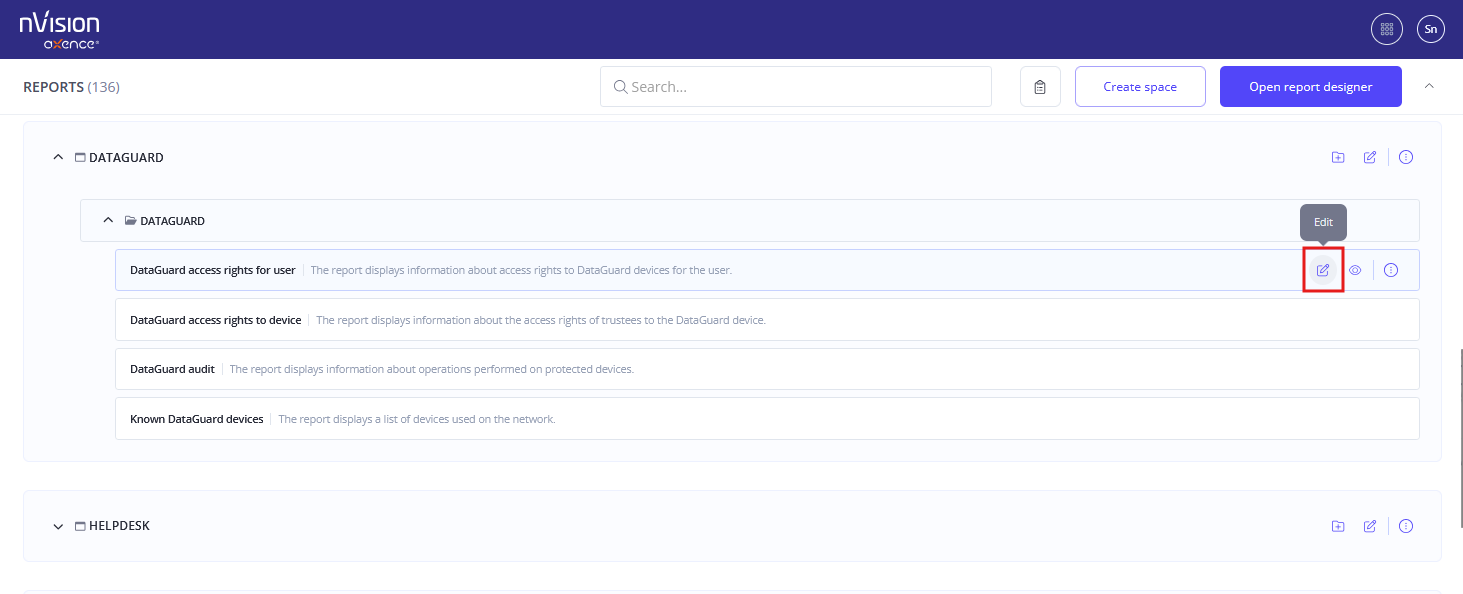
You can modify any report. To edit a report, in the list of reports, click on Edit in the row of the report.
You can save the changed report as a new one – the existing report then remains unchanged. If you save the changes in the existing report, the new version replaces the old one.
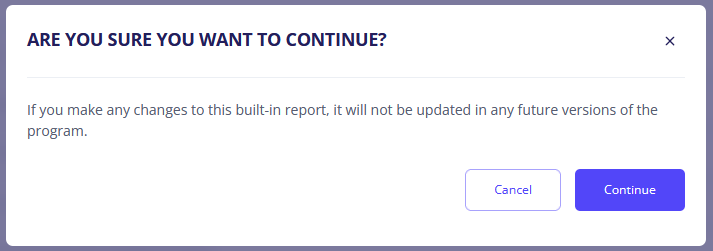
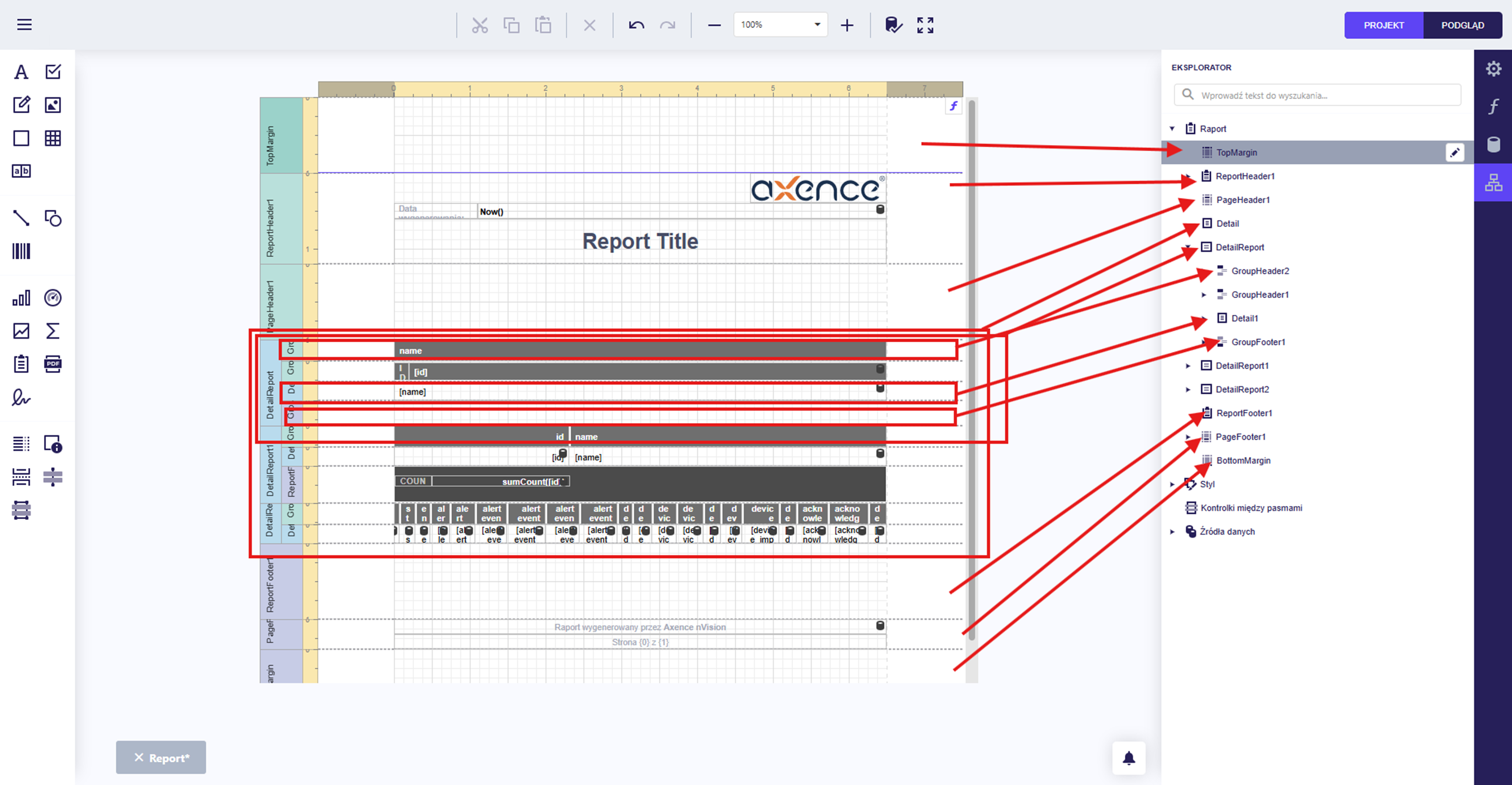
Important! A built-in report saved after changes under the same name will not be updated in later versions of Axence nVision®. It is safer to save changed reports as new ones. You can restore the original version of an overwritten report at any time – see Restoration of built-in reports. Report structure A report consists of the parts shown in the table.
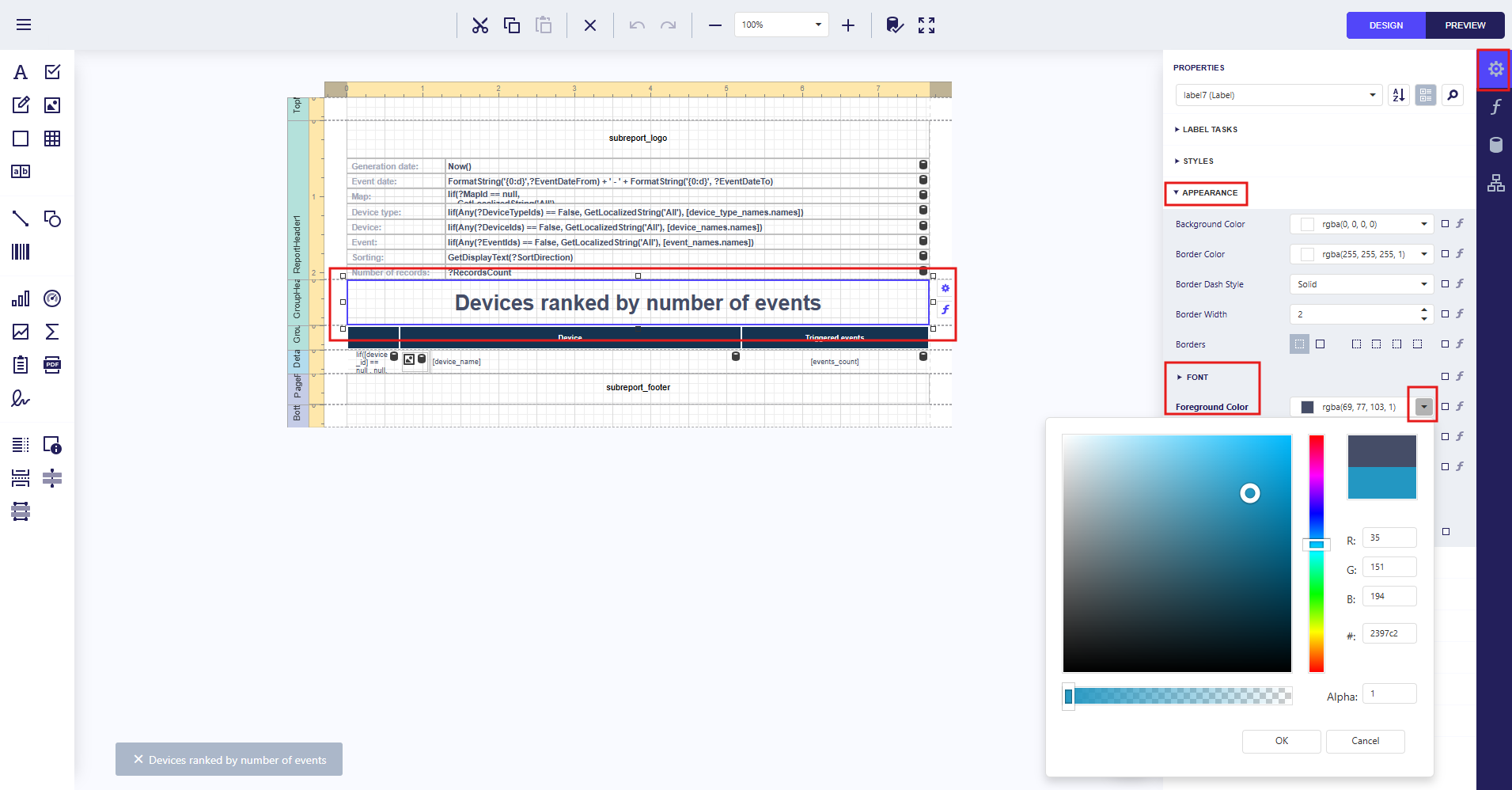
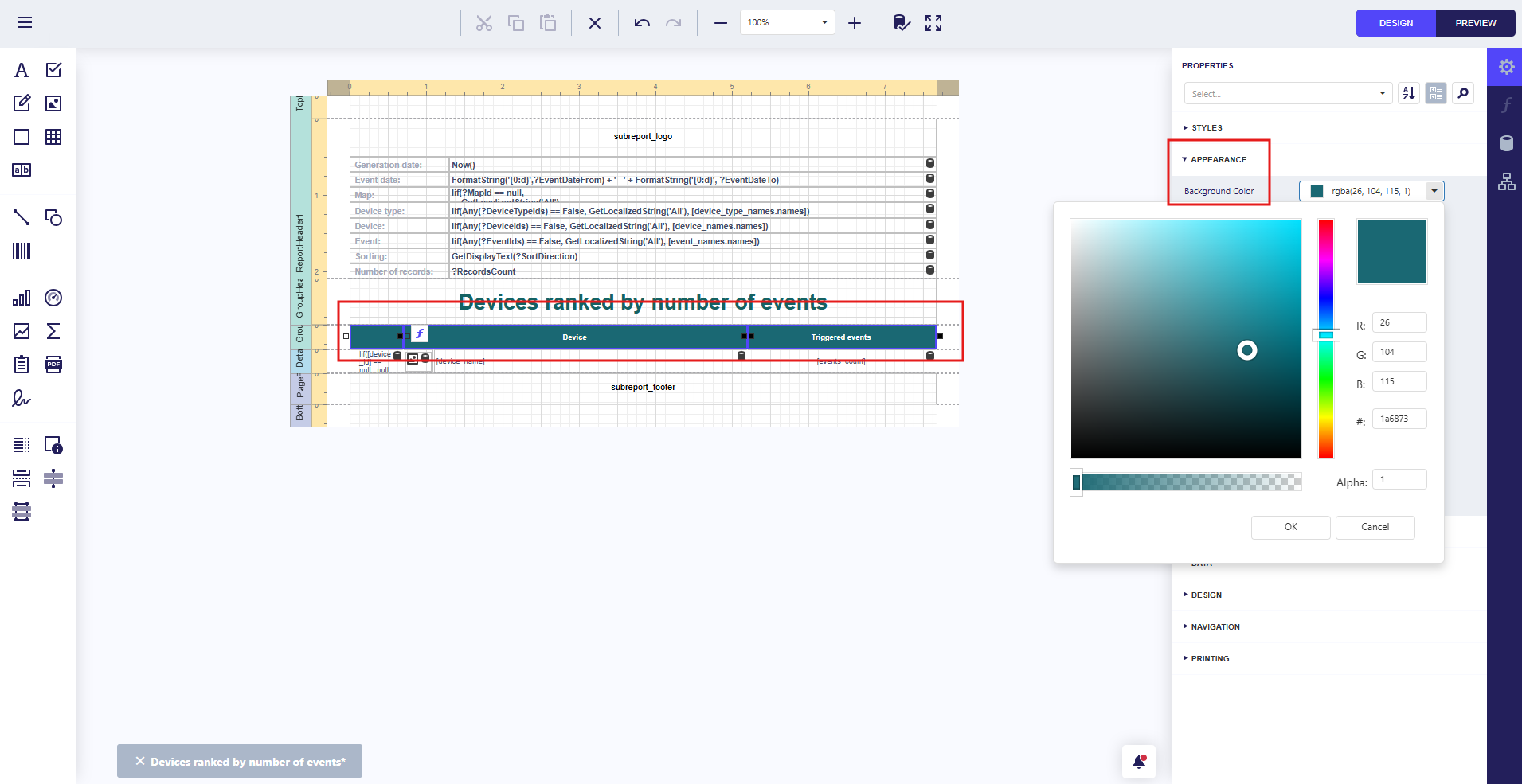
You can edit each part of the report: change its size, font, background color, layout, etc. Changing the appearance of a report Select the element you want to change and, in the pane on the right, on the Settings tab, select the Appearance section. For example: •You change the color of the report title in the Appearance > Font section by setting the foreground color
•You change the color of the table headers in the Appearance section by setting the background color
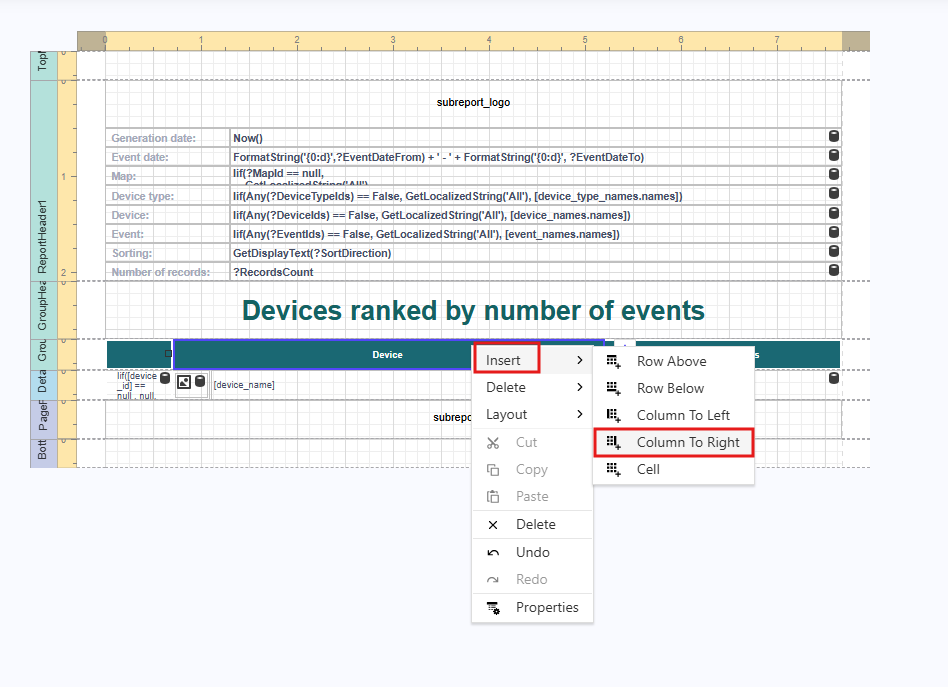
Adding a column To add a column to the report table: 1.Select the column next to which you want to add a new one. 2.Right-click on it and select Insert > Column to the right from the context menu.
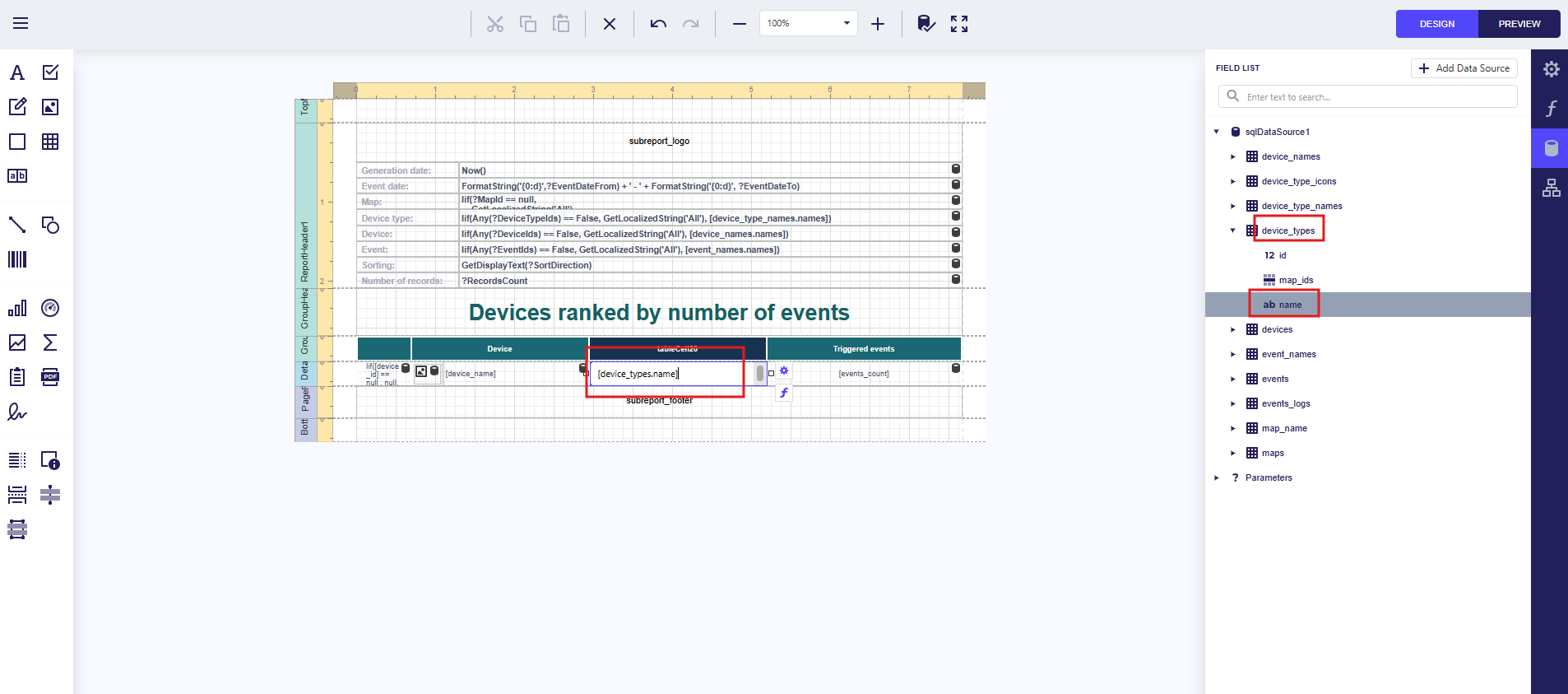
3.Select a cell of the new column. Using the data structure on the Data tab in the pane on the right, enter the data to display in square brackets, in the format [table_name.column_name].
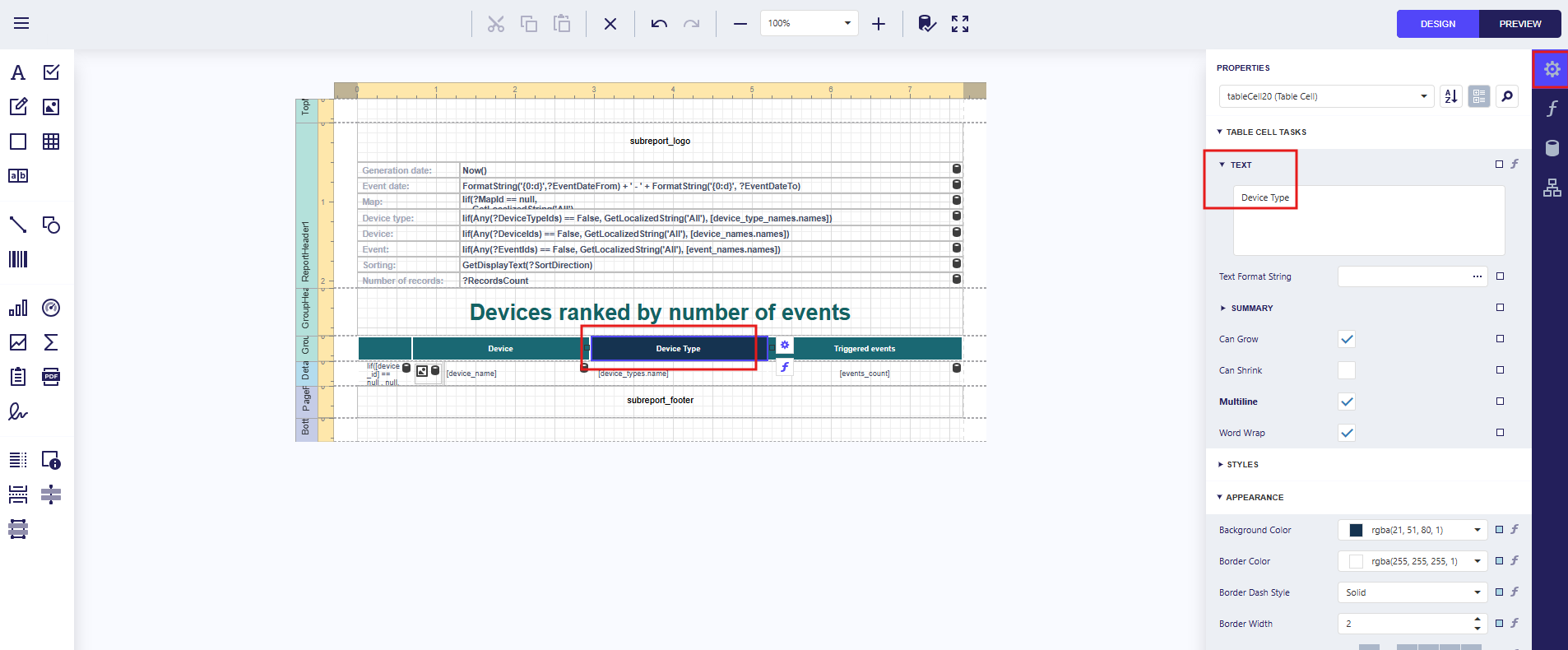
4.Select a cell in the table header and, in the pane on the right, on the Settings tab, in the Table cell > Text section, enter the name of the column.
Adding elements to a report The following topics describe step by step how to add new elements to a report. They form one whole – you can read them in order, and at the end of each topic there is a link to the next one: 1.Adding a parameter – a parameter with the minimum number of events in the Devices ranked by number of events report. 2.Adding a chart – a bar chart in the same report. 3.Adding a table of contents – a table of contents in the Details of assets report. 4.Adding a page header – a section with an image, text and fields to fill in, repeated on each page. |