Adding a page header


|
Adding a page header |
|
|
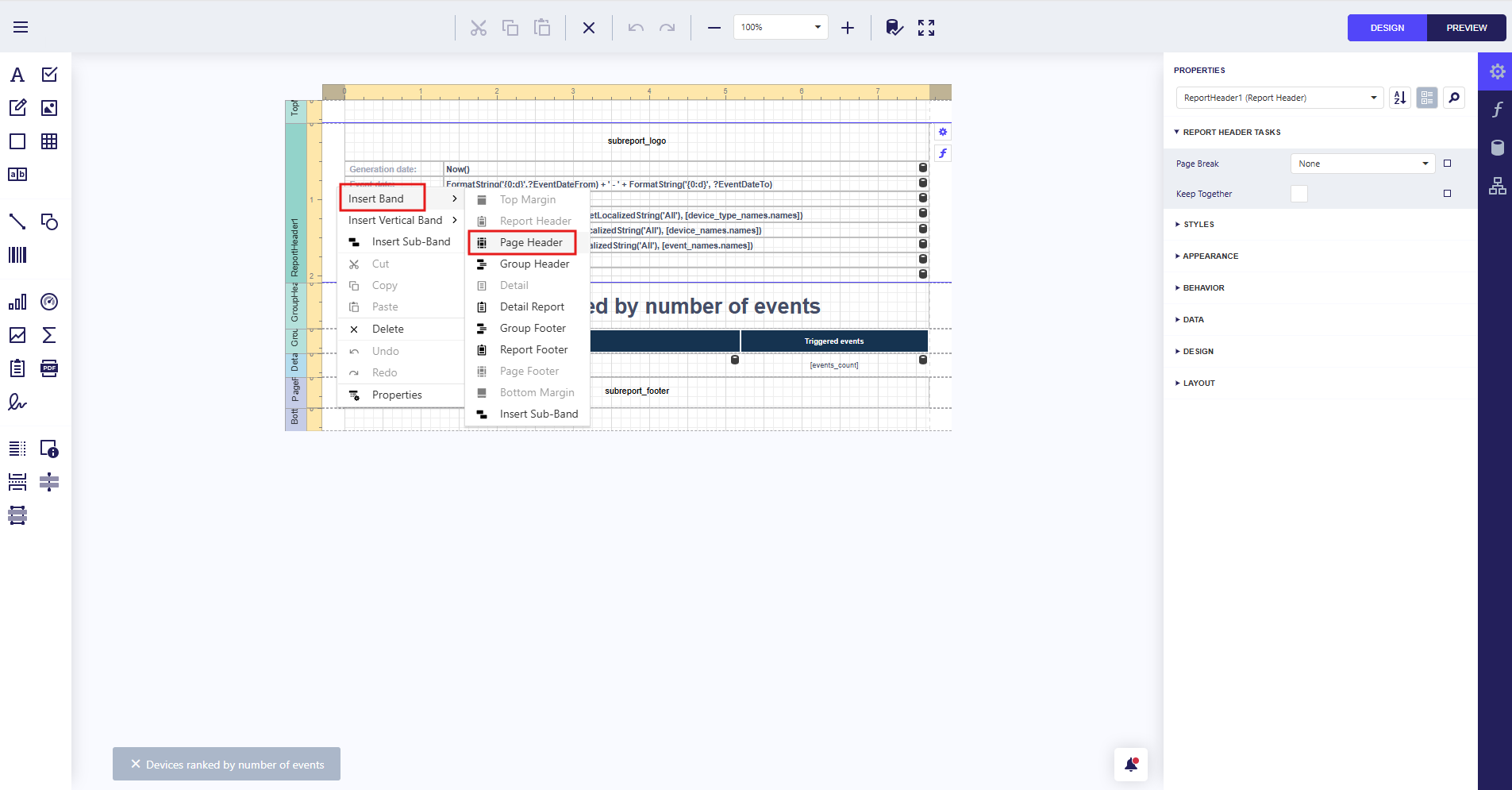
You will add to the report a section repeated on each page. The section is to contain an image, main and secondary text, and fields to be filled in manually, visible in the generated PDF file. 1.Right-click on any element of the report and select Select group > Page header from the context menu.
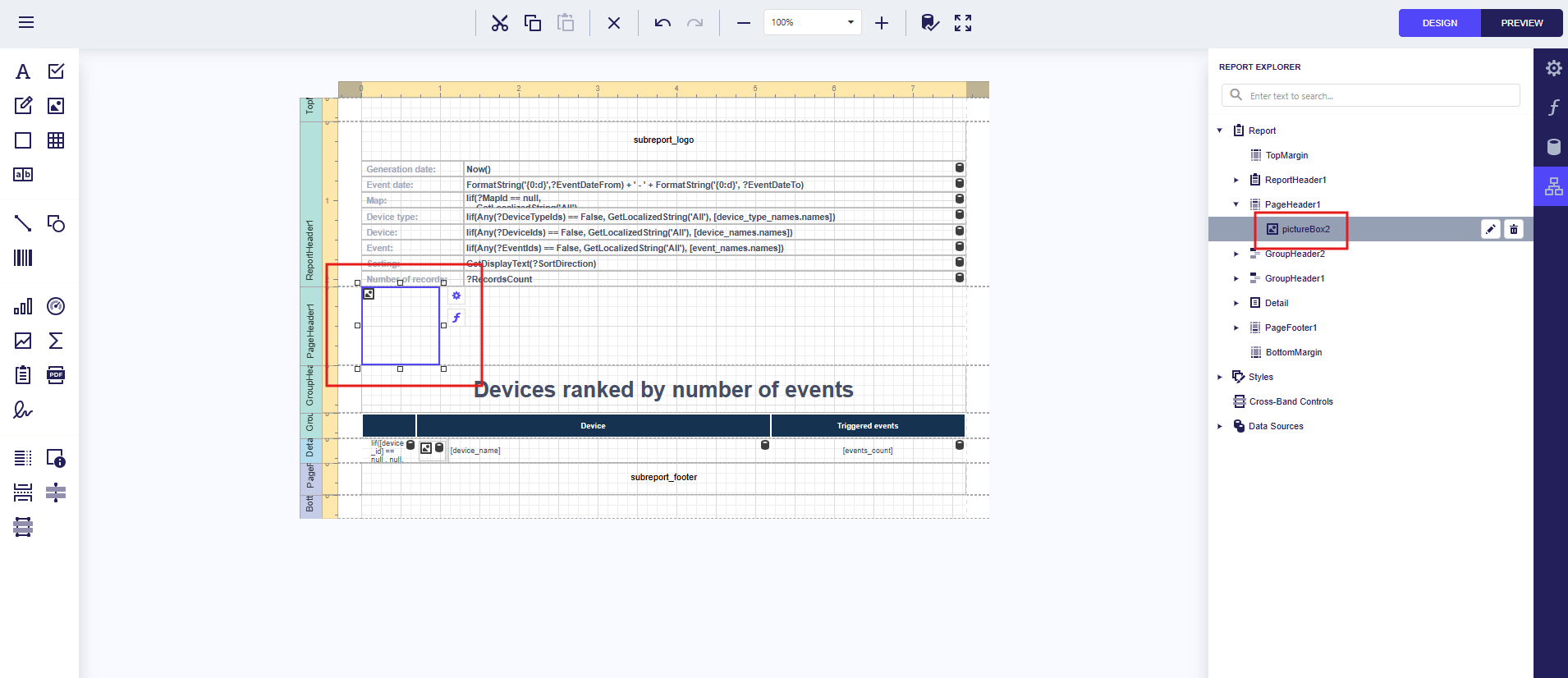
2.Drag the Image icon to the new area.
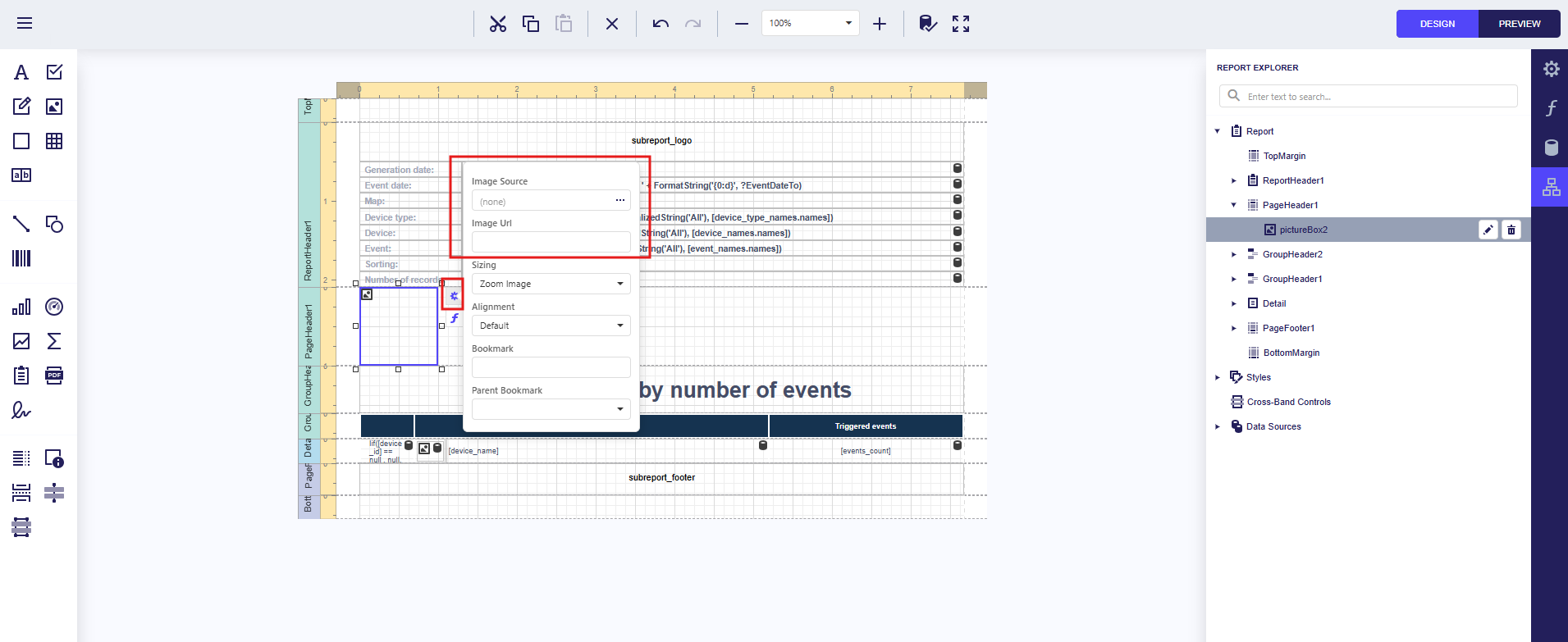
3.In the image field settings, select a file or enter its URL.
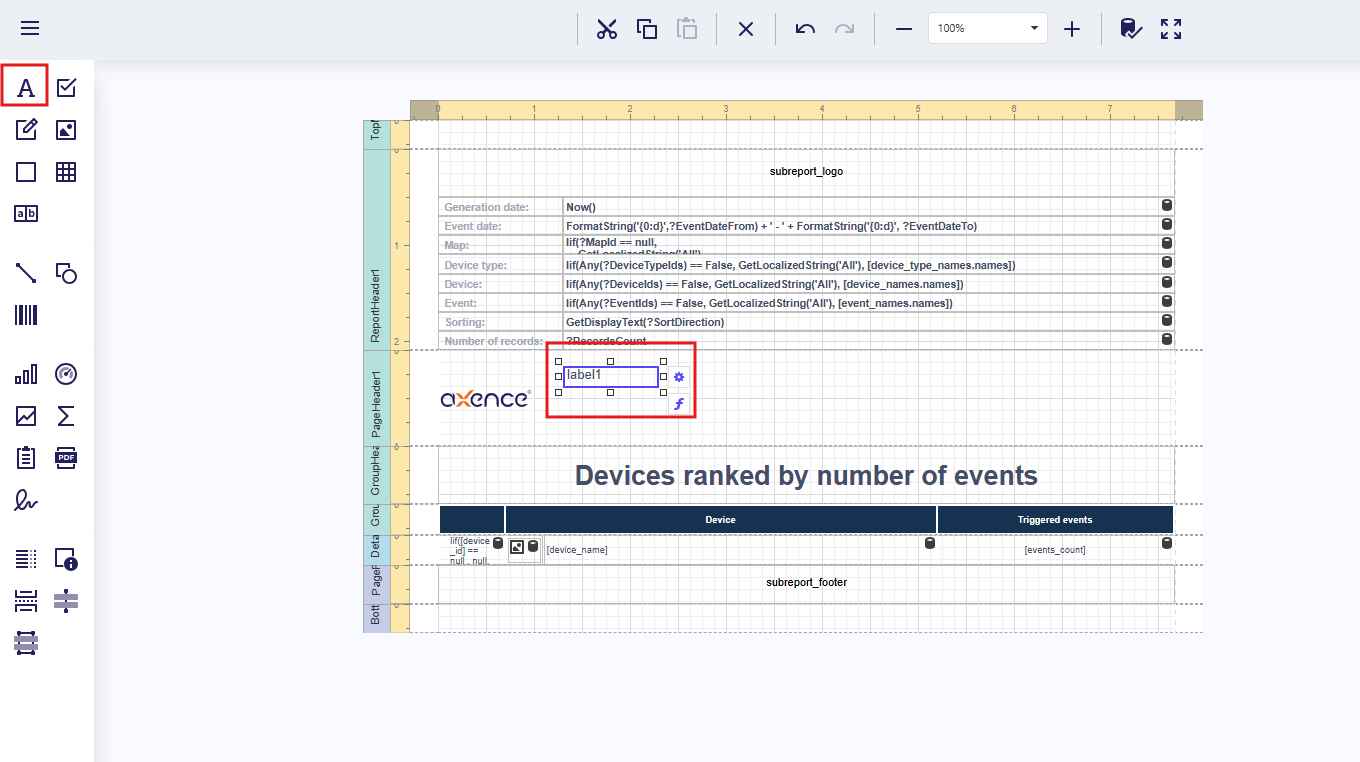
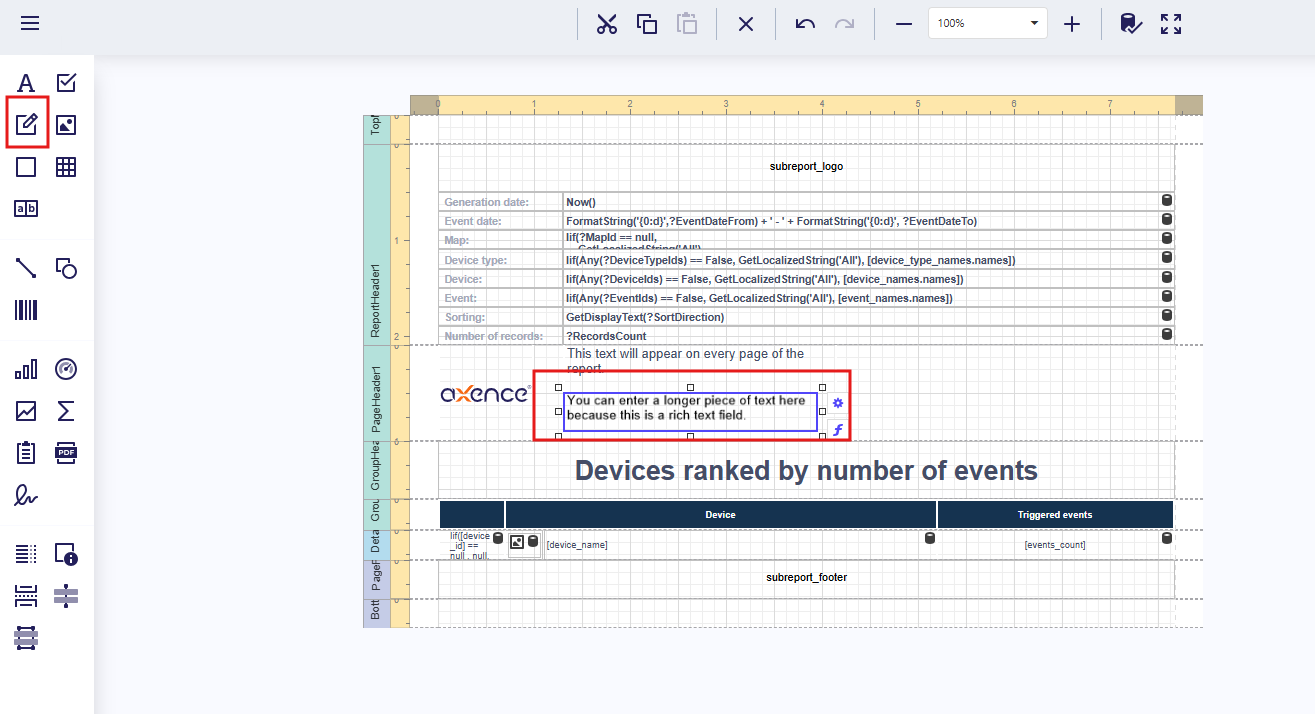
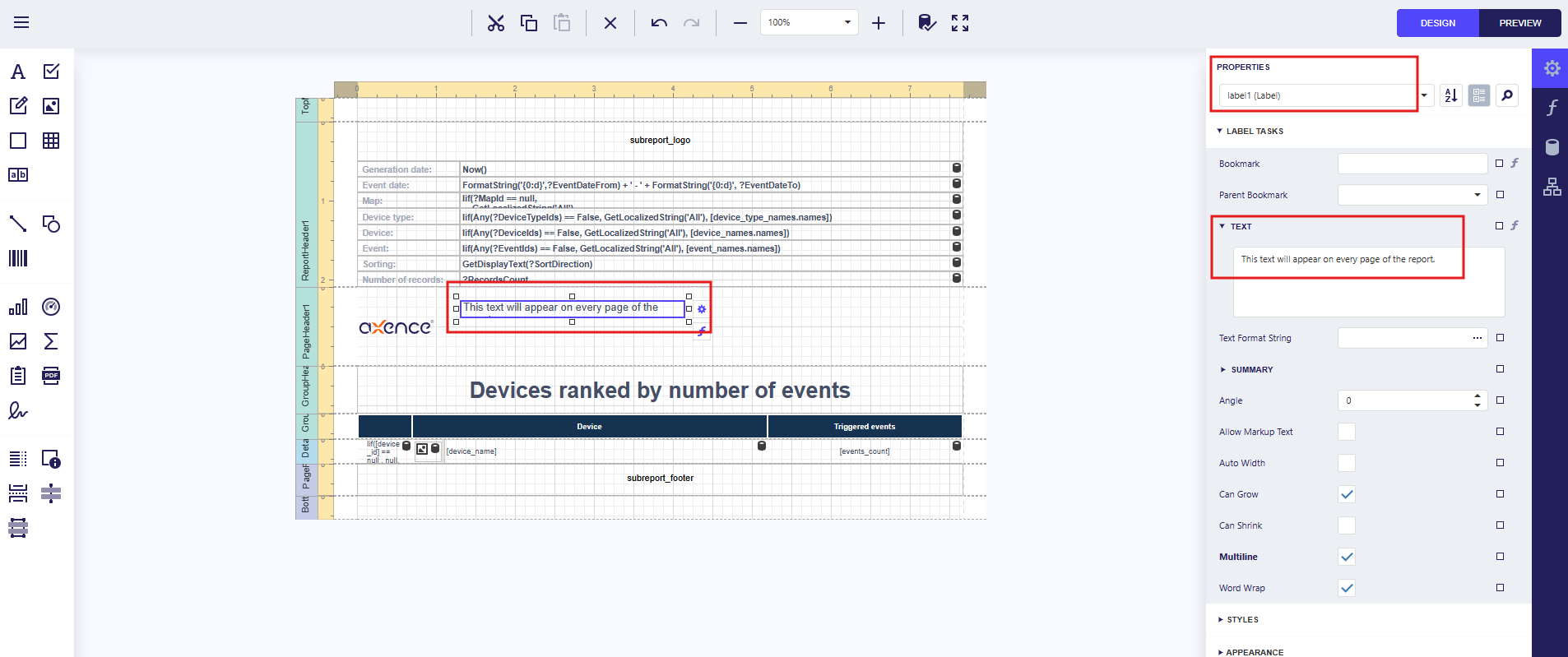
4.If necessary, adjust the size of the image. 5.Drag the Label icon to insert the main text, and the Rich Text icon to insert the secondary text. Adjust the texts and, if needed, add their language versions (see Language versions of reports).
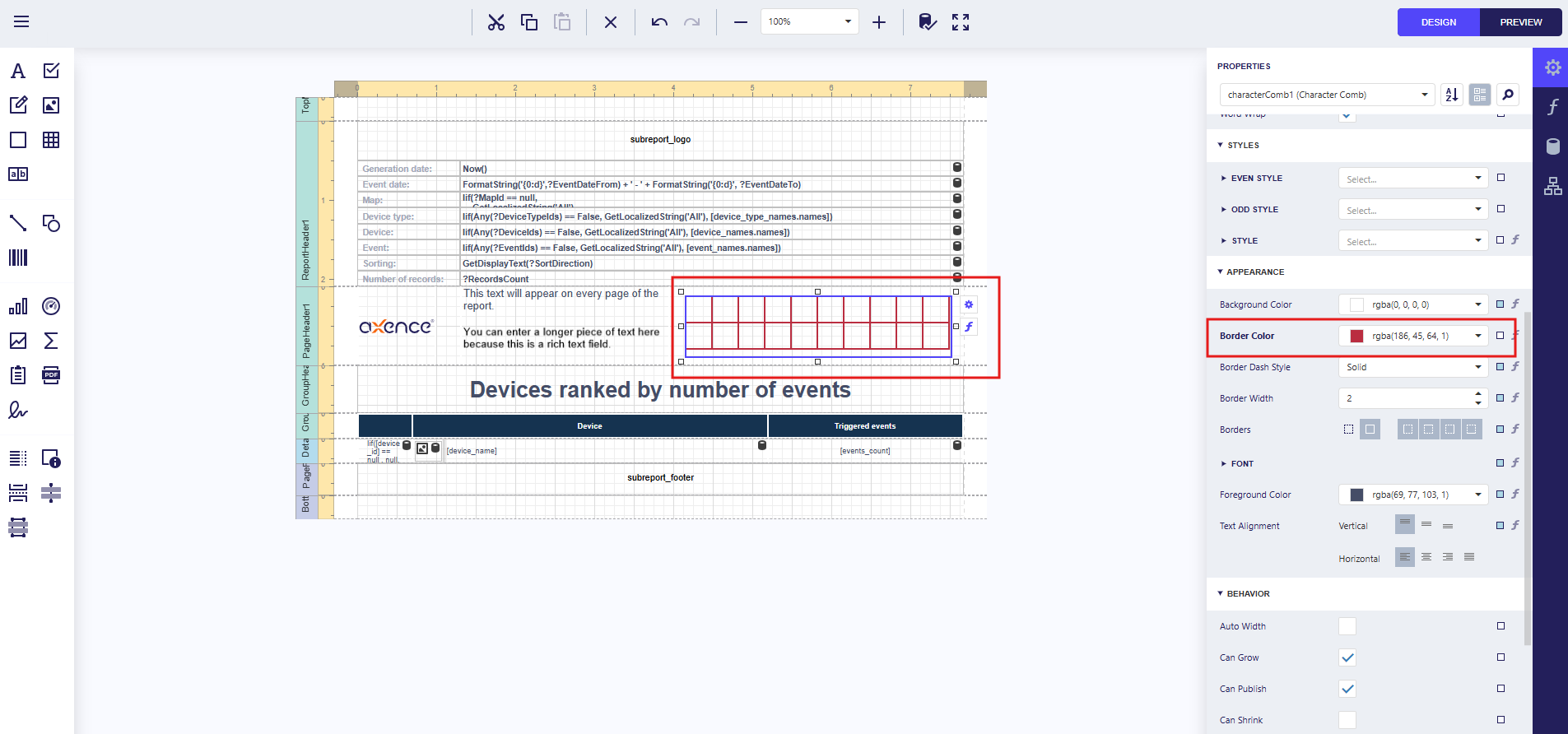
6.Drag the Character Join icon to insert a field with separate cells, and adjust its appearance.
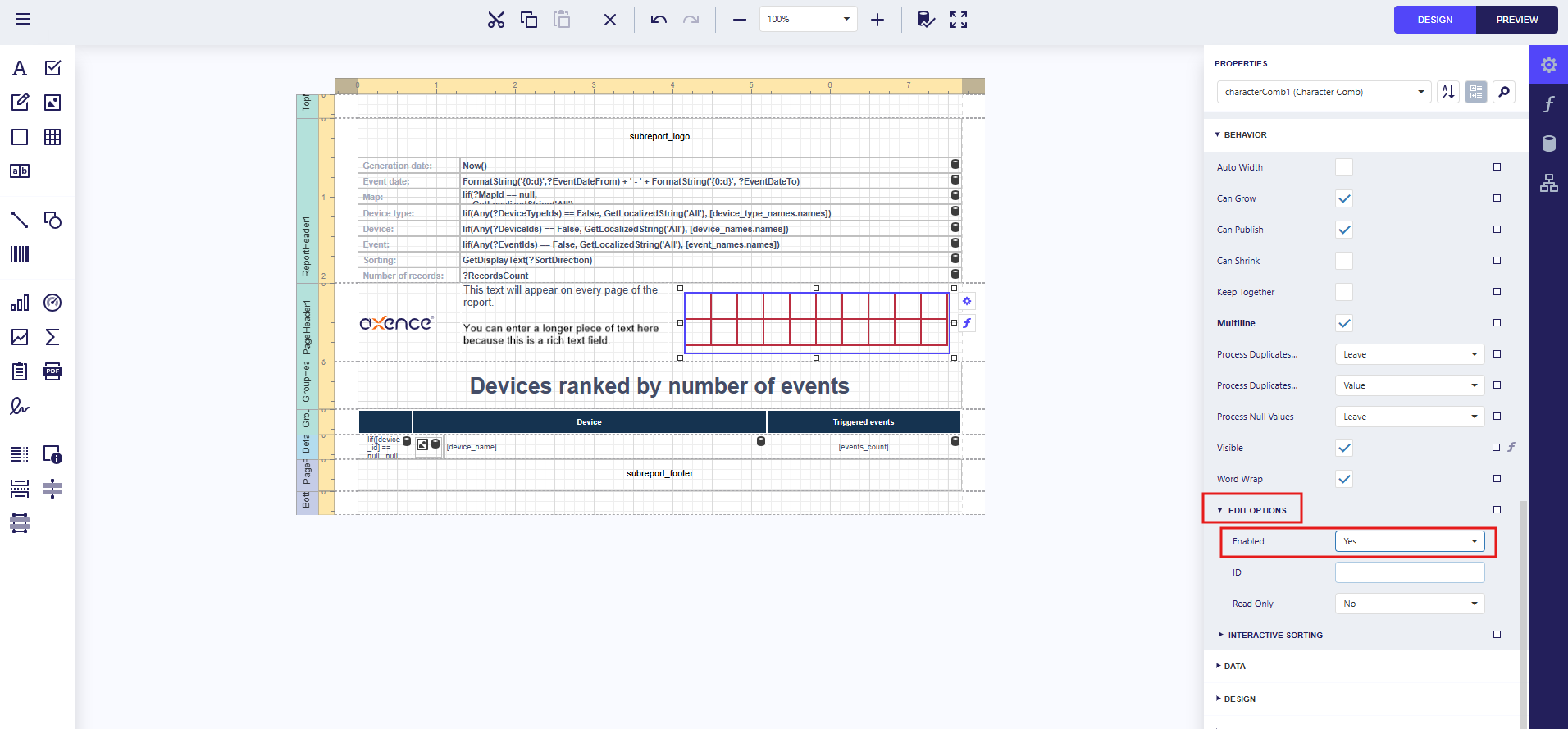
7.Turn on editing of the field so that you can fill it in in the report details.
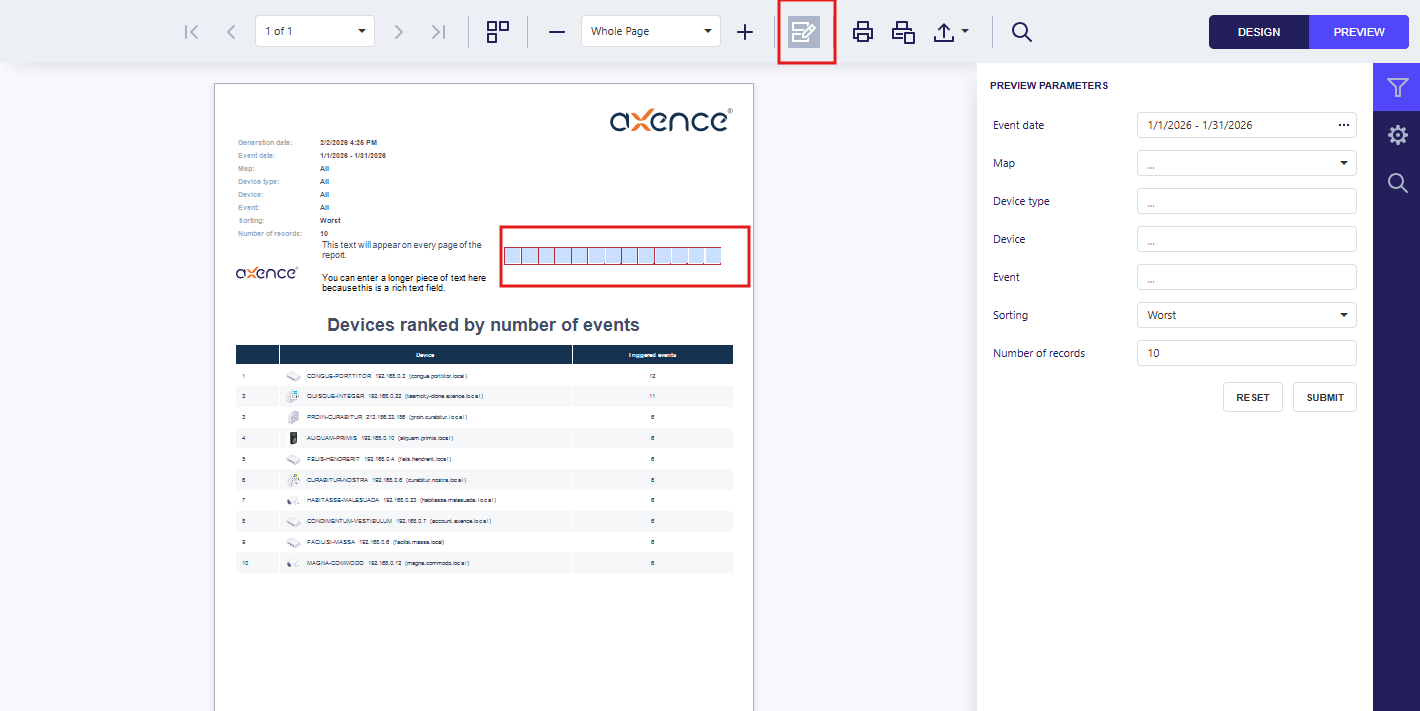
8.Go to Preview mode and, on the toolbar, click on Highlight editable fields – the added boxes are highlighted.
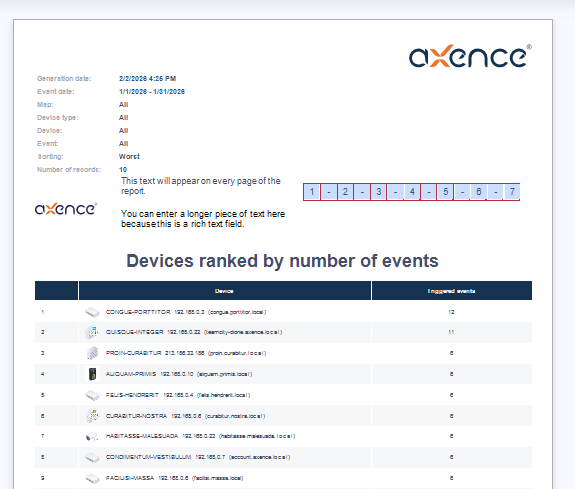
If you fill in an editable field on the first page, after you export the report to a PDF file, the data will be only on the first page, and the boxes on the following pages will be empty. Back to Built-in report editing. |