Adding a parameter


|
Adding a parameter |
|
|
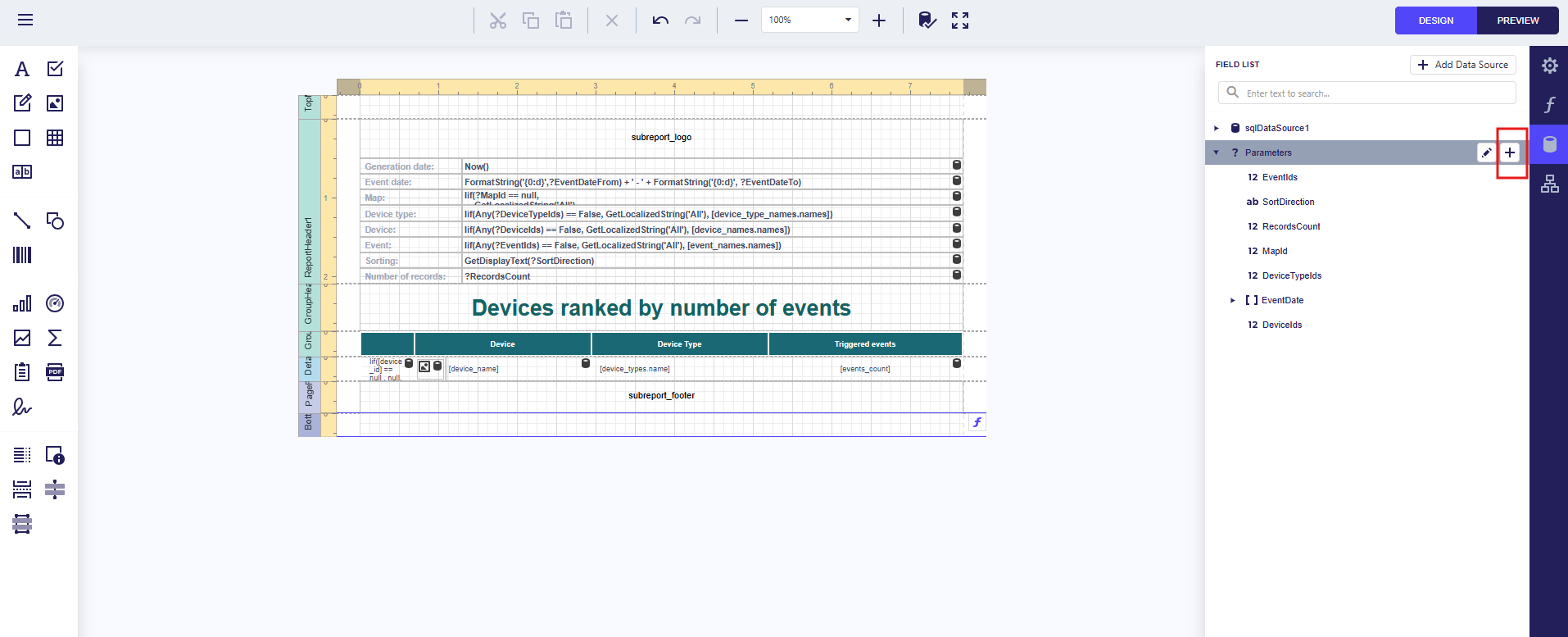
To the Devices ranked by number of events report, you will add a parameter with the minimum number of events that must occur on a device for the device to appear in the results. The types of parameters (report parameters and query parameters) are described in Report creation in the designer. 1.In the pane on the right, on the Data tab, in the Parameters section, open the form of a new report parameter.
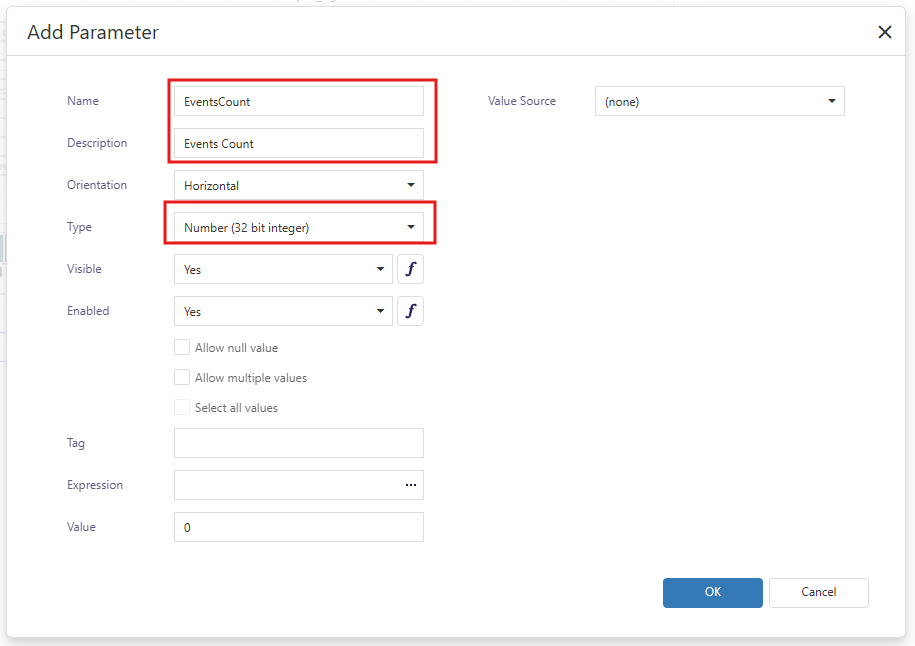
2.Fill in the form.
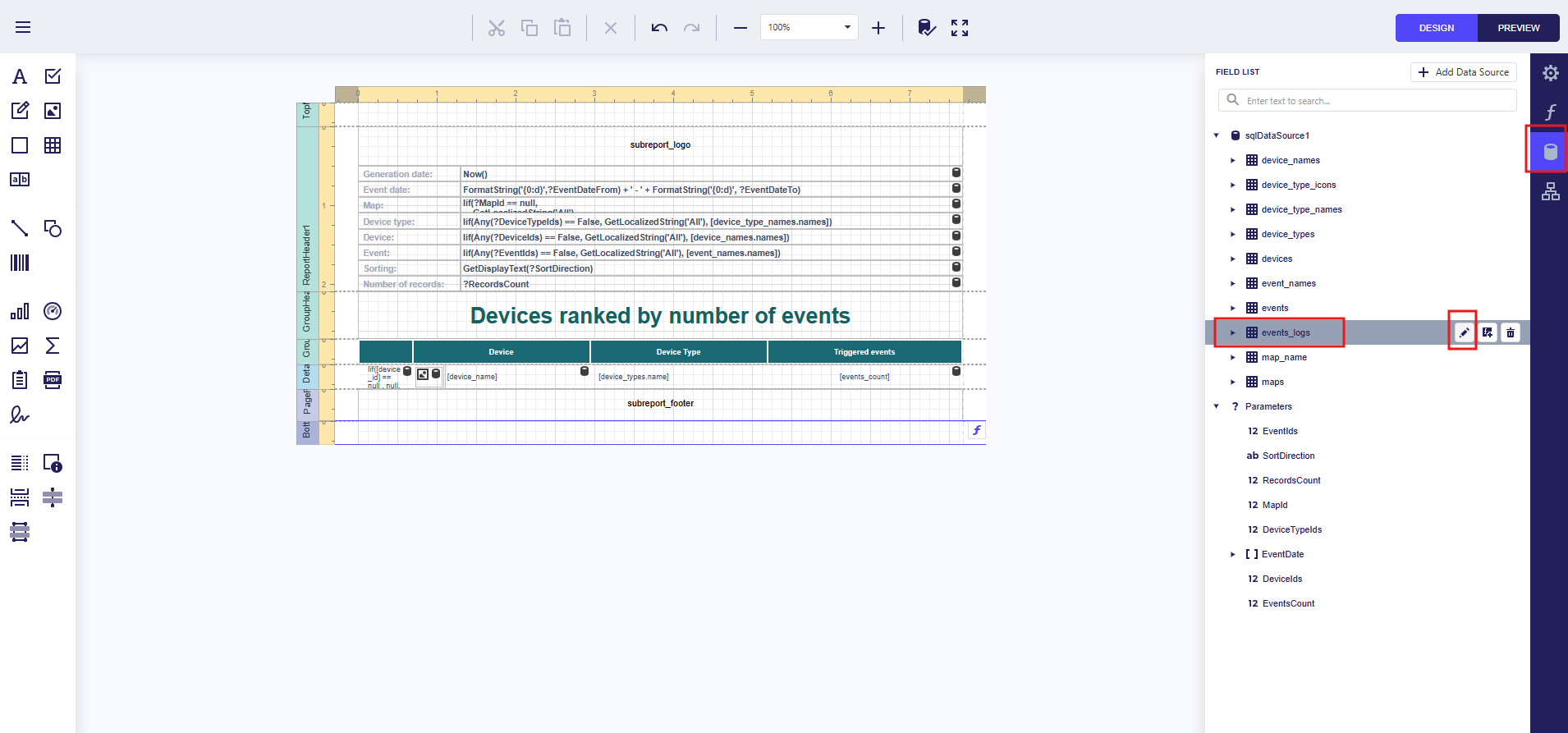
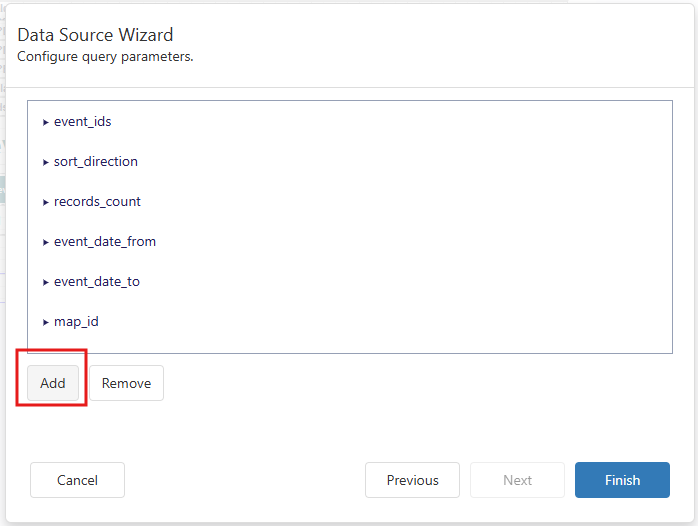
3.On the Data tab, in the data source section, select the events_logs table and open the Data Source Wizard window.
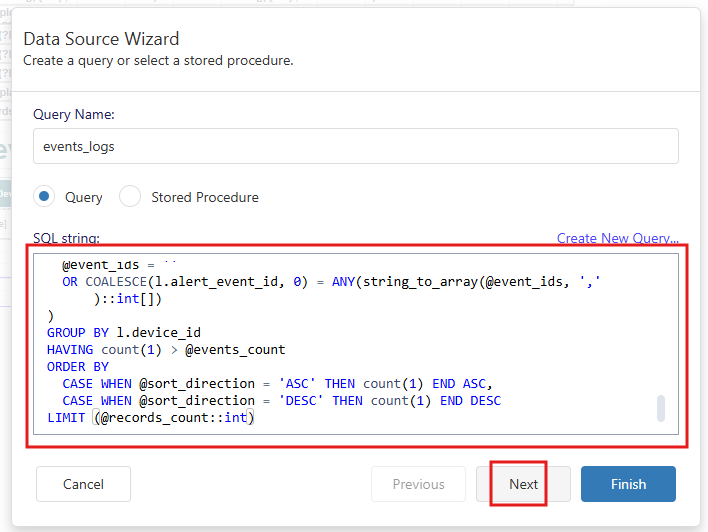
4.Write a new SQL query that uses the value of the query parameter:
5.Replace the existing query with the new one.
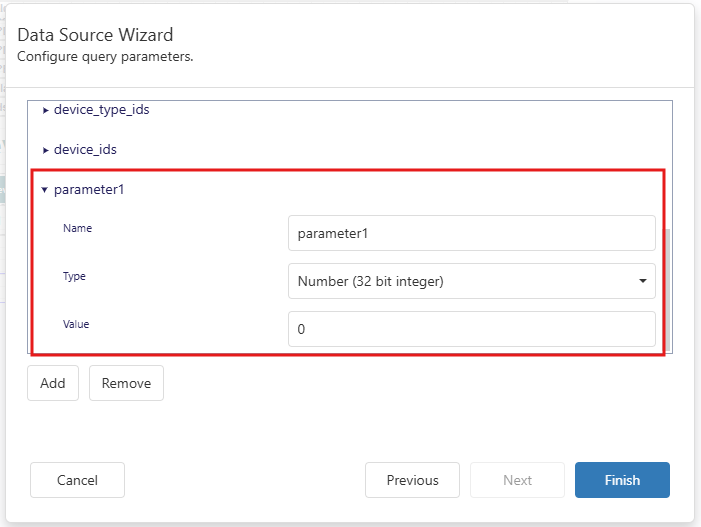
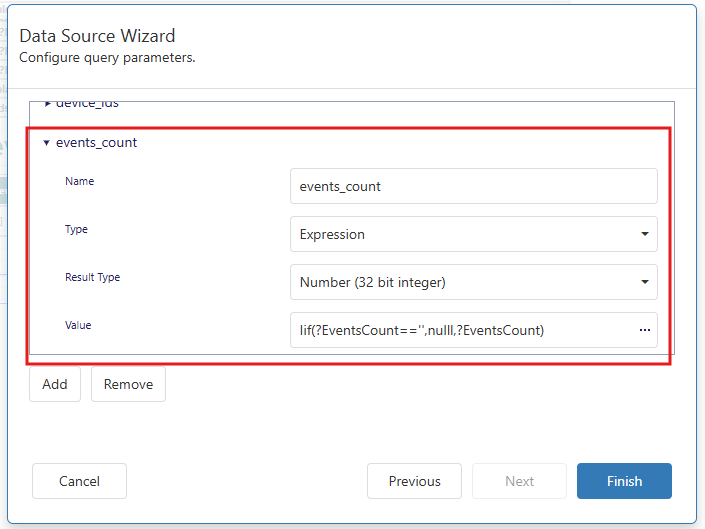
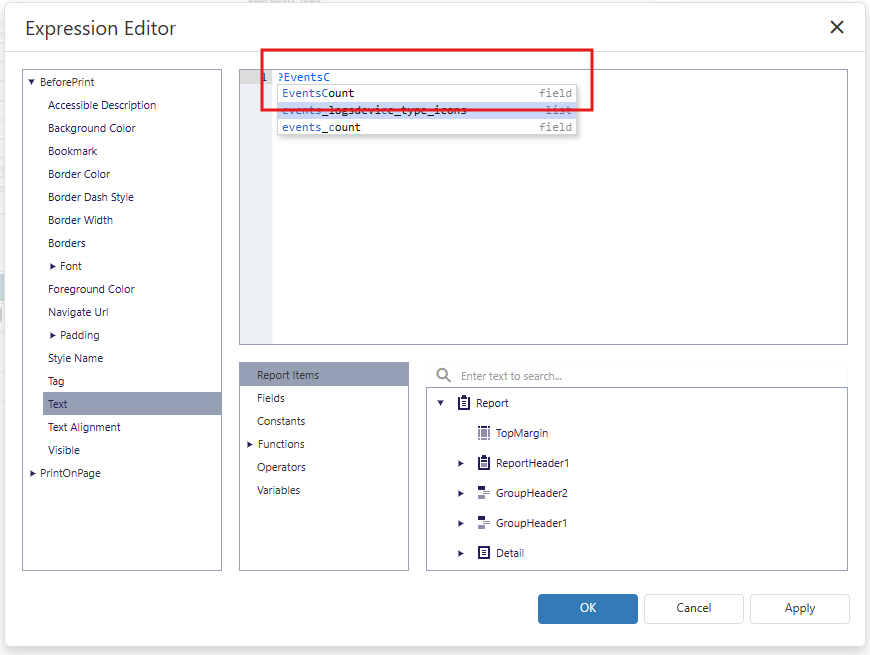
6.Add the query parameter used in the query. Its value is an expression that returns the number entered in the report parameter.
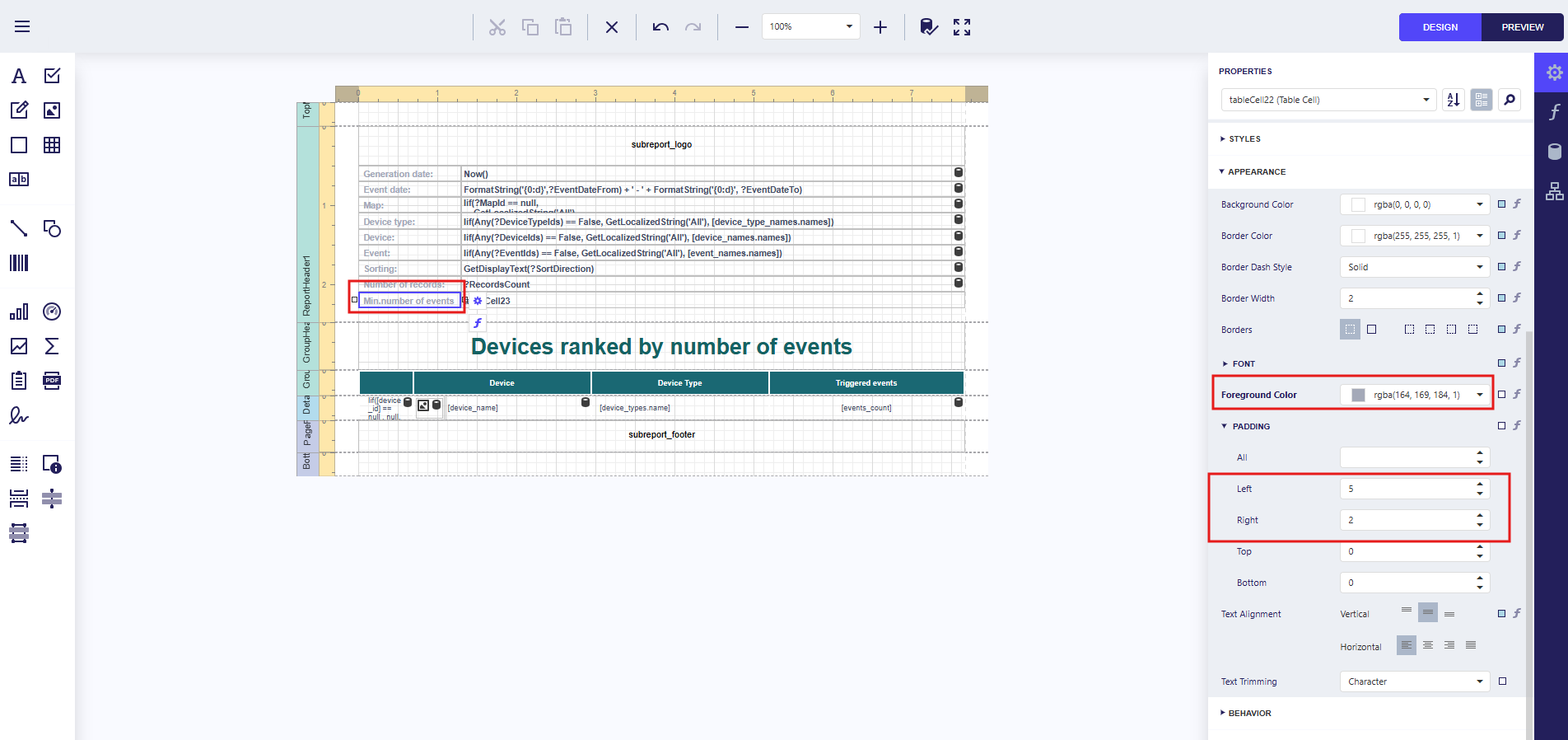
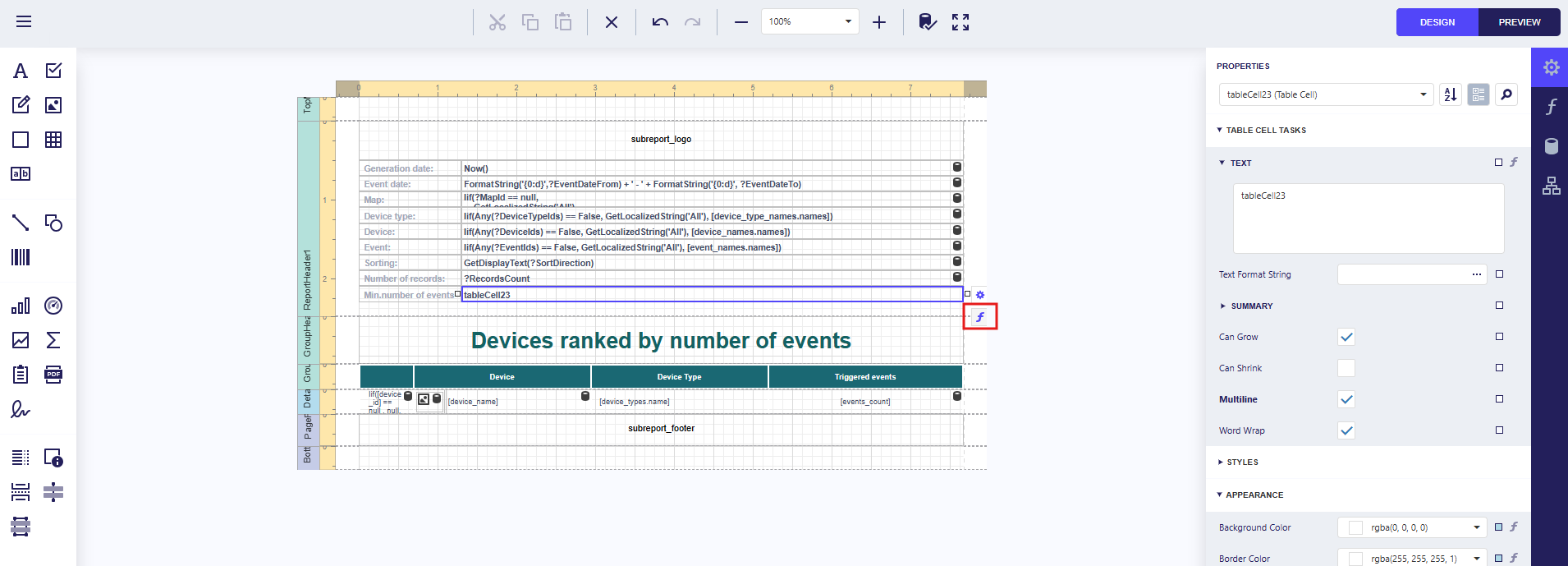
7.Add the parameter to the list in the report header and adjust its style.
8.Set the value of the parameter.
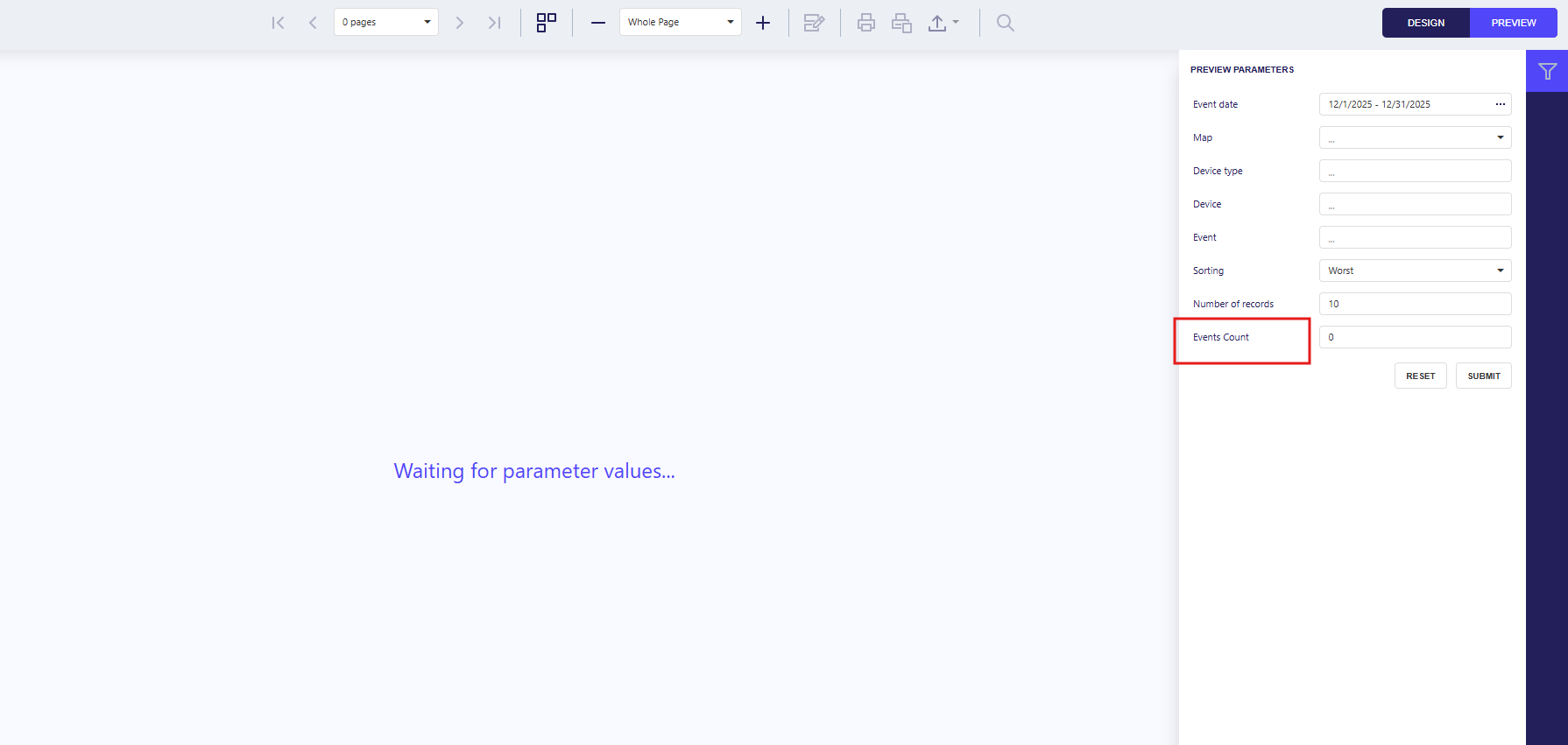
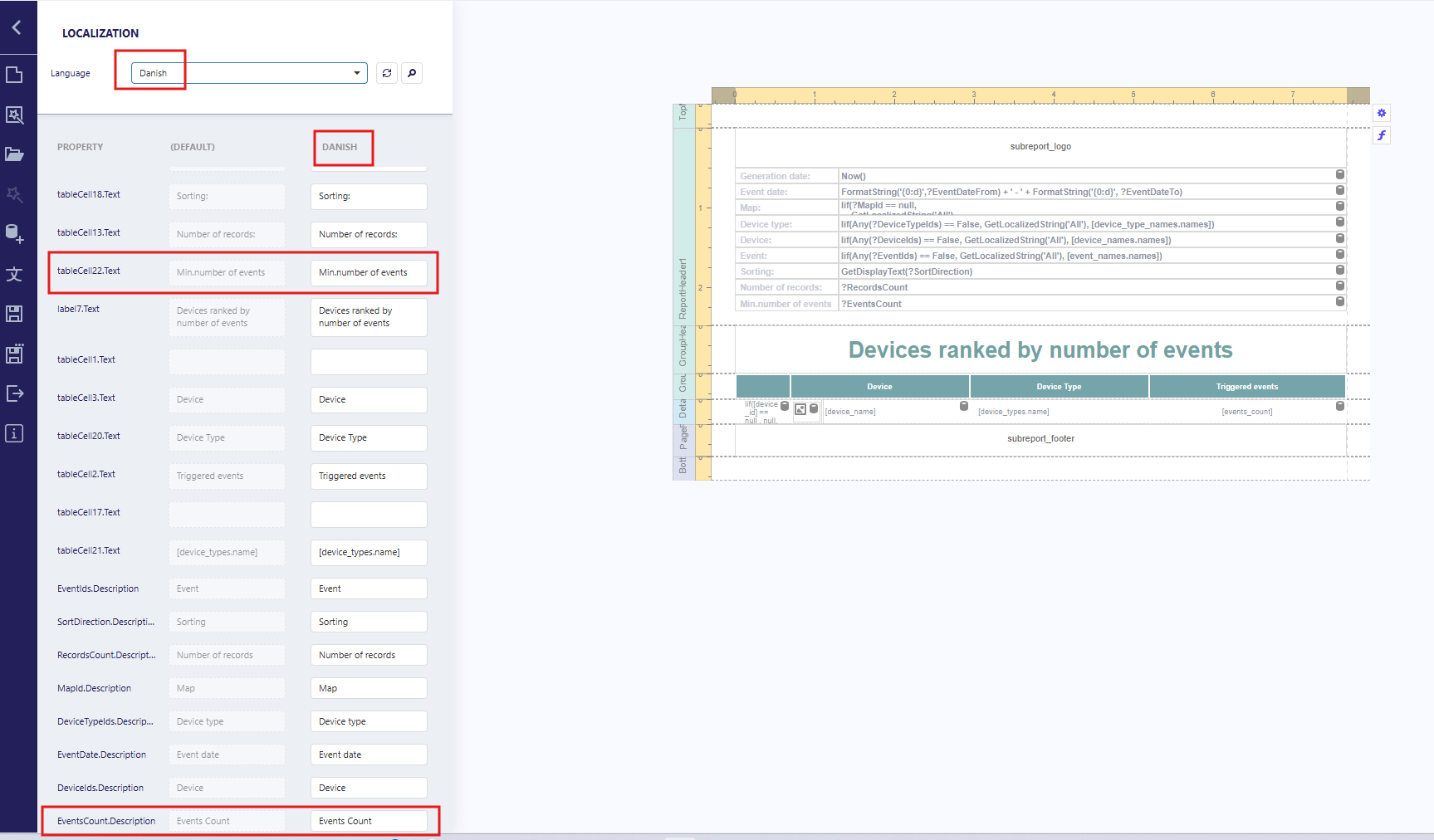
9.Check the report preview. The parameter label needs a translation – see Language versions of reports.
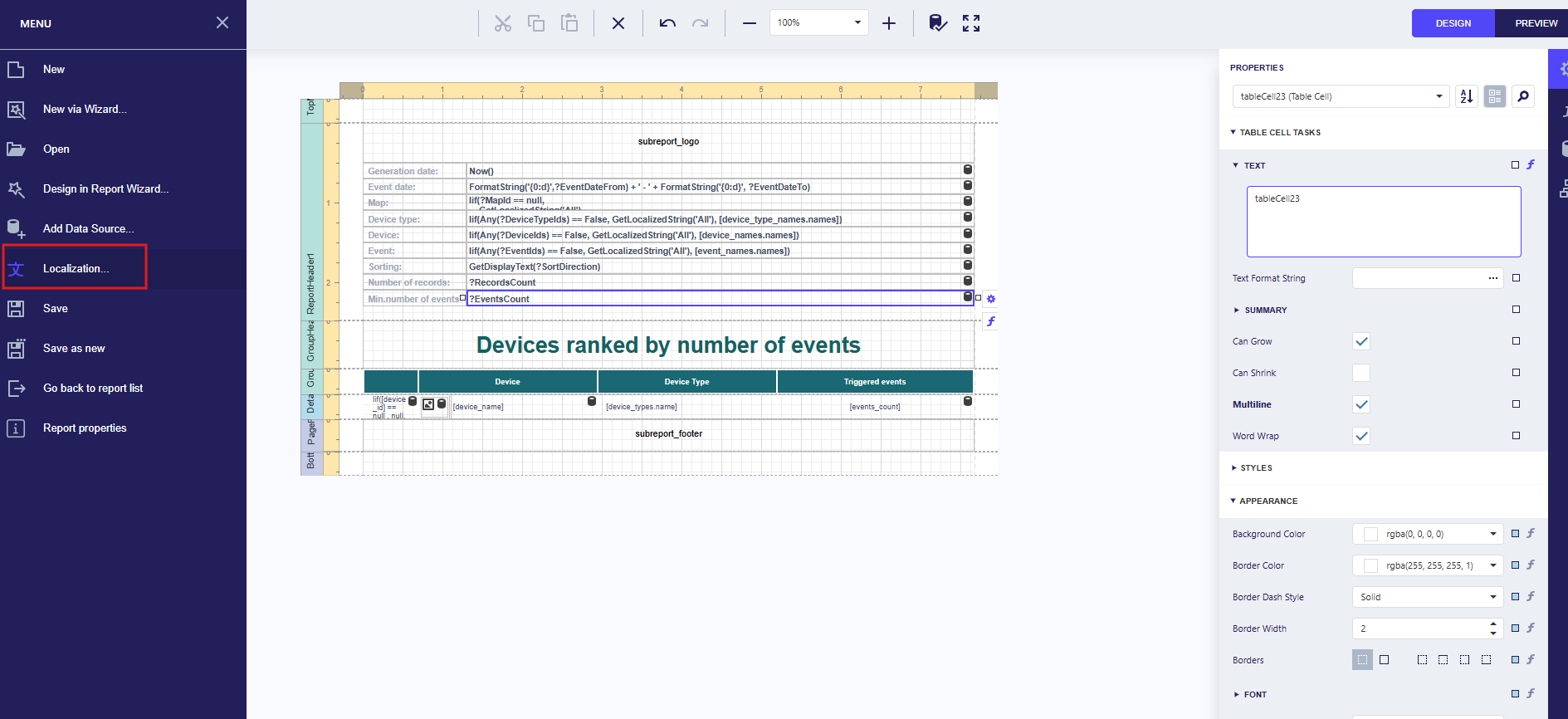
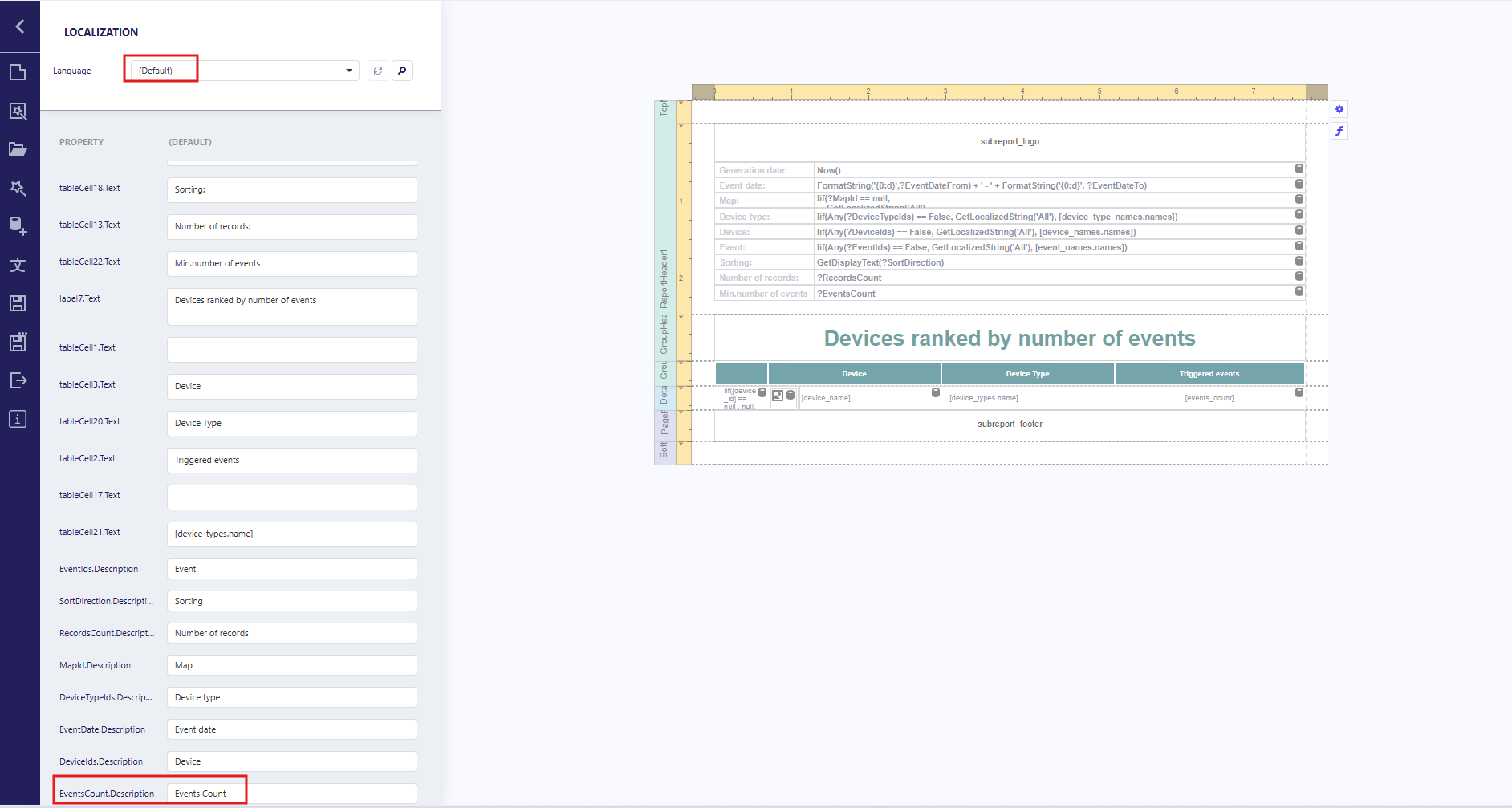
10.In the side menu, select the Localization section and set the language.
11.Fill in the label and the description of the parameter in this language.
12.Check the report preview again – the parameter works and is displayed correctly. Next: Adding a chart. |