Report creation in the designer


|
Report creation in the designer |
|
|
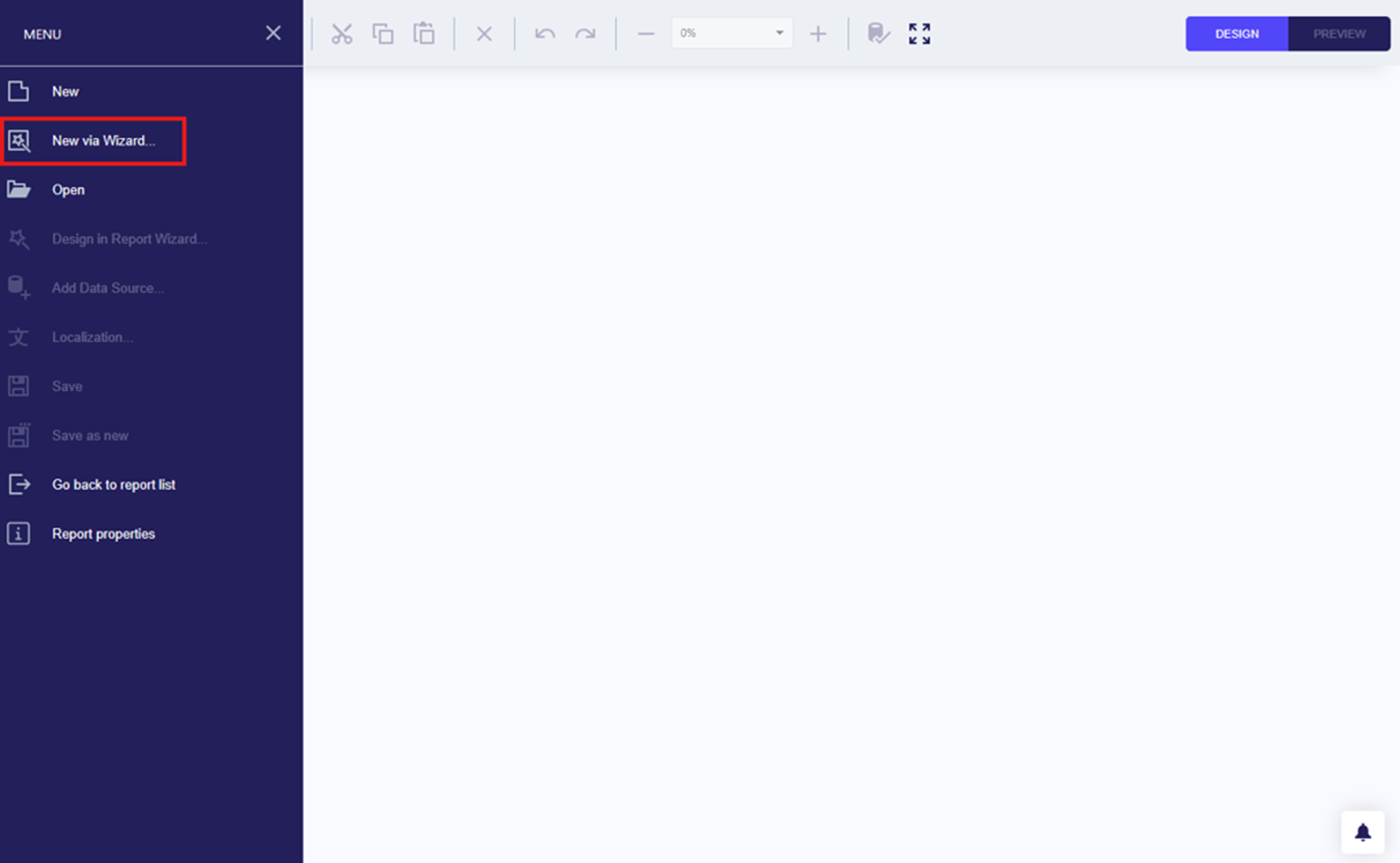
To create a report in the designer: 1.In the side menu, click on New via Wizard – the report designer opens.
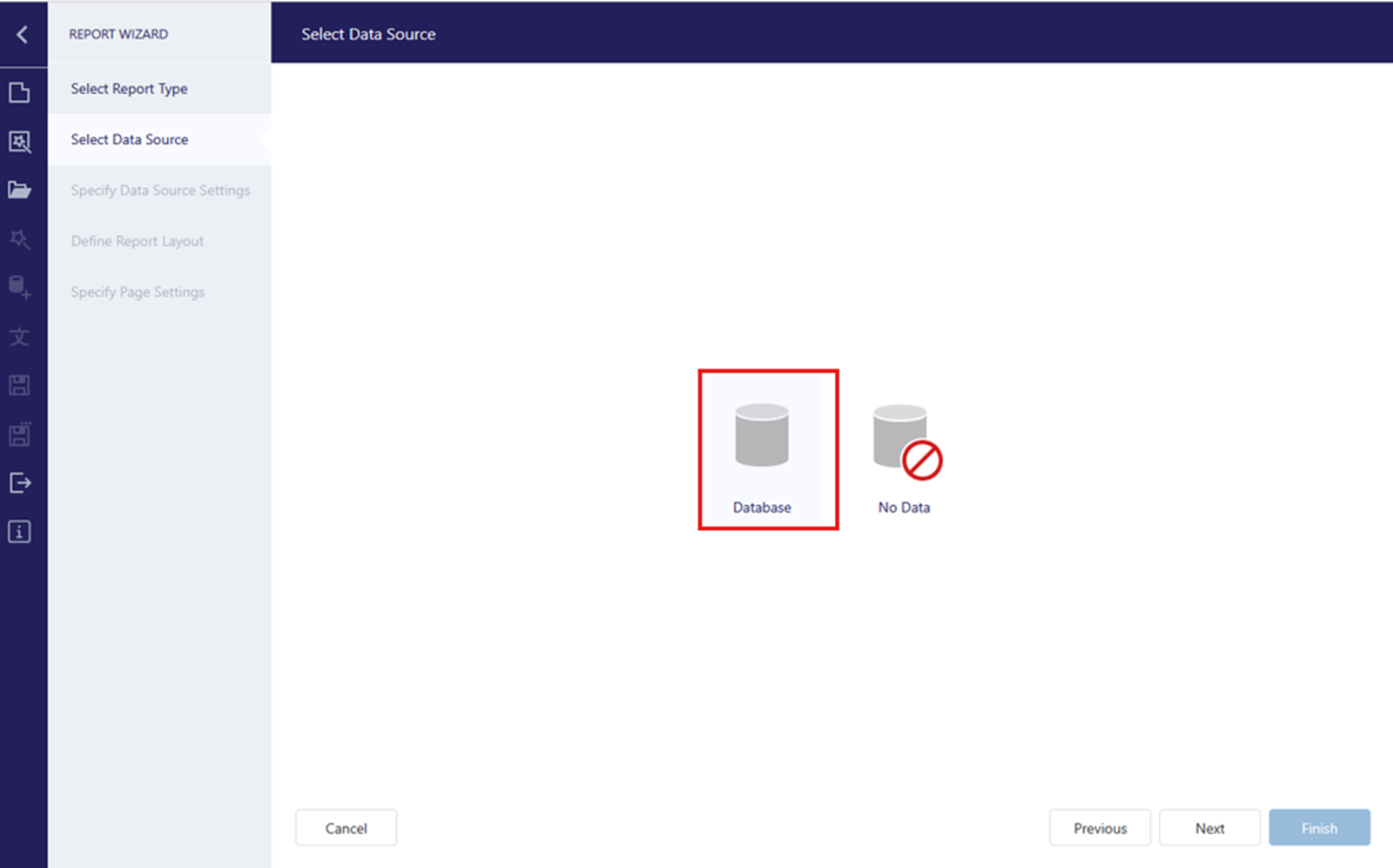
2.Select how to create the report: •From scratch – full freedom of configuration (Blank report) •Based on a template – a quicker start; you can choose Blank report (you create the report from scratch), Table report, Vertical report, Label report and Cross-Tab report (ready-made, flexible elements), and nVision report (the least flexible) 3.Decide whether you use a database.
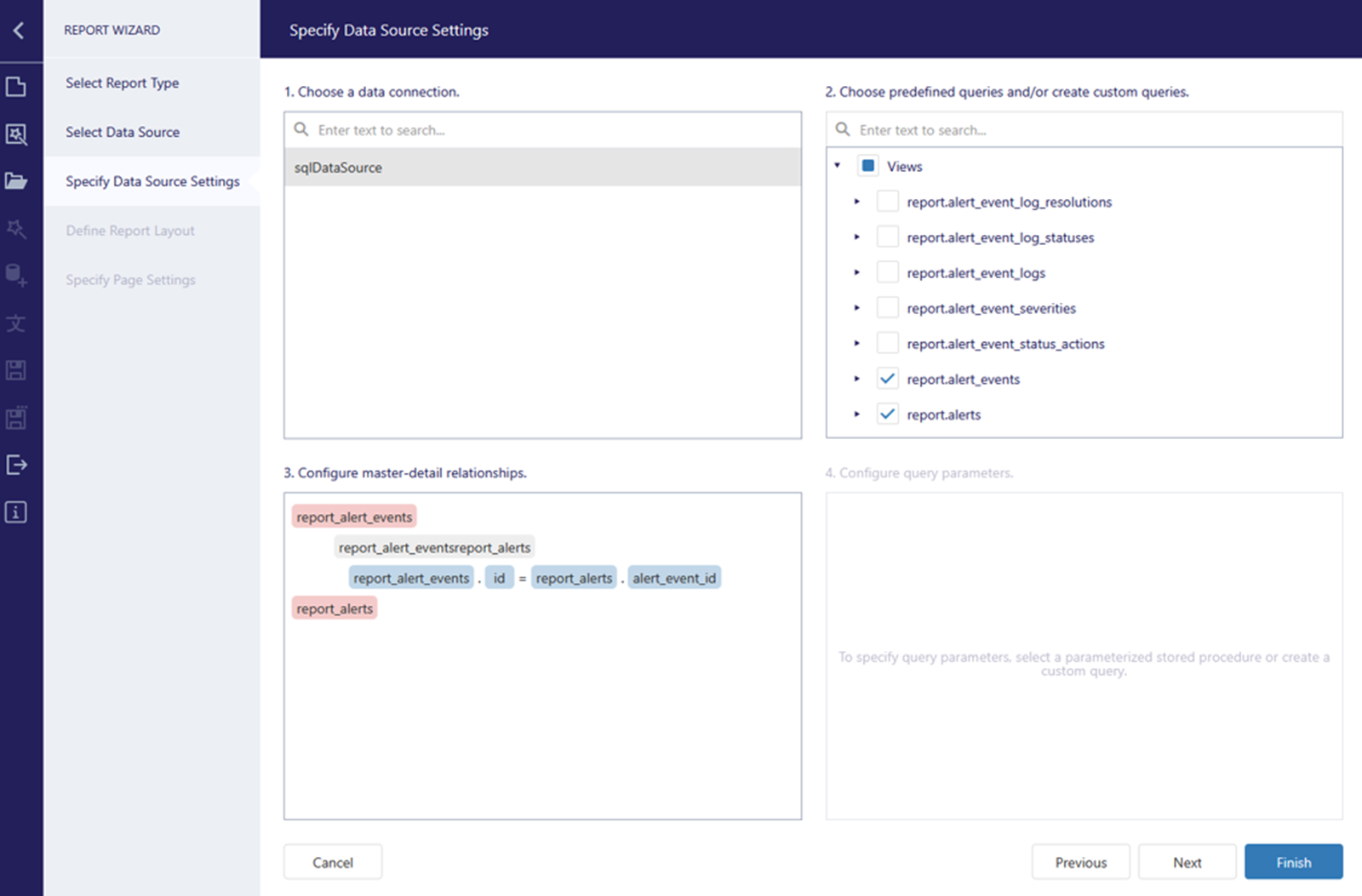
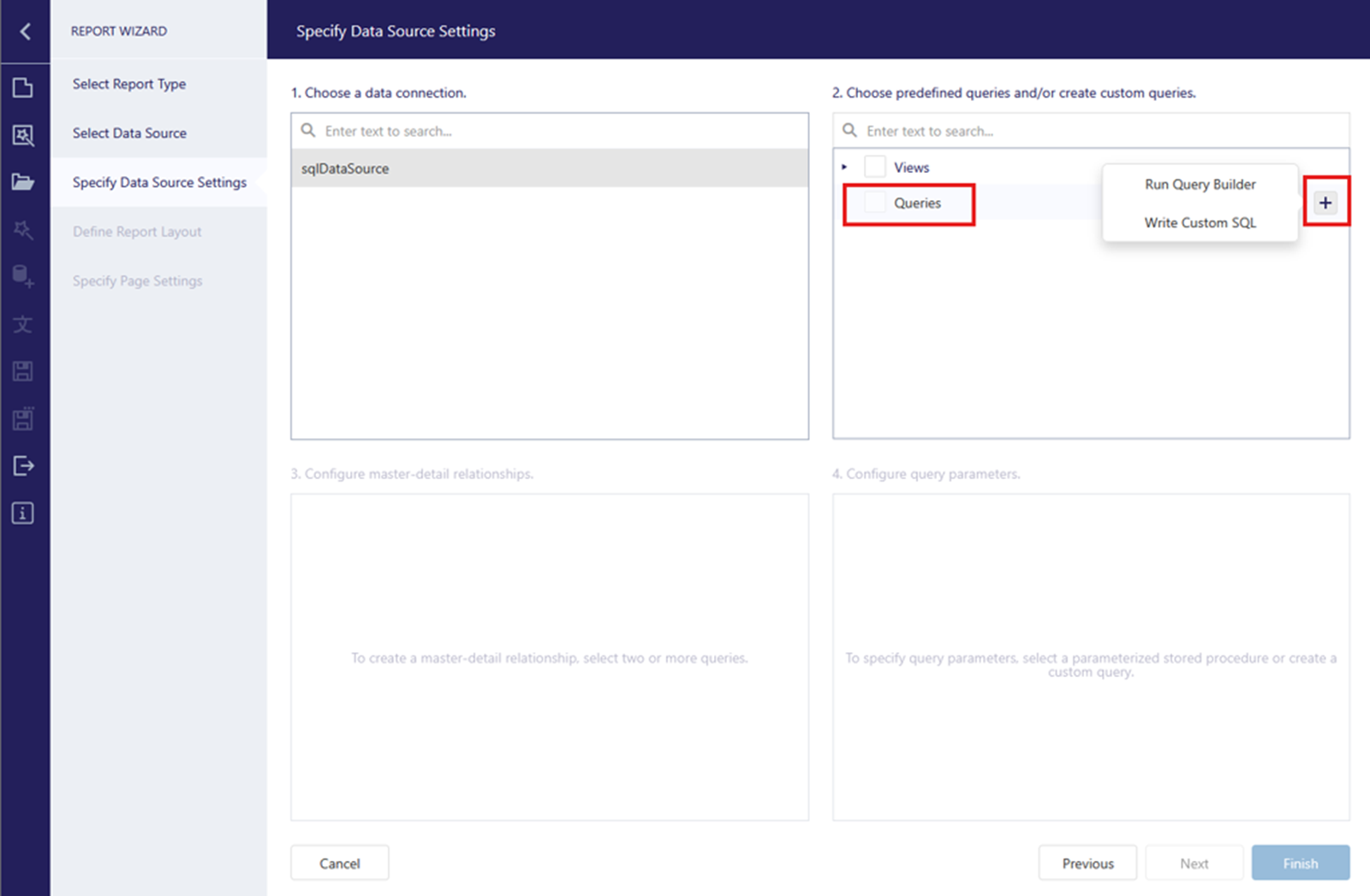
4.Set the data source: •Views – require relations to be defined; parameters are not available •Queries
5.Select the method of working with data: •Query Builder – simpler configuration •Custom SQL query – more options for advanced users 6.Add parameters. 7.Adjust the appearance of the report. You will find the list of tables and views you can use in Database tables and views. Types of parameters Parameters narrow down the range of data in a report, for example, to the department the ticket concerns. There are two types of parameters: •Report parameters – visible to the person who generates the report; selected in interface controls •Query parameters – variables used in database queries Creating a report step by step The following topics show step by step how to create a report in the designer – first with the query builder, then with a custom SQL query. They form one whole – you can read them in order, and at the end of each topic there is a link to the next one: 1.Creation of the basic version of a report – a summary of tickets by category, created in the query builder. 2.Adjustment of the report appearance – fields, date format, sections and new elements in the same report. 3.Adding a parameter in the query builder – selection of a department in the same report. 4.Report with a custom SQL query – a second report, built from scratch on your own SQL query: a summary of roles in user groups. |