Adjustment of the report appearance


|
Adjustment of the report appearance |
|
|
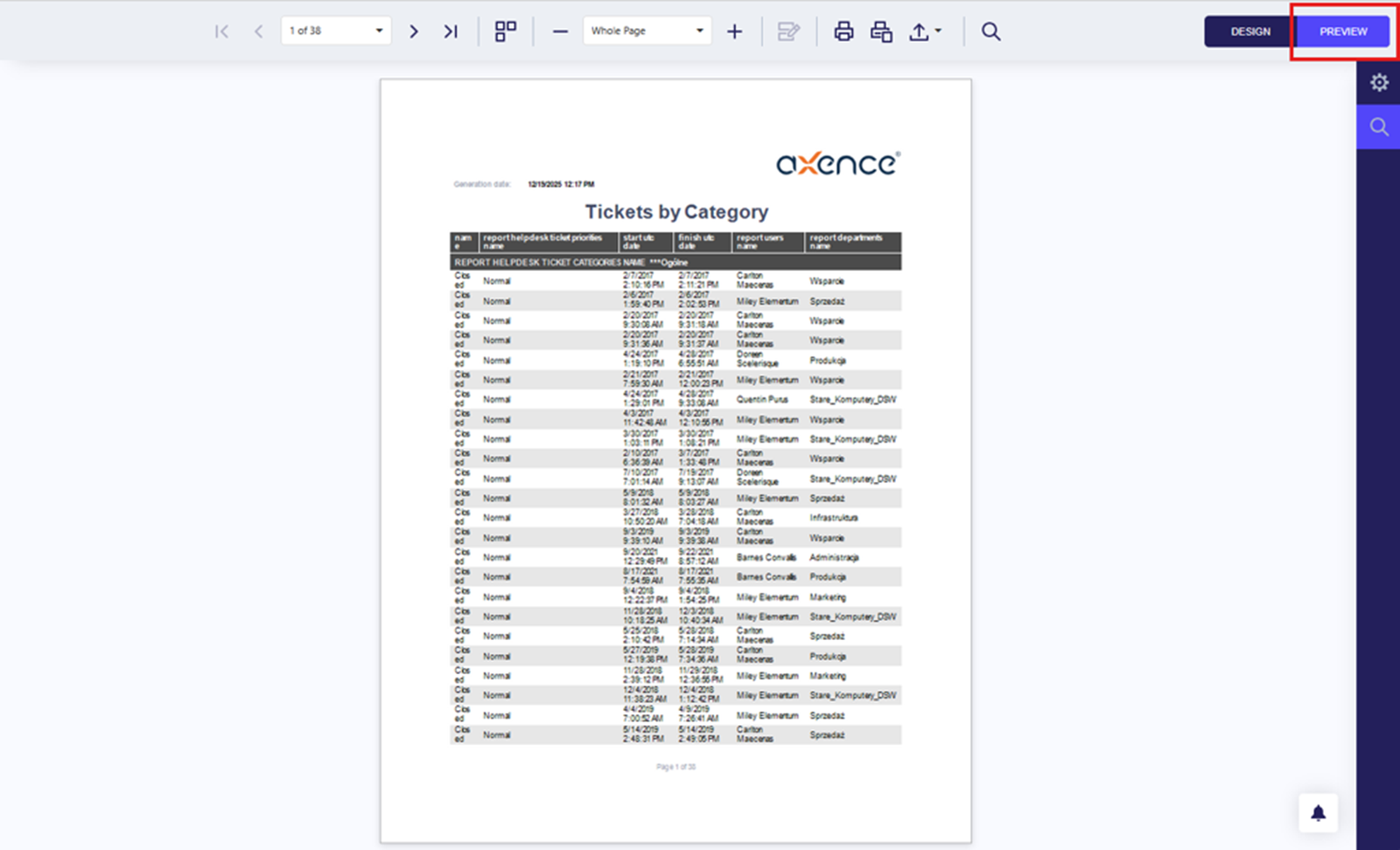
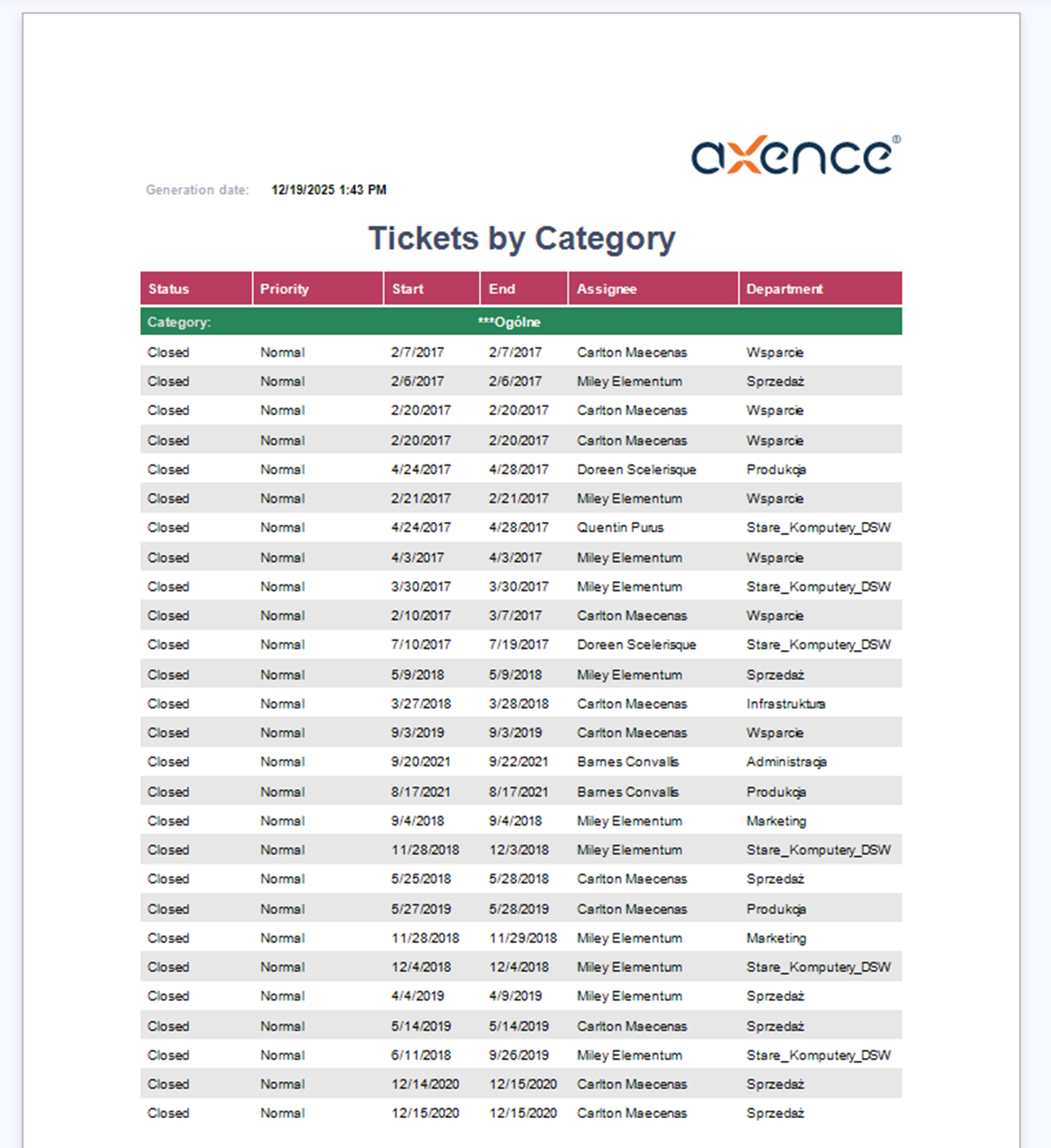
You can check the current appearance of the report on the Preview tab. You change the report layout – for example, field titles, date format and column width – on the Design tab.
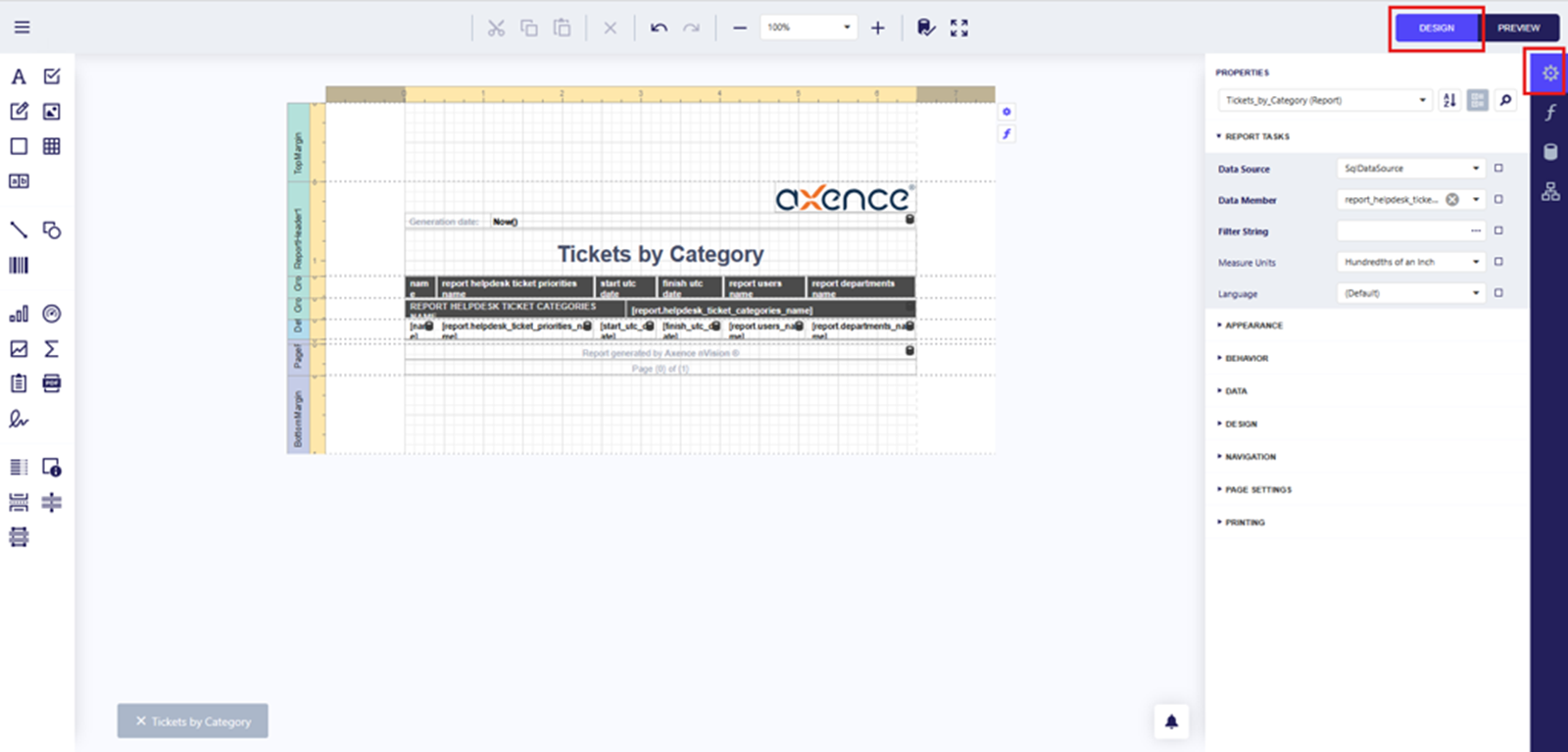
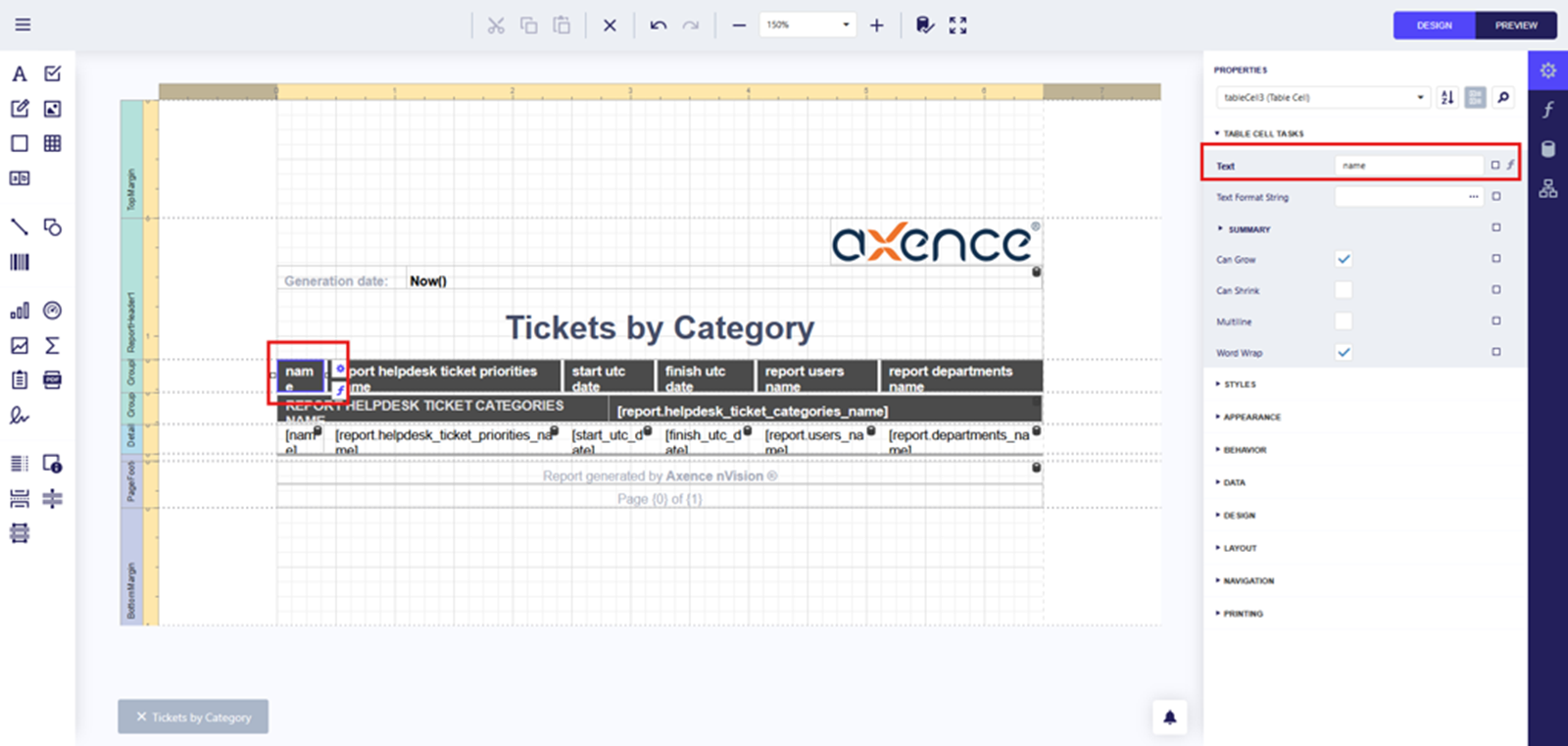
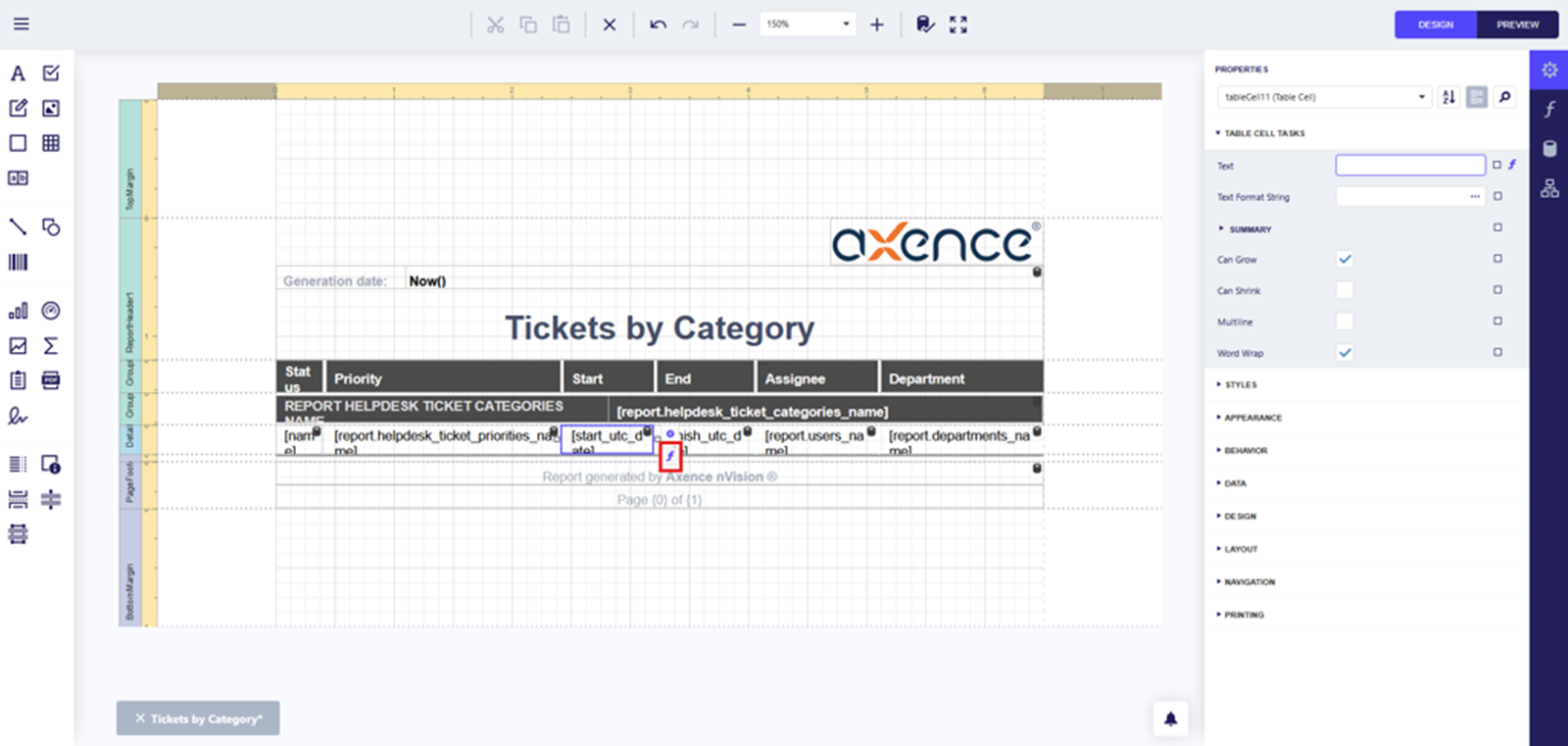
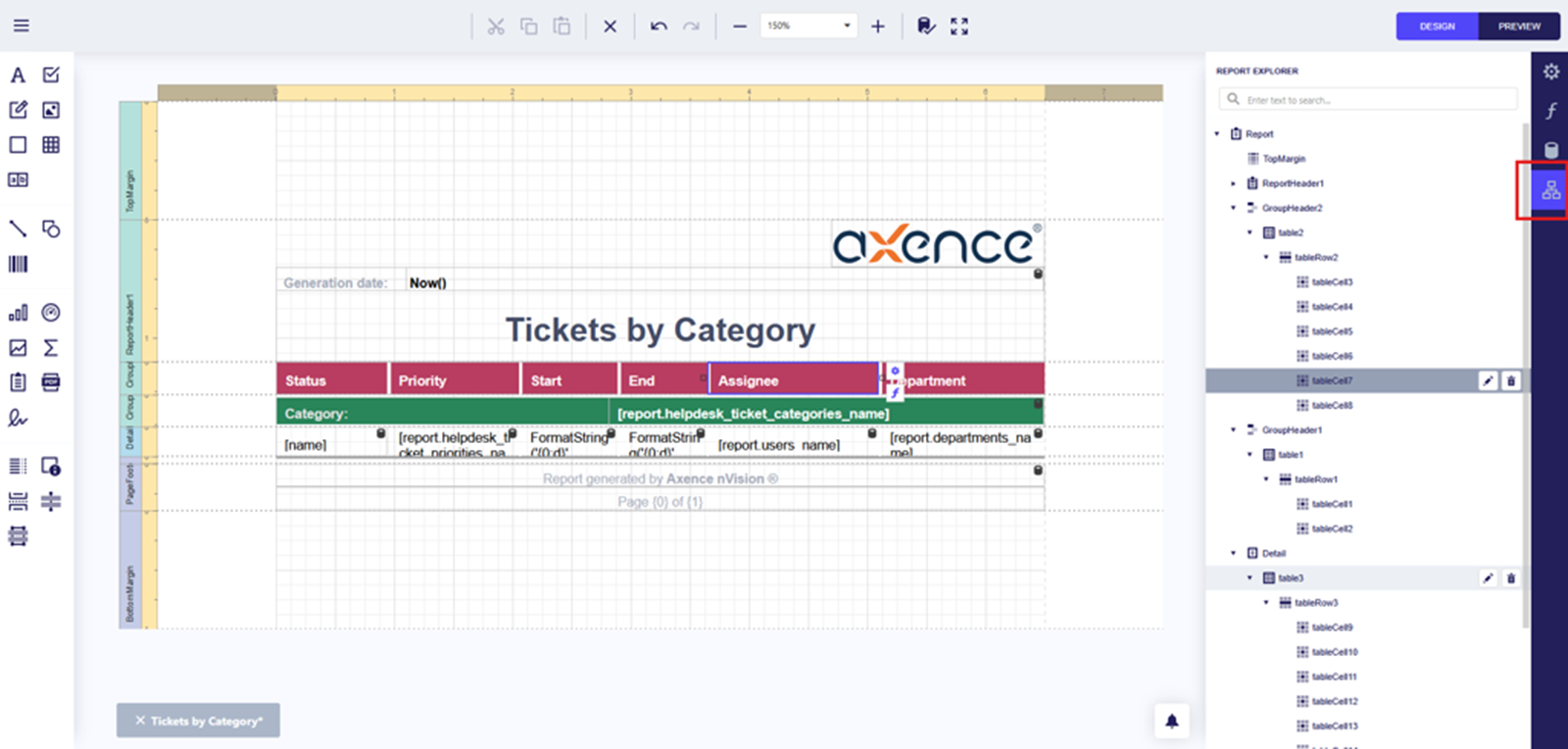
1.Select the field you want to edit. You change its settings in the side pane or in the form under the gear icon.
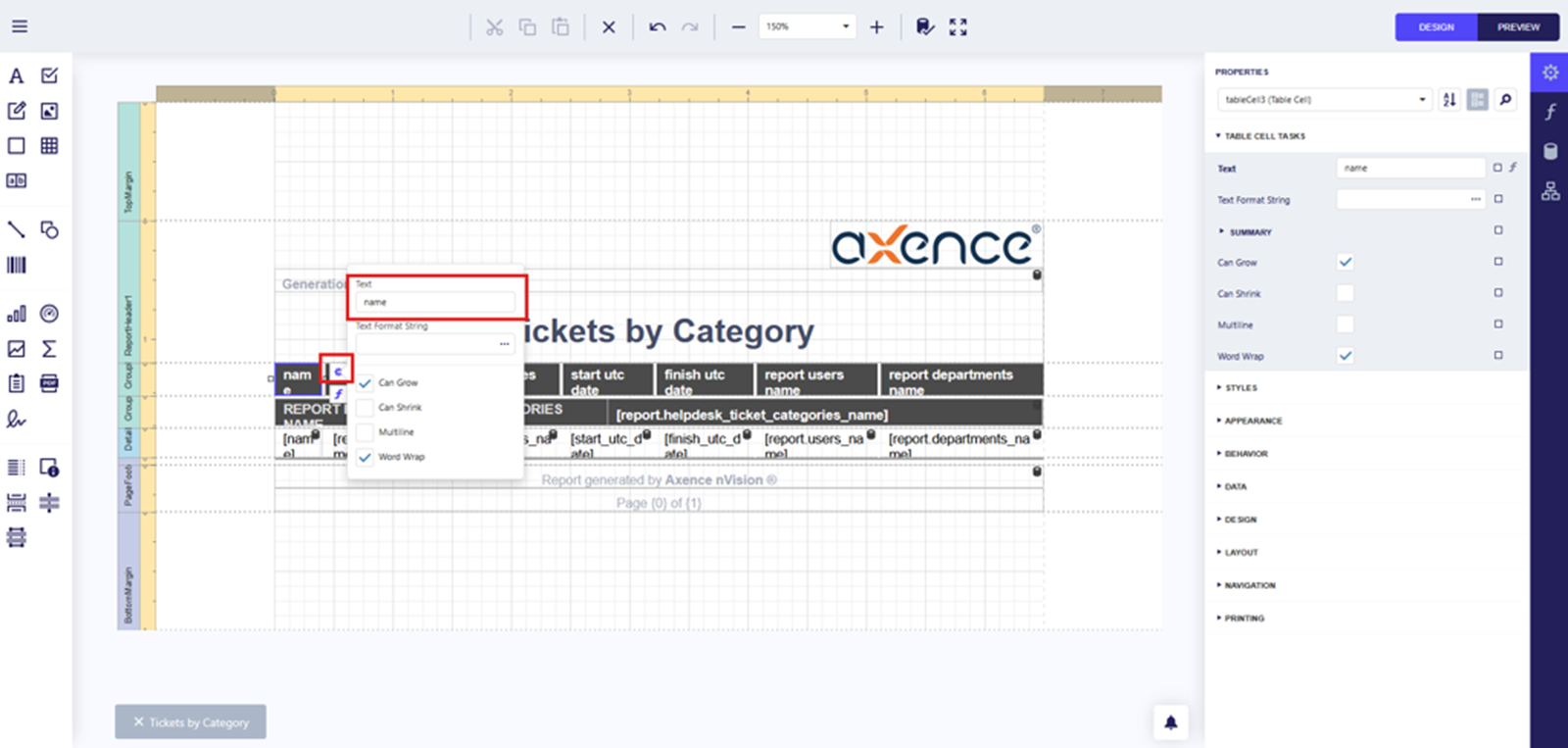
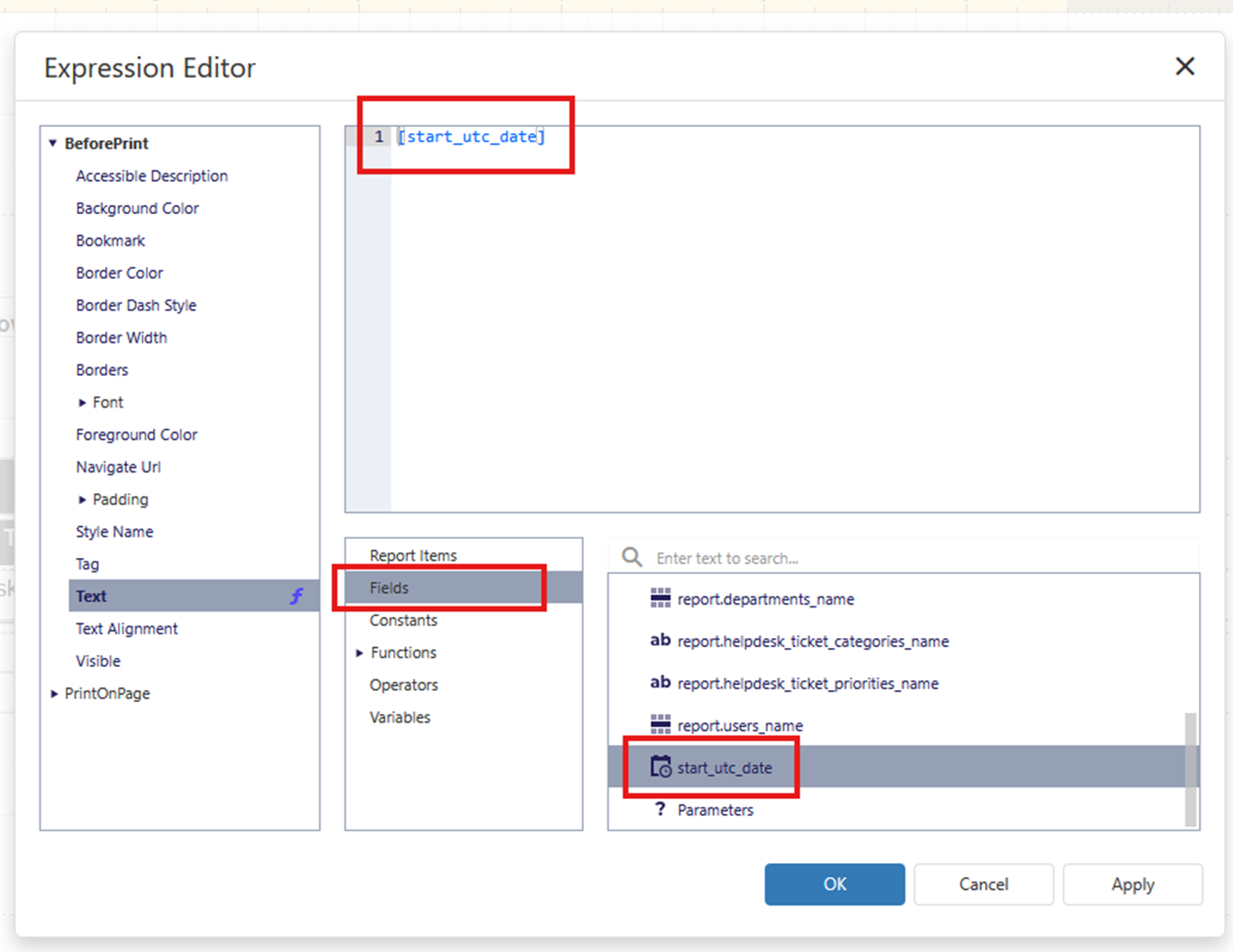
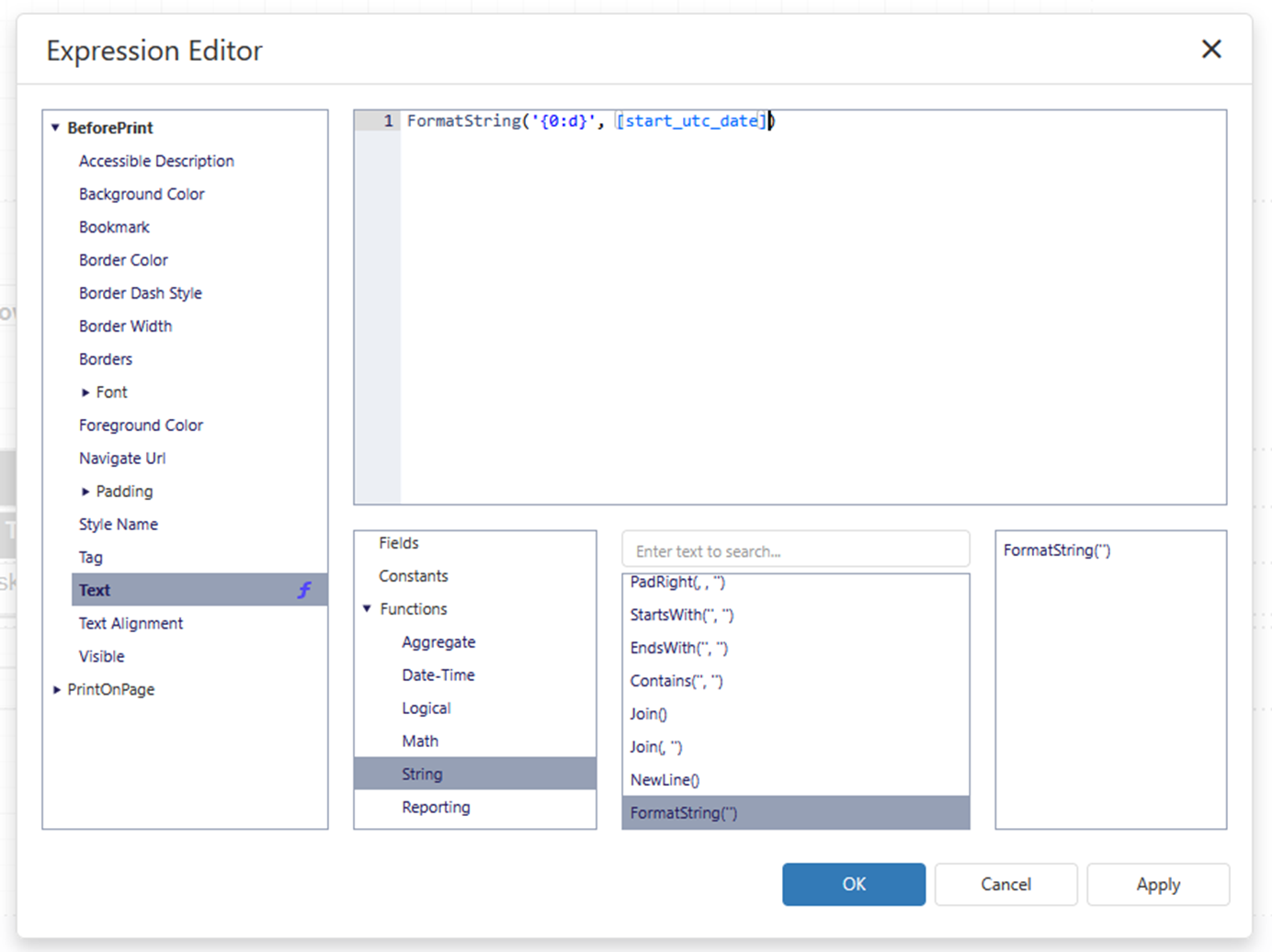
2.Format the dates: 2.Click on the f icon to open the formatting form. The original value is the column name in square brackets – it stands for data from the database. 2.Change the date format with a function.
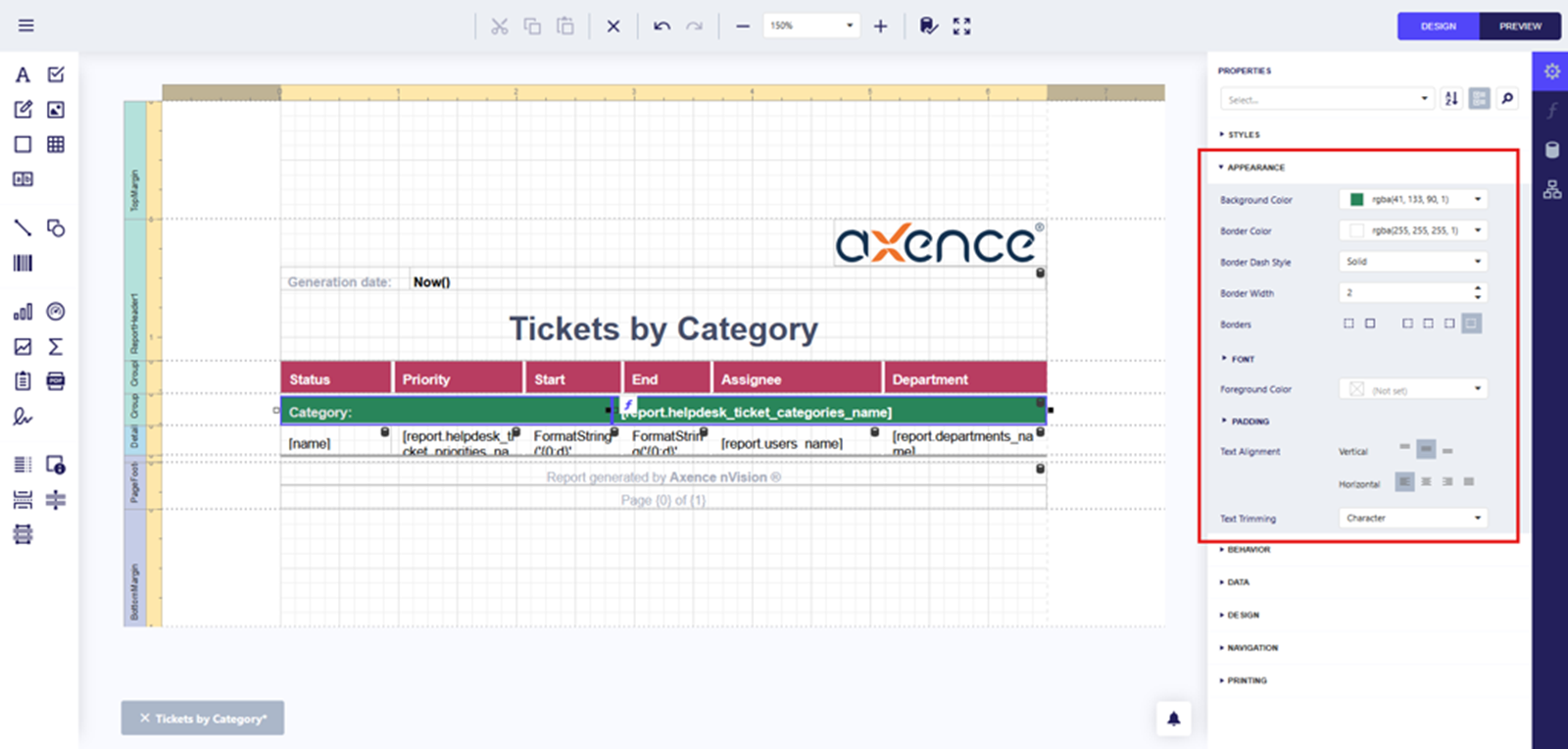
3.Change the size and appearance of the fields: drag the edges of a field to change its size, and change the color, margins and font in the side pane.
4.Adjust the report sections. On the left, you can see the sections: the report header (logo, date, title), group headers (column names, category headers) and details (data). Move the edges of the sections to change their height.
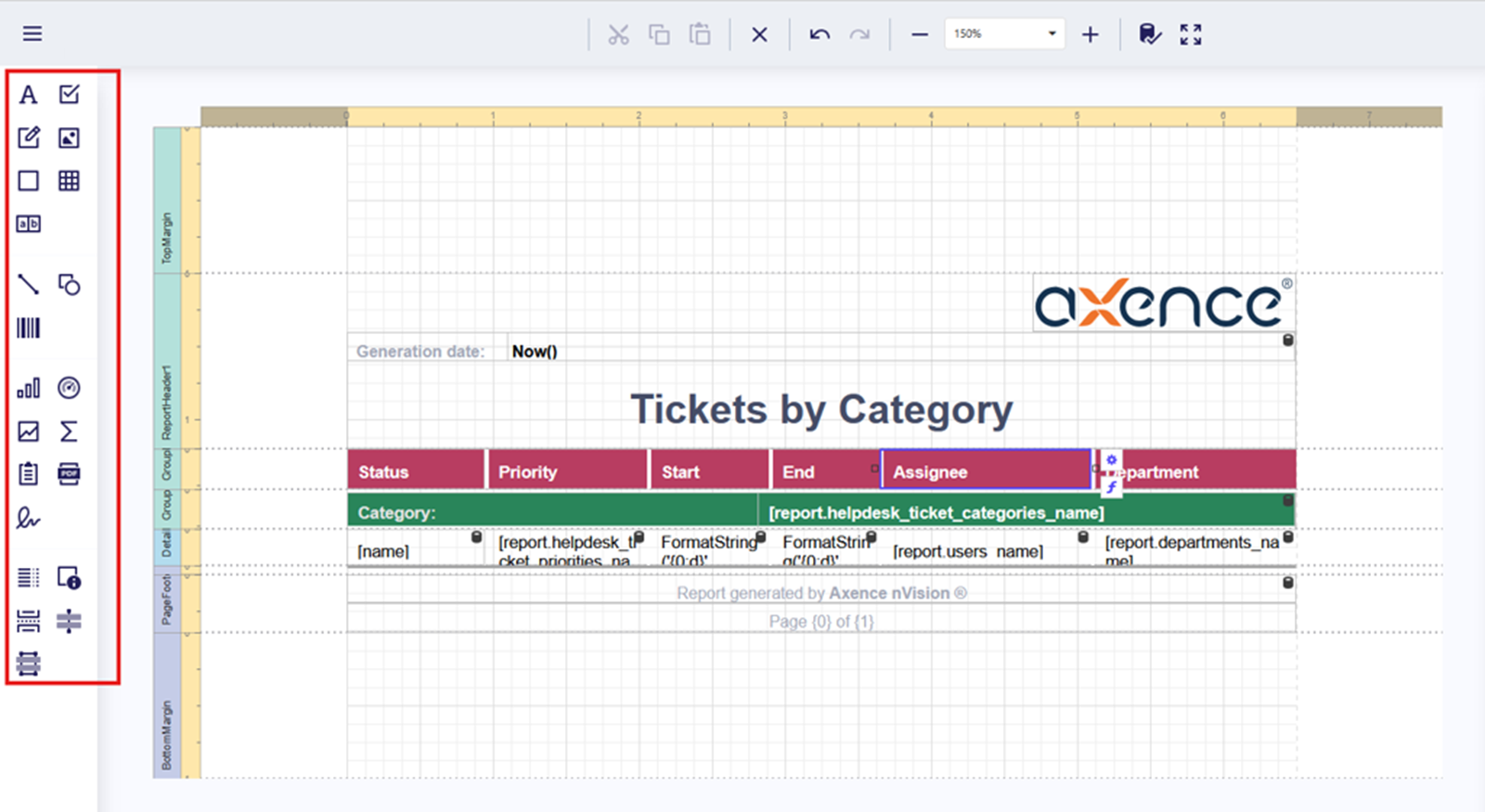
5.Add elements to the report: drag an element from the menu on the left to the selected place. The available elements include an image, a checkbox, a table, a chart and a separator.
6.Check the appearance of the report after the changes.
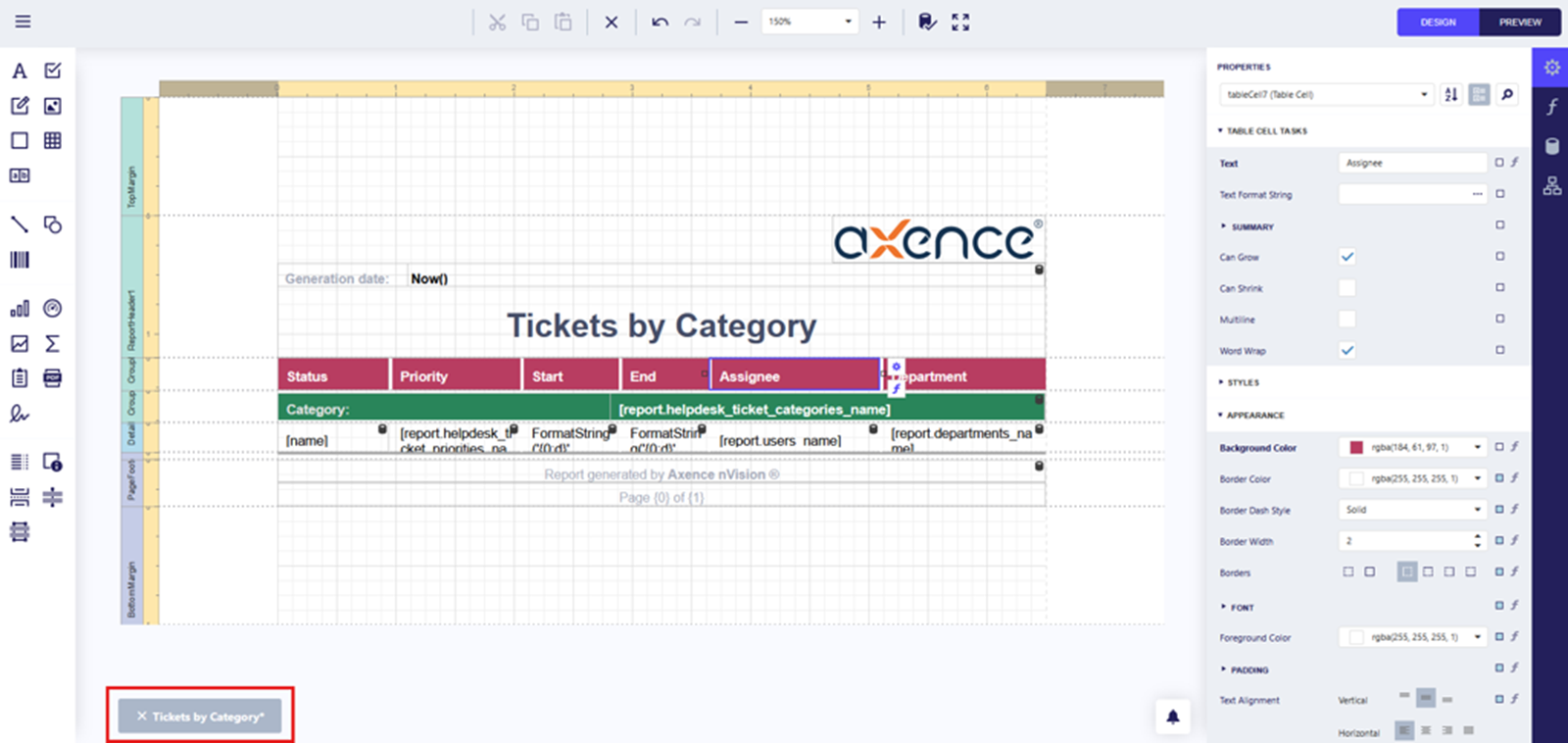
7.Save the changes. An asterisk next to the report name on the tab at the bottom of the window means unsaved changes.
|