Creation of the basic version of a report


|
Creation of the basic version of a report |
|
|
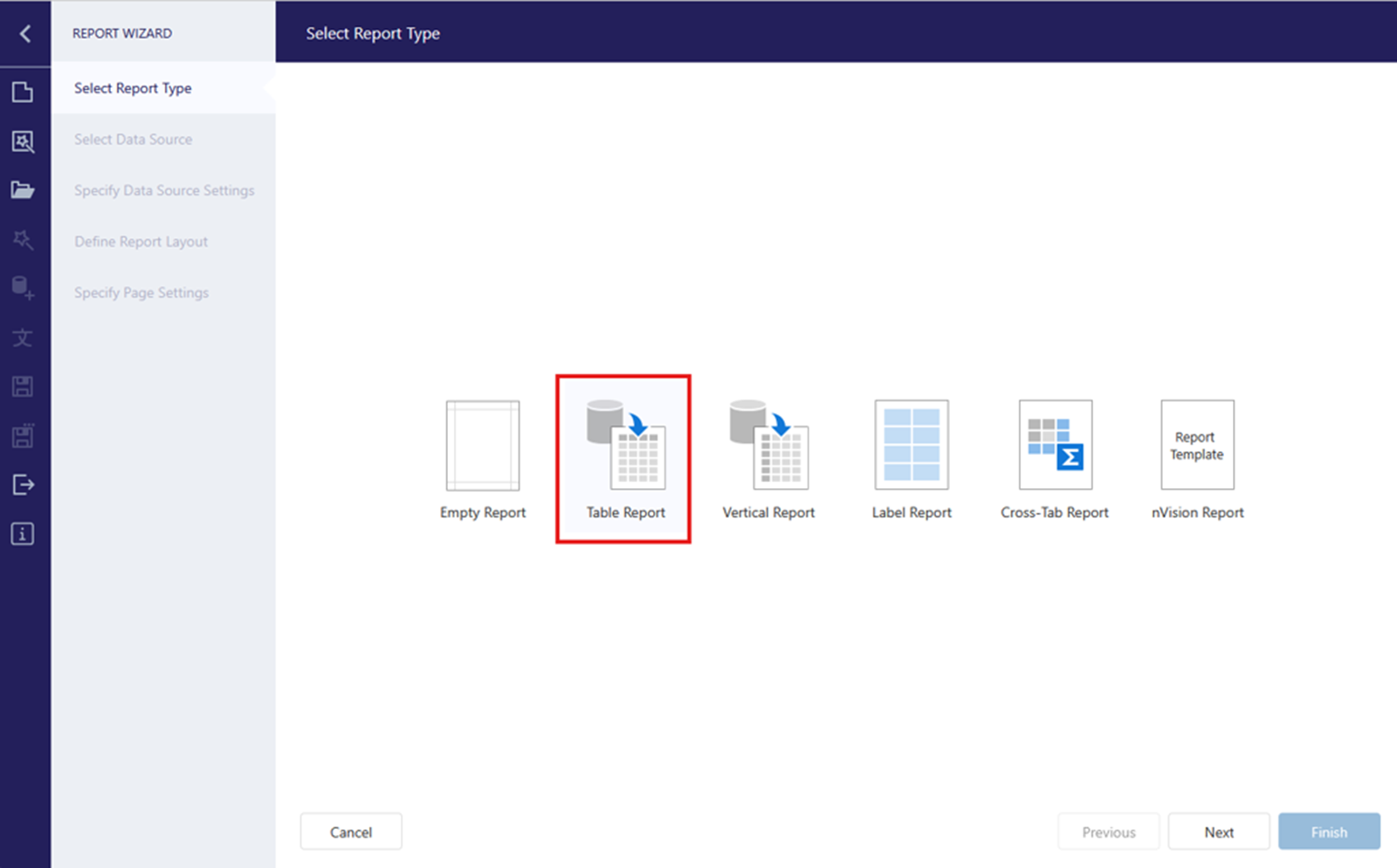
You will create a simple summary of tickets by category for the selected department. 1.Open the report designer and select Table report.
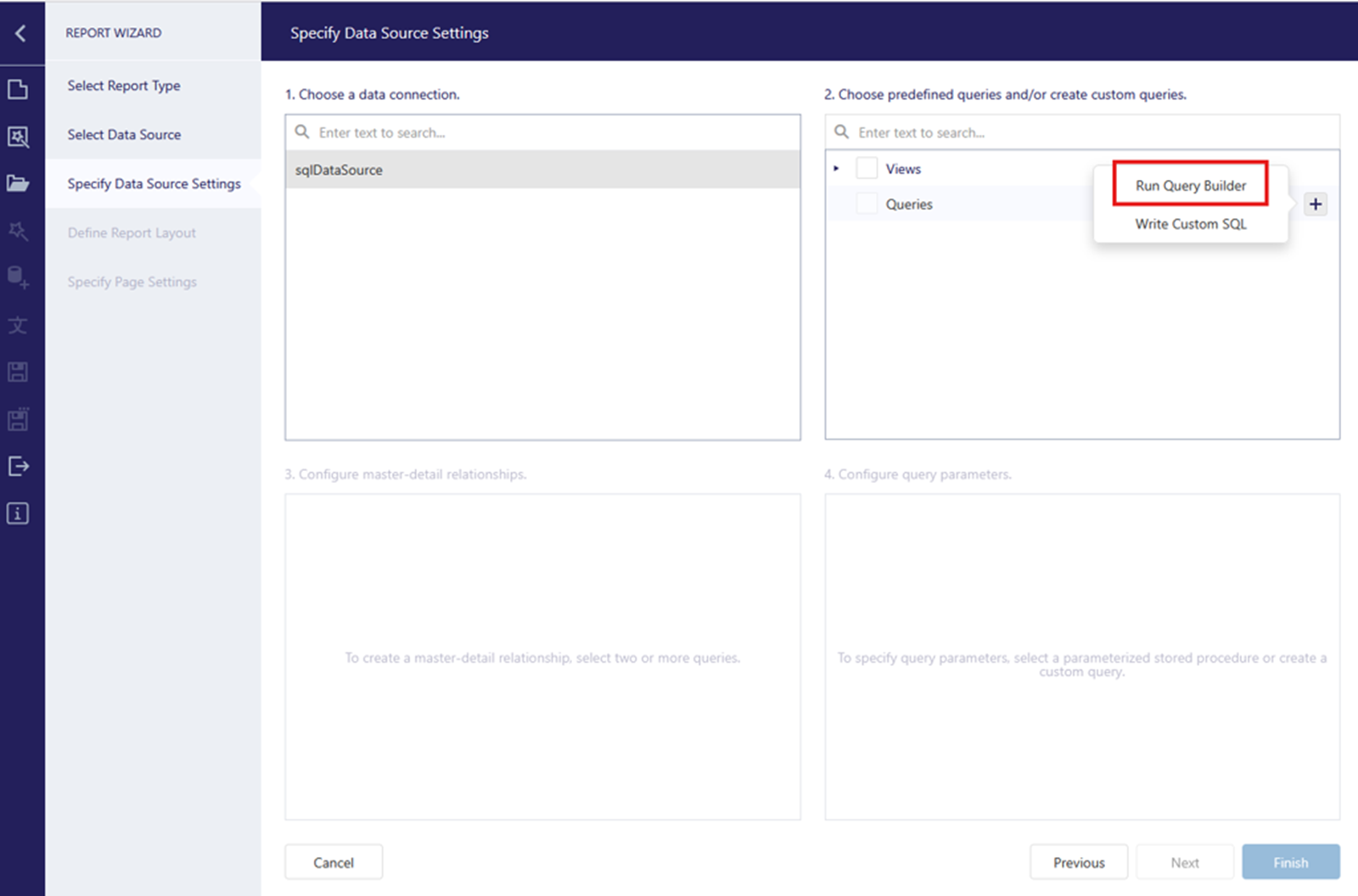
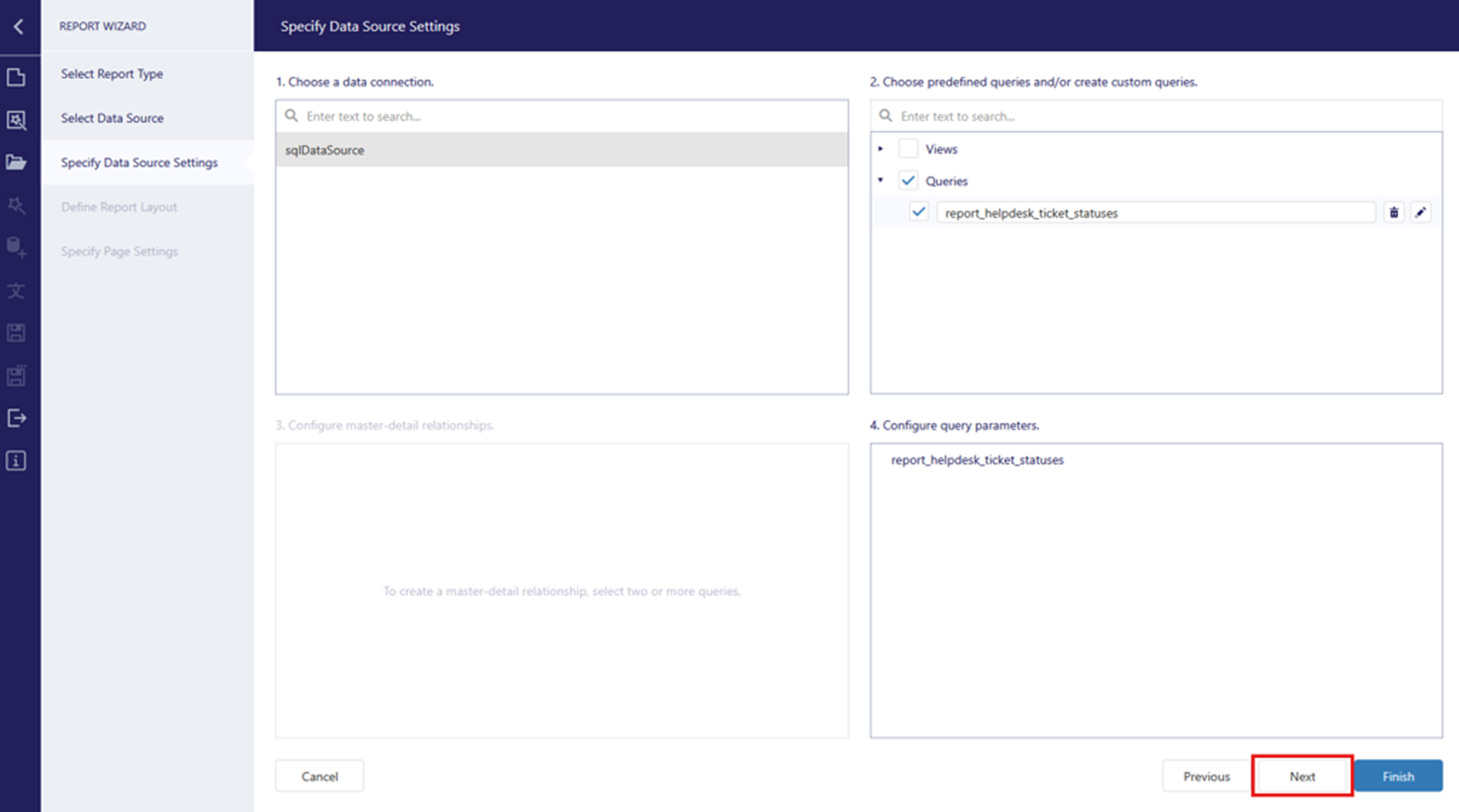
2.Select Database as the data source. 3.Select Queries > Query Builder.
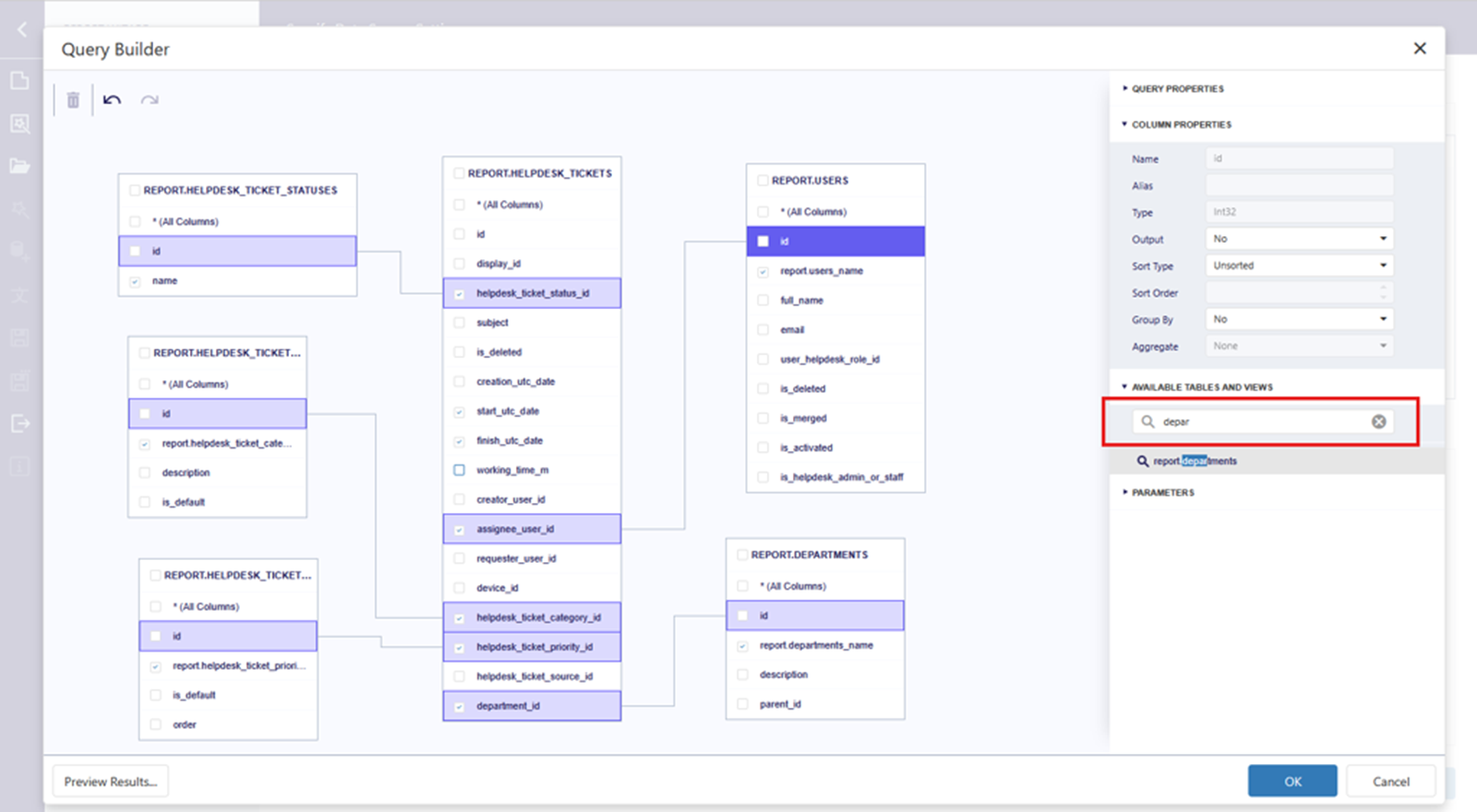
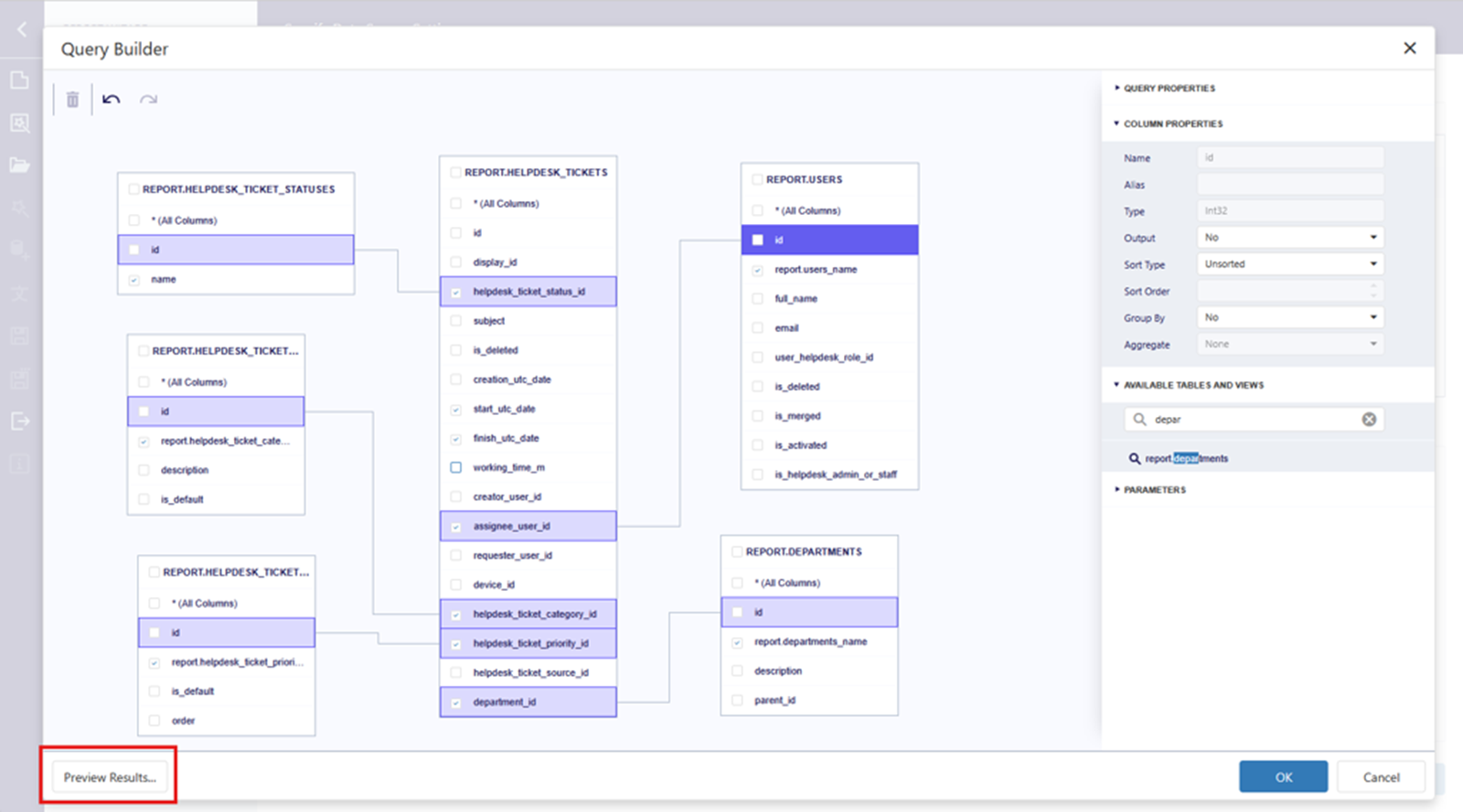
4.Configure the query – specify the type of data and the relations between them: 4.In the pane on the right, search for tables and views. 4.Drag them to the main part of the window. 4.Create joins between the tables. 4.Select the columns for the report. 4.Click on [ Preview results ] to check the data. 4.Click on [ OK ] to confirm the query. 4.Click on [ Next ] to continue.
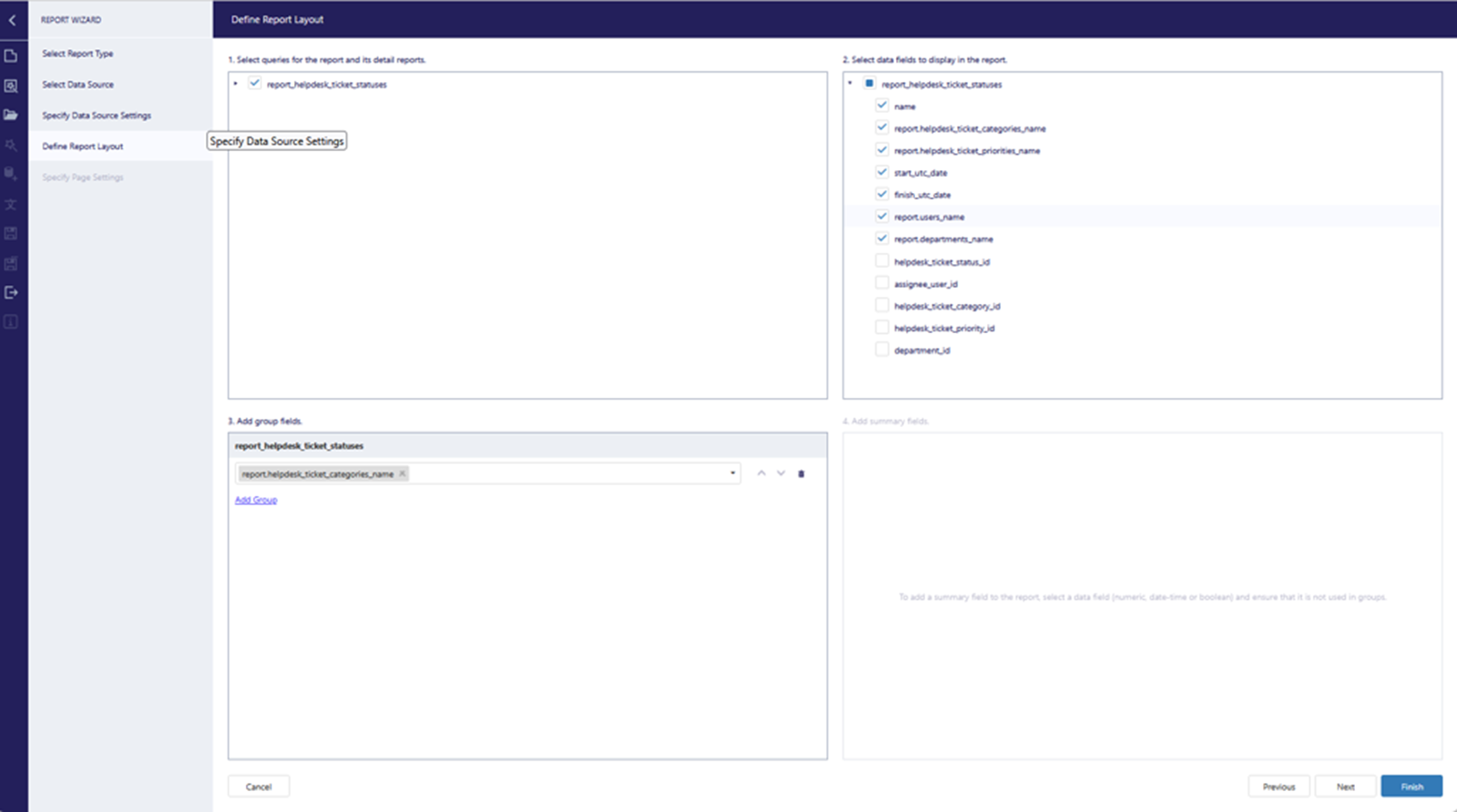
5.Select the elements to display in the report.
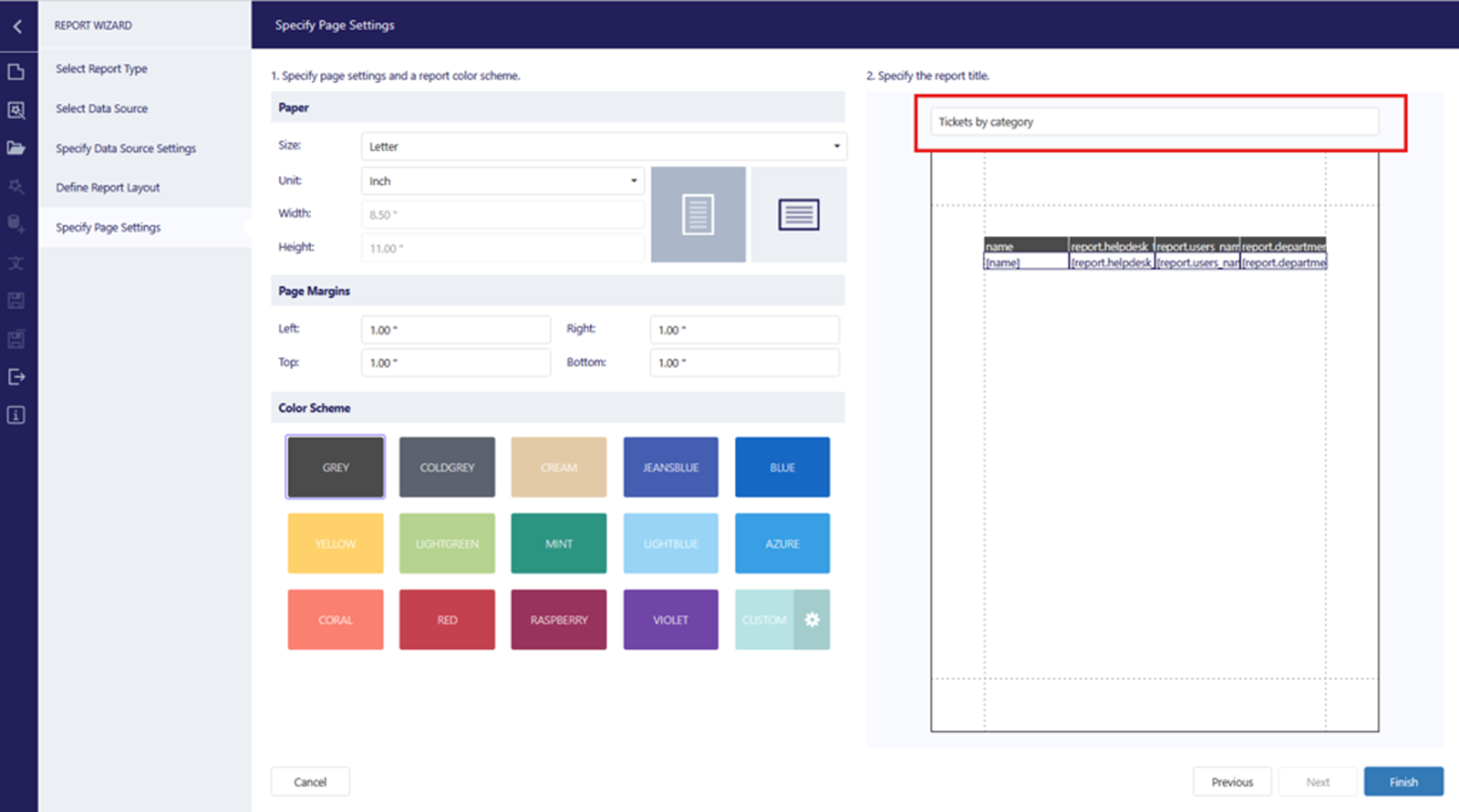
6.Set the page parameters and the report title.
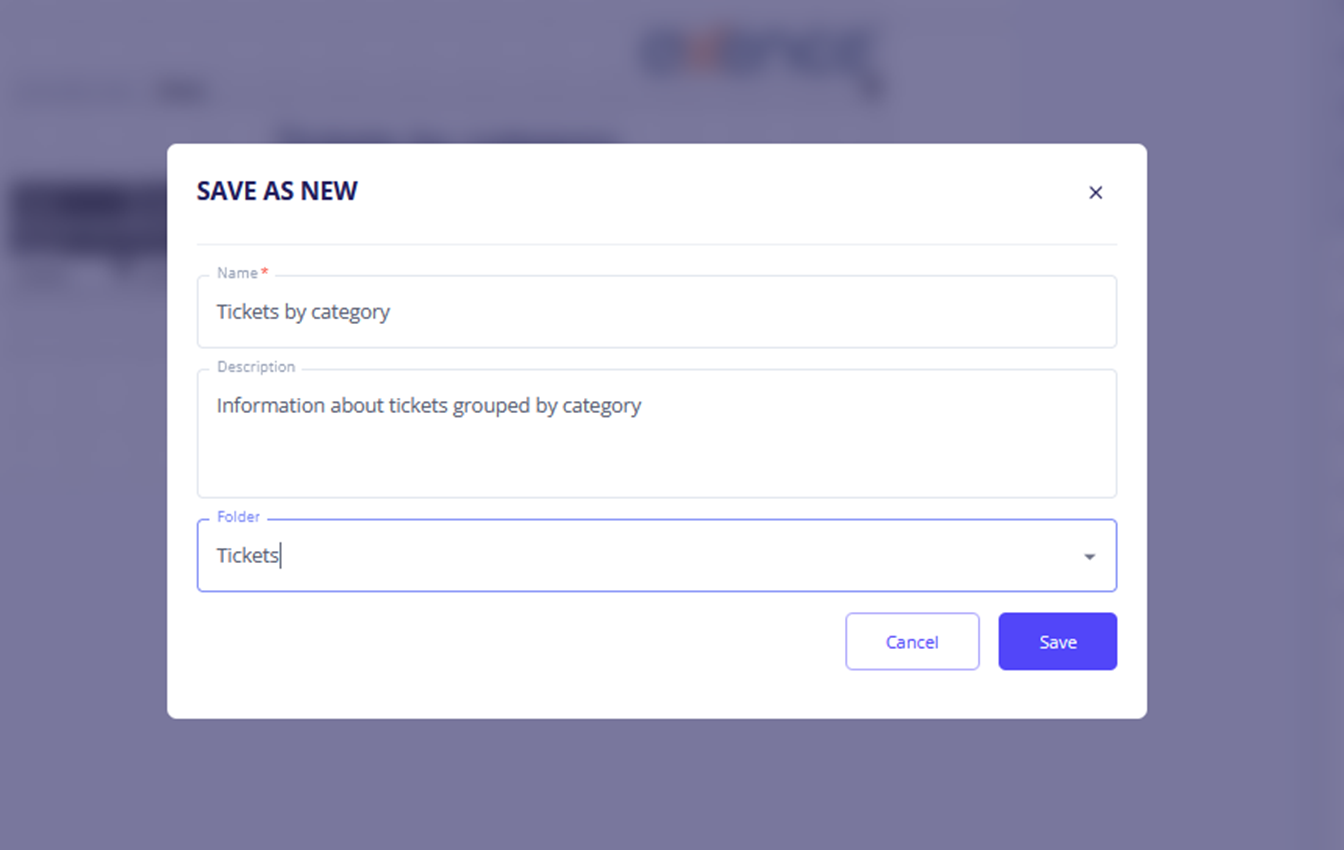
7.Save the report: press Ctrl+S or, in the side menu, click on Save. When you save the report for the first time, enter its description in the window (it will be displayed in the list of reports) and select a folder.
|