Adding a parameter in the query builder


|
Adding a parameter in the query builder |
|
|
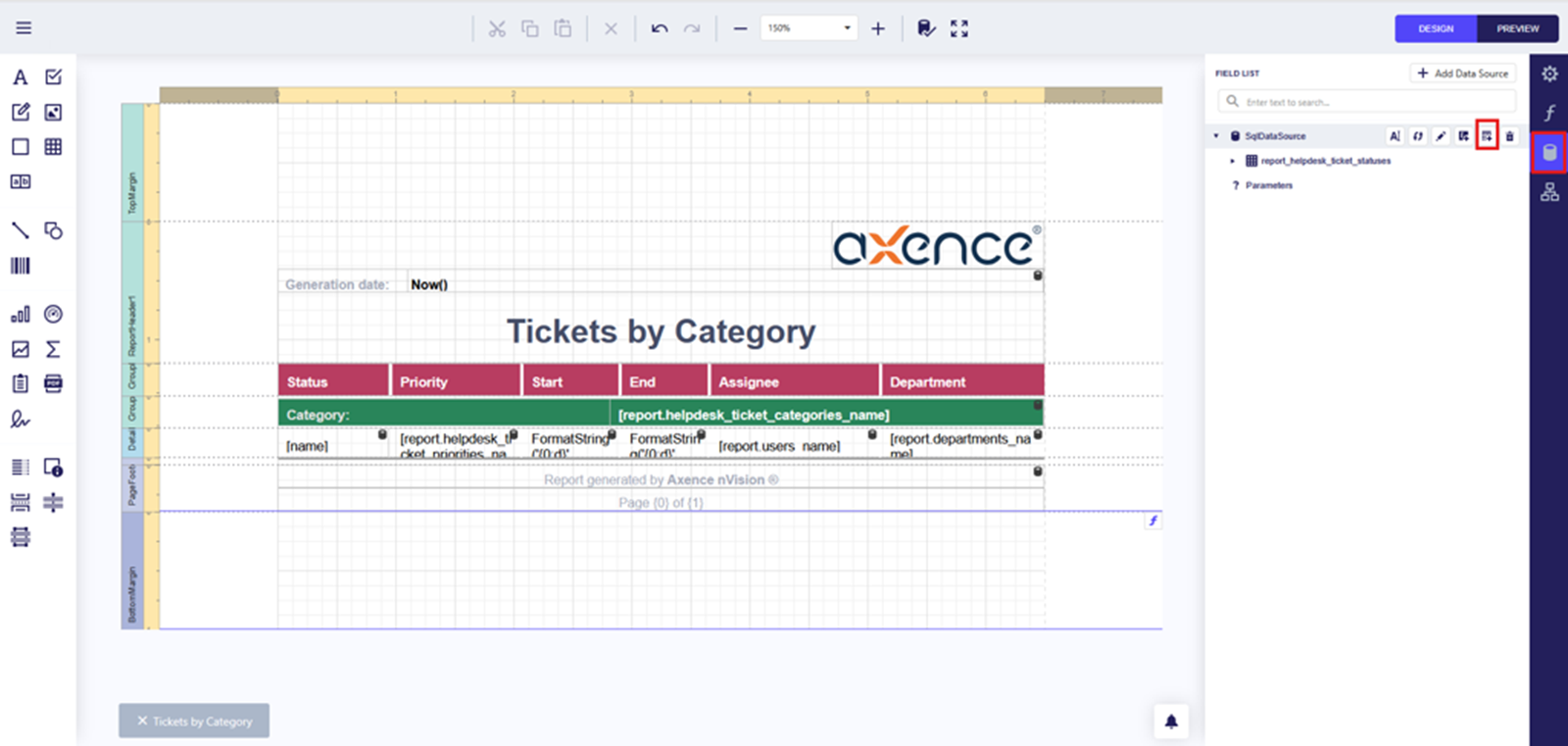
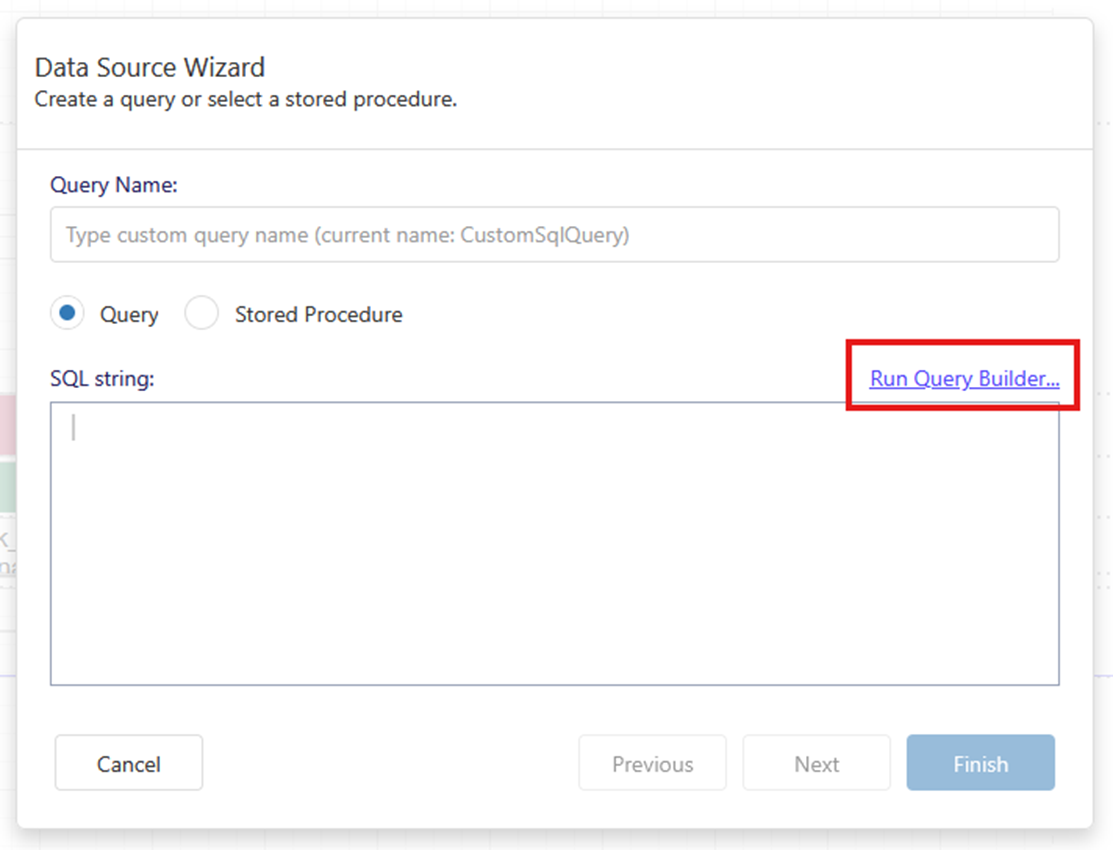
The parameter is the department the ticket concerns. 1.Create a list of departments: 1.In the side pane, add a new dataset and click on Add query. 1.Start the query builder. 1.Drag the reports.departments table to the main part of the builder. 1.Select the id and name columns. 1.Click on [ OK ], and then on [ Finish ].
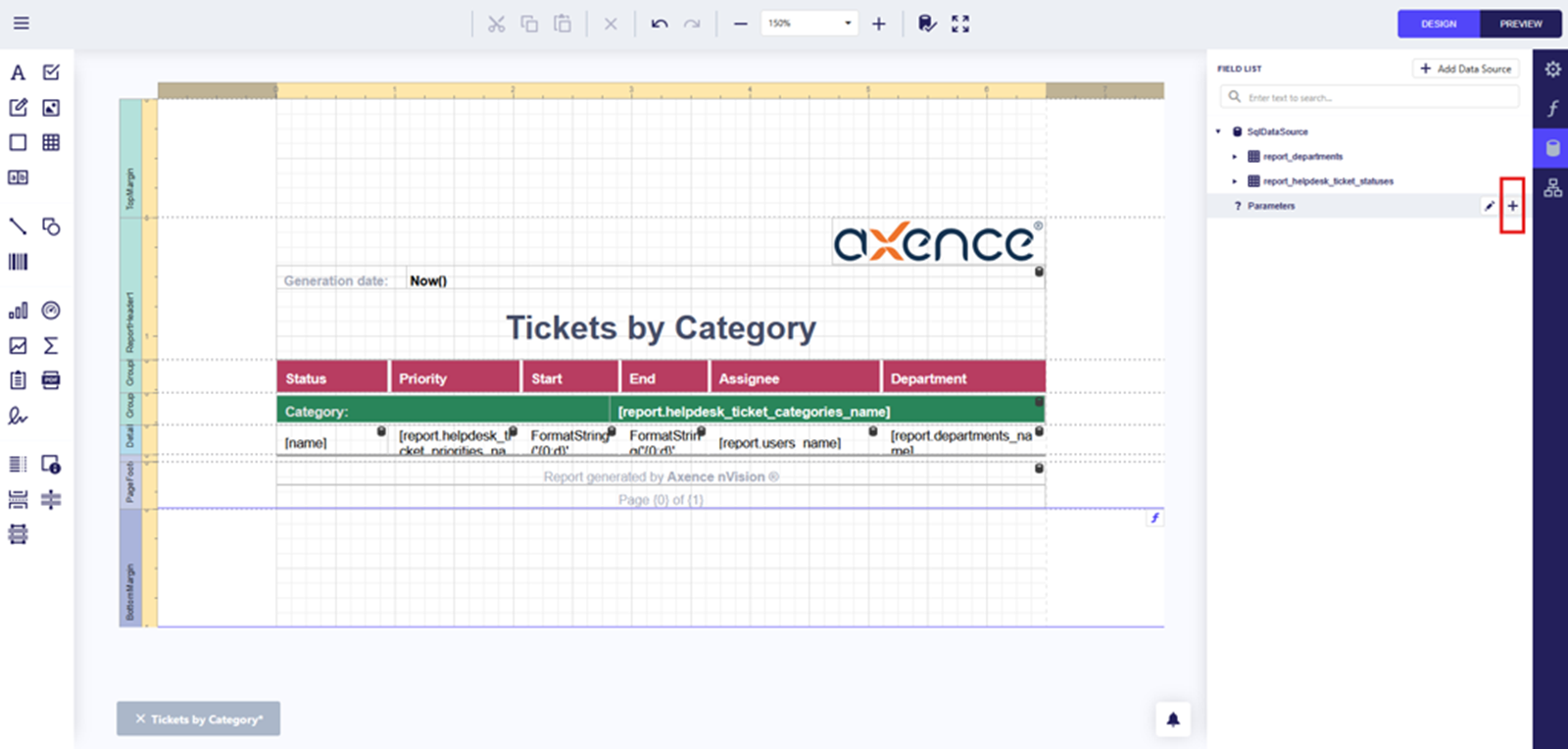
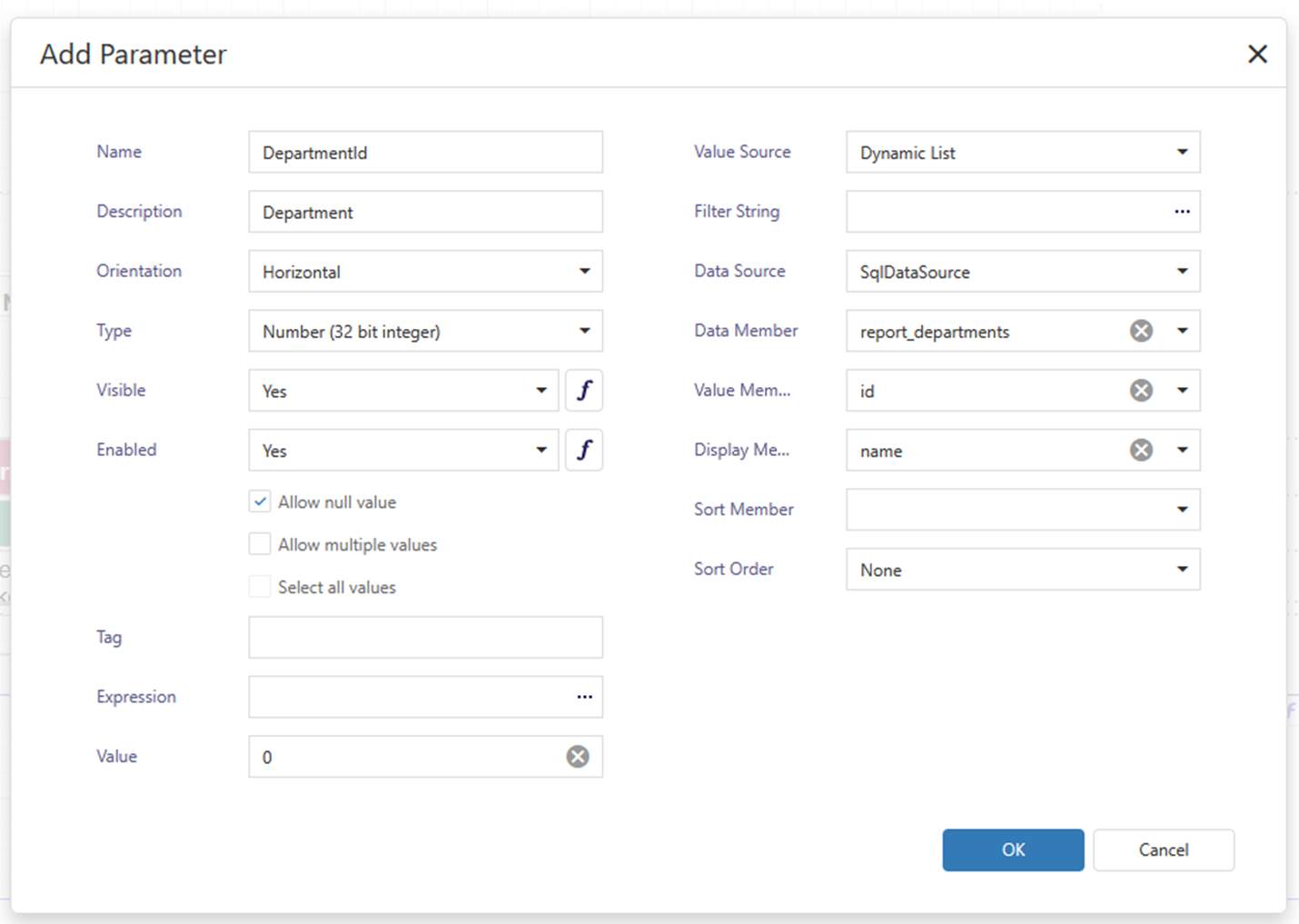
2.Add a report parameter: 2.In the side pane, in the Parameters section, click on +. 2.Fill in the form: •Name – the name used in the query •Description – the description visible in the report •Type – Number (32 bit integer) •Allow null value – selected •Value – empty (delete the value) •Value source – dynamic list •Data source – the available source •Data member – report_departments •Value member – id •Display member – name 2.Confirm the form.
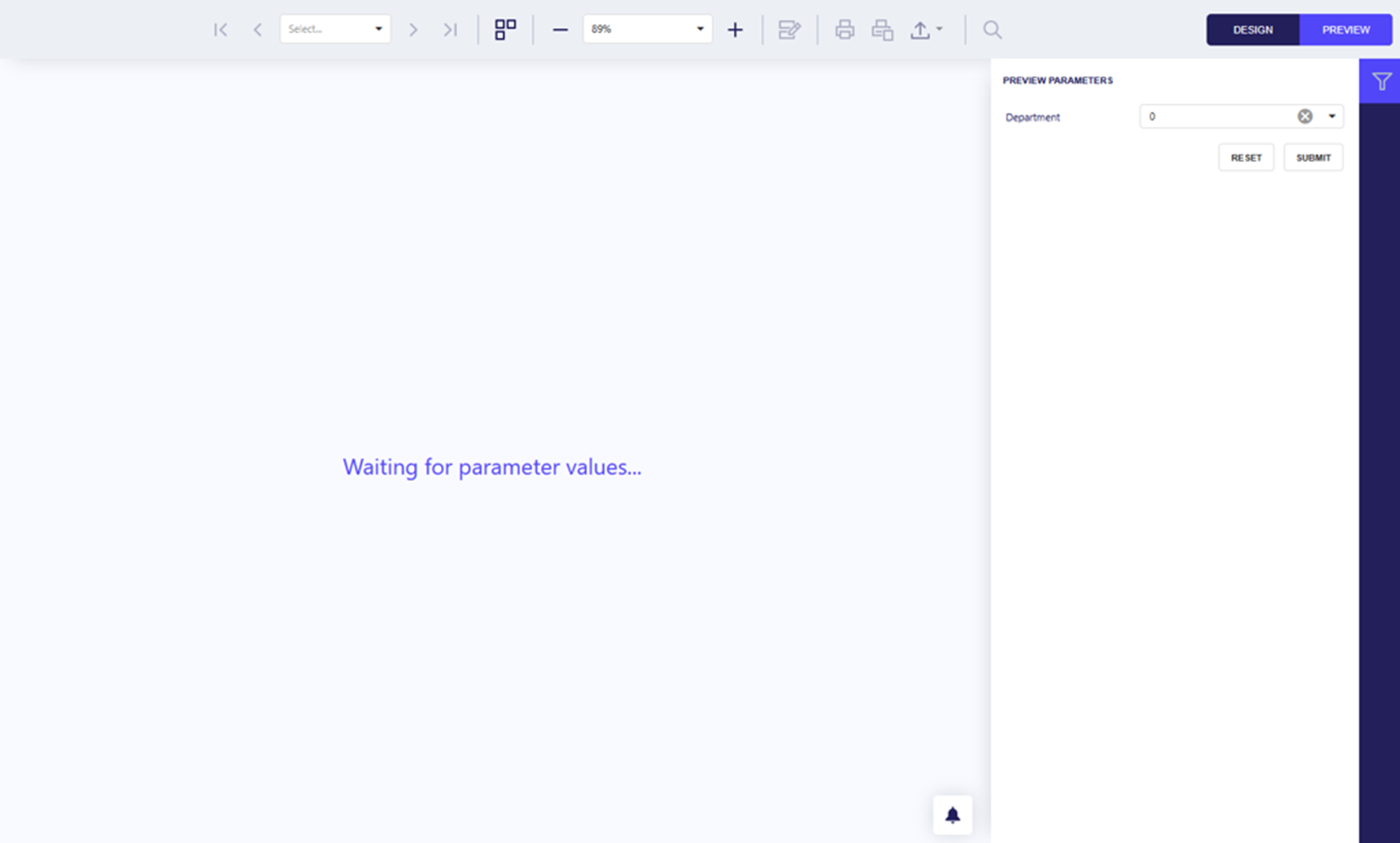
3.Open the tab with the report preview. The report now requires you to select a department before it is generated.
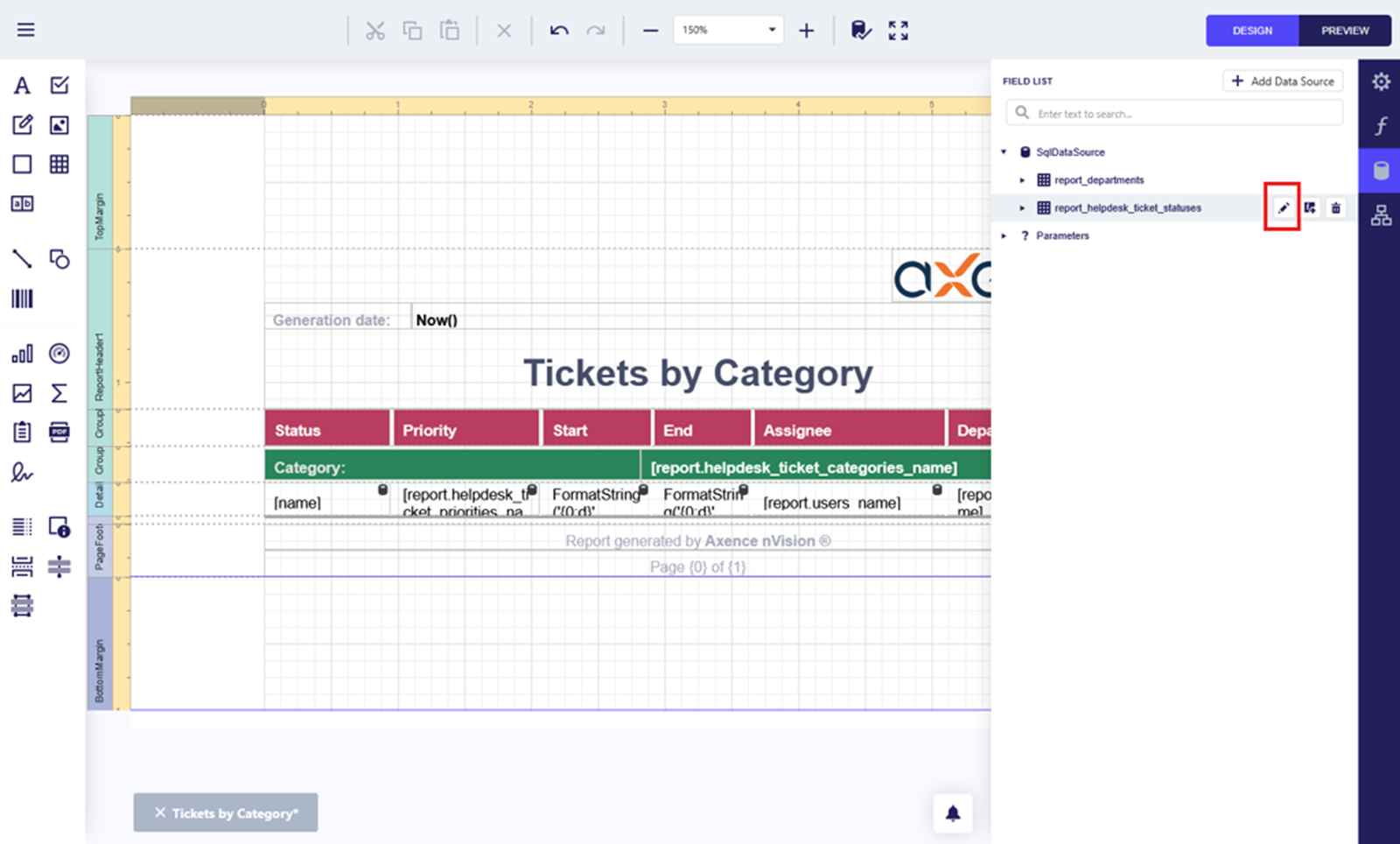
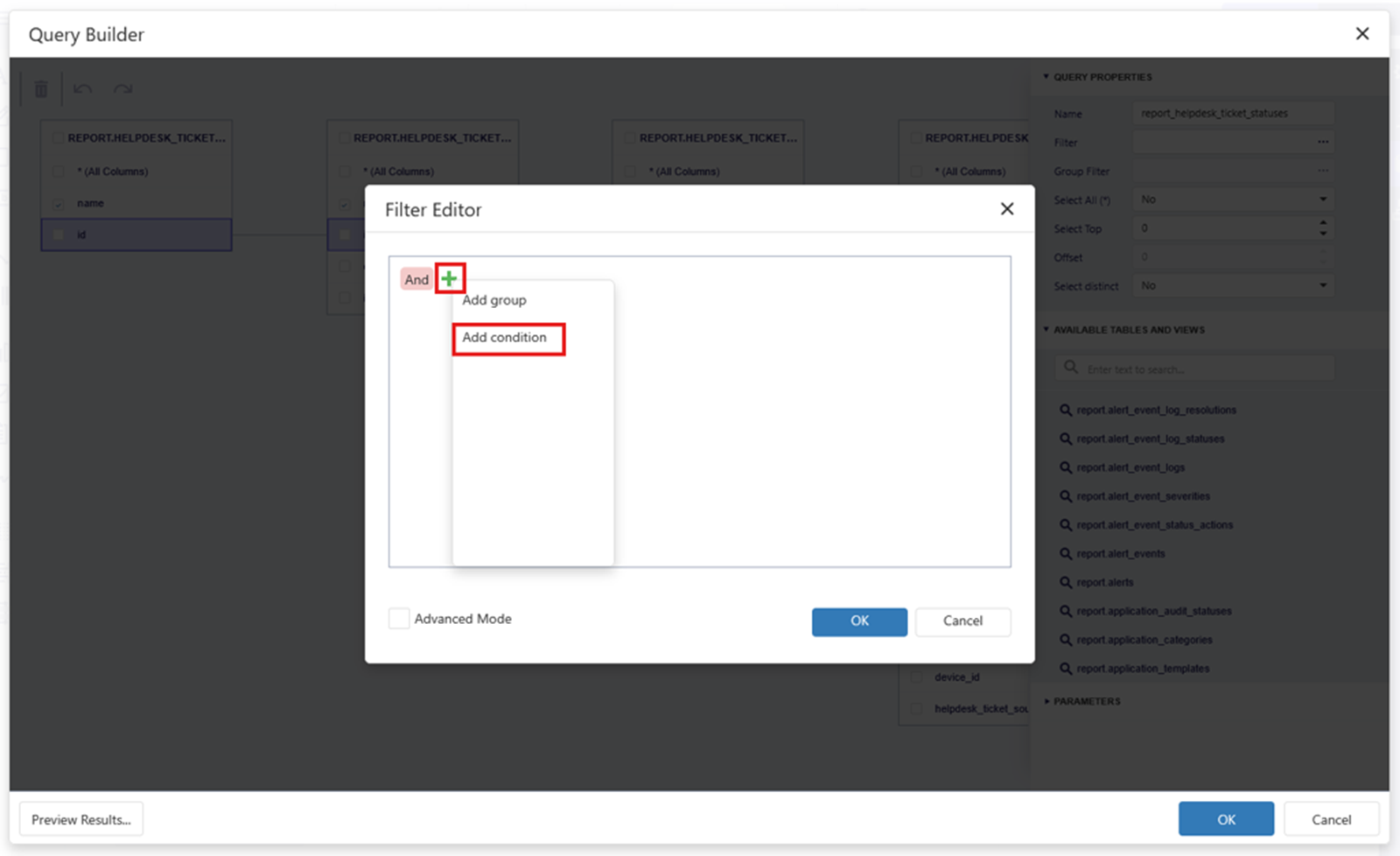
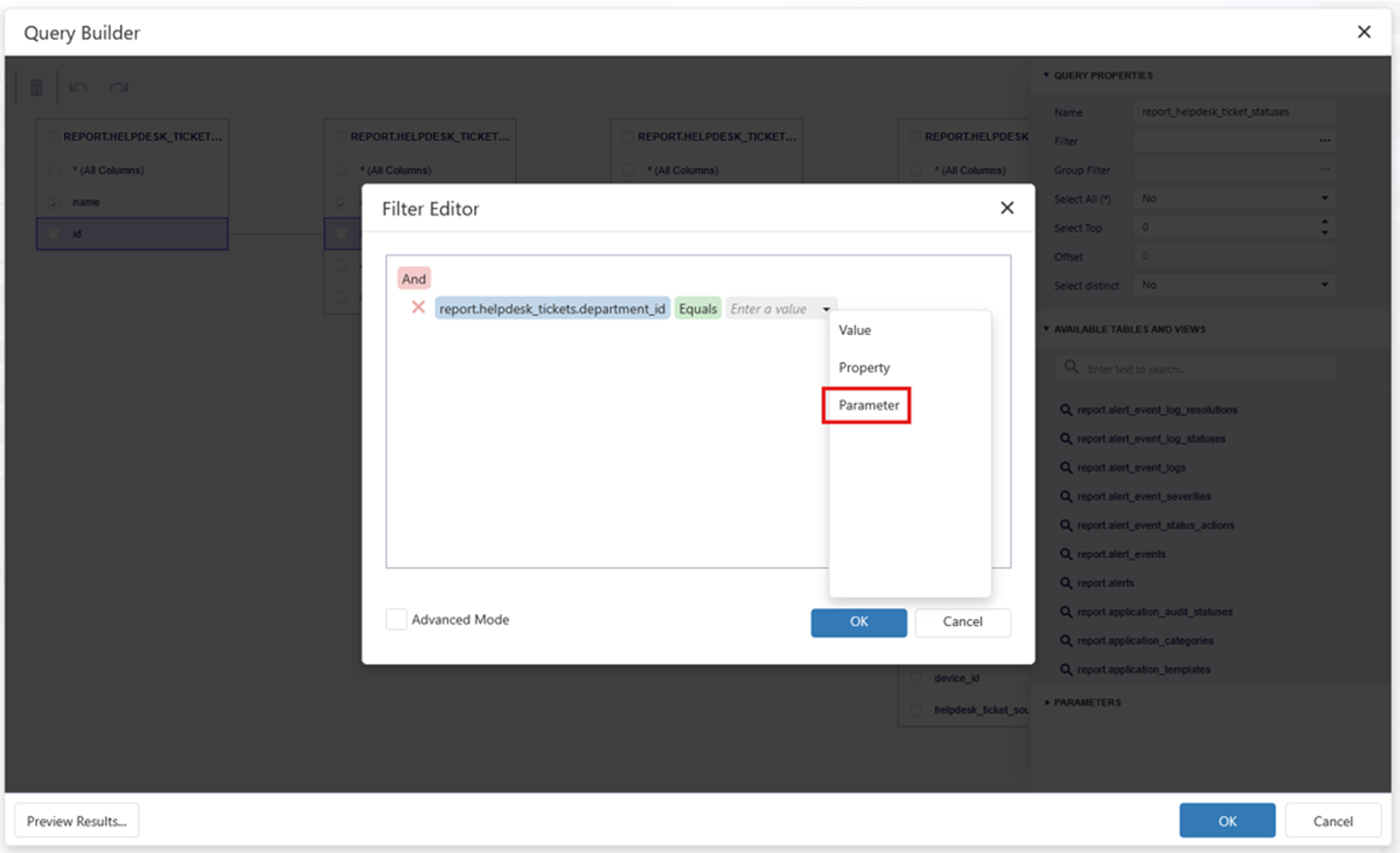
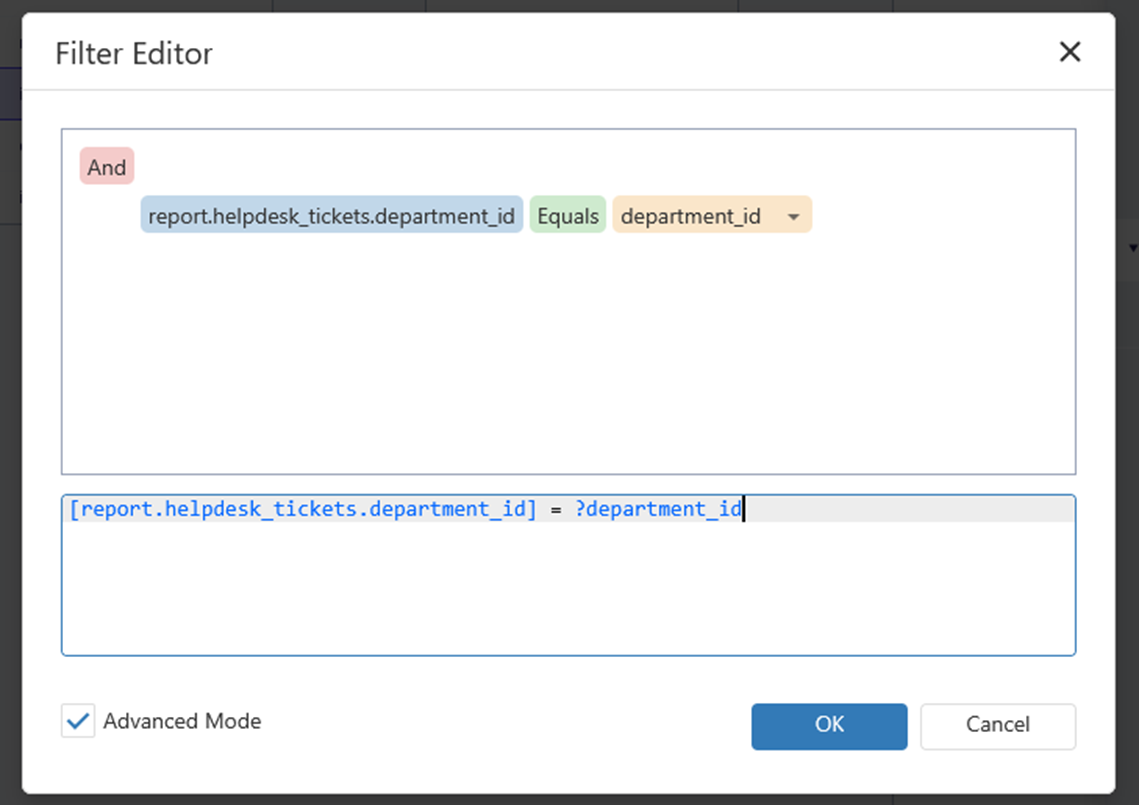
4.Link the parameter to the query: 4.Return to the report design. 4.In the side pane, select editing of the first query. 4.Start the query builder. 4.In the side pane, open Query properties. 4.Click on the ellipsis in the filter field. 4.Add the condition department_id = ?department_id. 4.Confirm the filter and the query to return to the Data Source Wizard window.
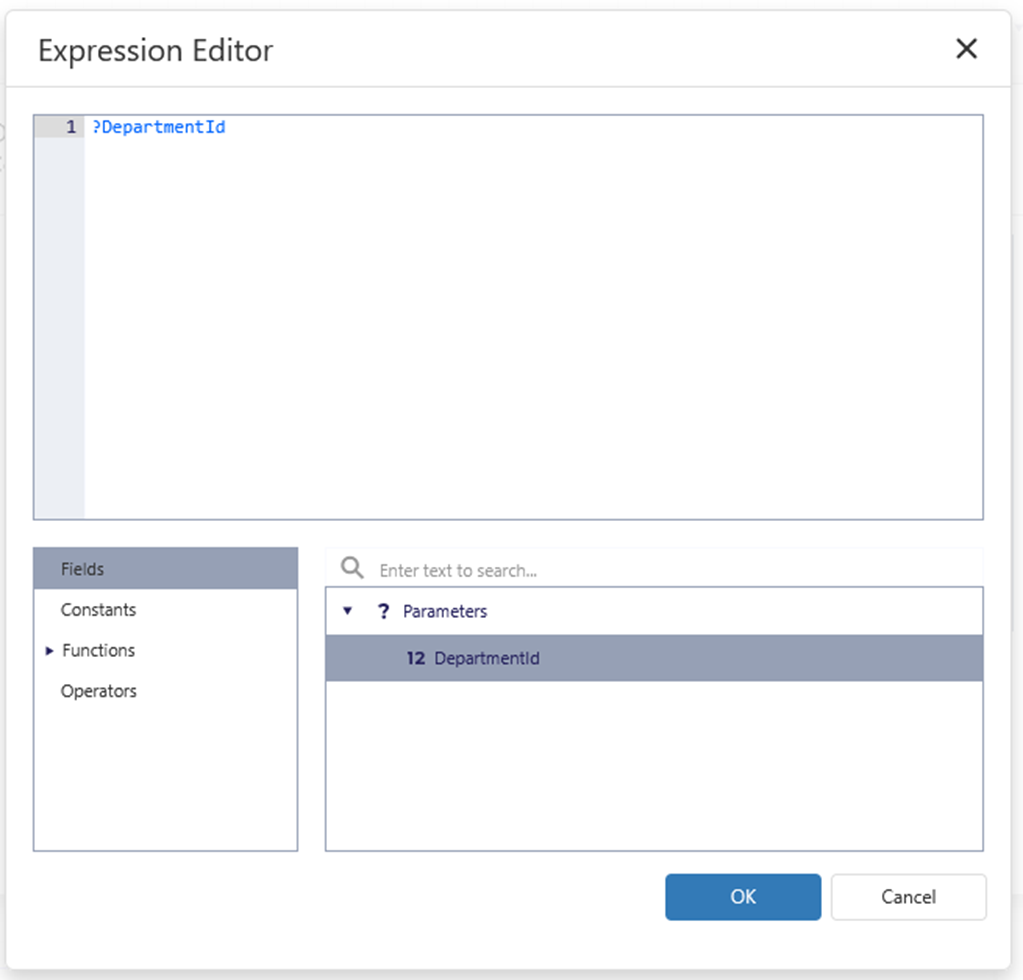
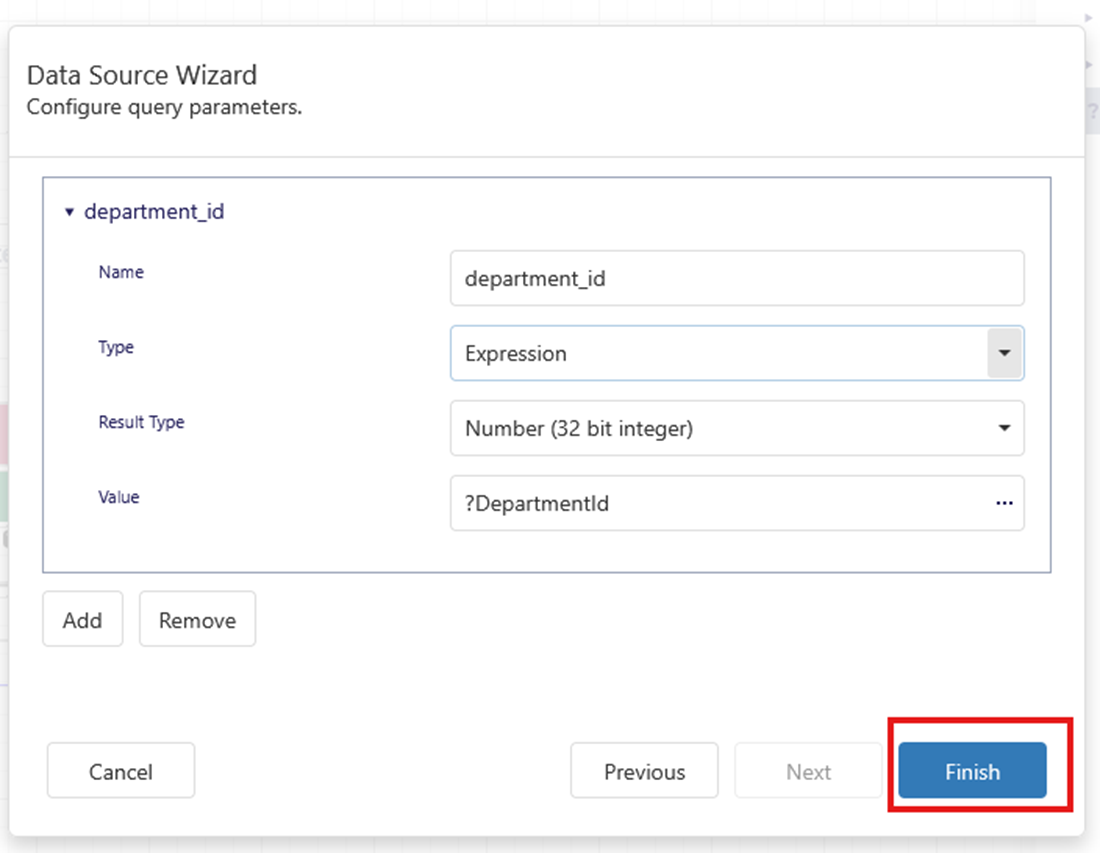
5.Set the query parameter: 5.In the Data Source Wizard window, click on [ Next ]. 5.Expand the department_id parameter. 5.Change the parameter type to Expression. 5.Set the result type to Number (32 bit integer). 5.Delete the value 0. 5.Click on the ellipsis and double-click on the name of the report parameter. 5.Confirm the selection and finish.
6.Save the report (Ctrl+S). |